- Click to view the detailed introduction to the App Beta Testing Service. This article only describes the operation steps for this service. To facilitate user adoption, this article describes the steps from both the developer's and the tester's perspectives.
- Additionally, the complete usage of this service involves operations on WeChat Developer Tools, the Multi-Platform App Console, the Apple Developer Platform, and mobile devices. The process is slightly complex, so developers are advised to follow the documentation guidelines carefully.
1. Step Overview
1.1 Overview of Developer Usage Steps
Developers are defined as individuals who develop multi-platform applications and possess an Apple Developer account. The steps for using the beta distribution service are as follows:
- Upload the IPA in WeChat DevTools
- Select a specific version of the IPA in WeChat DevTools or the multi-platform application console and set it as the beta version
- Generate the beta QR code in WeChat DevTools or the multi-platform application console
- Send the beta QR code or URL to testers. Authorized testers can scan the code with WeChat to access the IPA download page
- On devices with installation permissions, the IPA can be correctly installed and run after download
- Note: The UDID of the test user must be added to the installation package. Only devices corresponding to the UDID have the permission to install the IPA
1.2 Overview of Tester Usage Steps
A tester refers to a user who installs the IPA file for testing or experience purposes. Since currently only the administrators and developers associated with the Mini Program bound to the multi-platform app can download and install the IPA, the usage steps for testers are as follows:
- Go to the WeChat Official Account Platform and add the tester to the developer role of the Mini Program bound to the multi-platform app (if the test user is already a developer or administrator of the Mini Program bound to the multi-platform app, this step can be skipped)
- Use WeChat to scan the QR code to obtain the UDID of your device, and send the UDID to the developer of the multi-platform app
- Once the developer of the multi-platform app has added the device UDID to the installation package, the user can use WeChat to scan the QR code to access the IPA download page, reopen this IPA download page in the default browser, and click Install. Please wait a moment until the installation is complete to use the app
II. Detailed Developer Operation Steps
2.1 Configure IPA Upload in the Build IPA Panel
- Download the latest nightly developer tools with version ≥ 1.06.2312182
- Go to Toolbar > Build > Build IPA in Multi-platform App Mode. When building the IPA, you must select Certificate Signing, and the certificate must not be a Distribution Certificate. For details, see Generate iOS Certificates and Provisioning Profiles for Internal Testing Distribution

- Note: Multi-platform Apps must configure a custom Bundle ID. If your Multi-platform App is still using the default test Bundle ID assigned by WeChat, the internal testing distribution service cannot be used. For details, see Multi-platform App Bundle ID Configuration
2.2 Build IPA and Upload
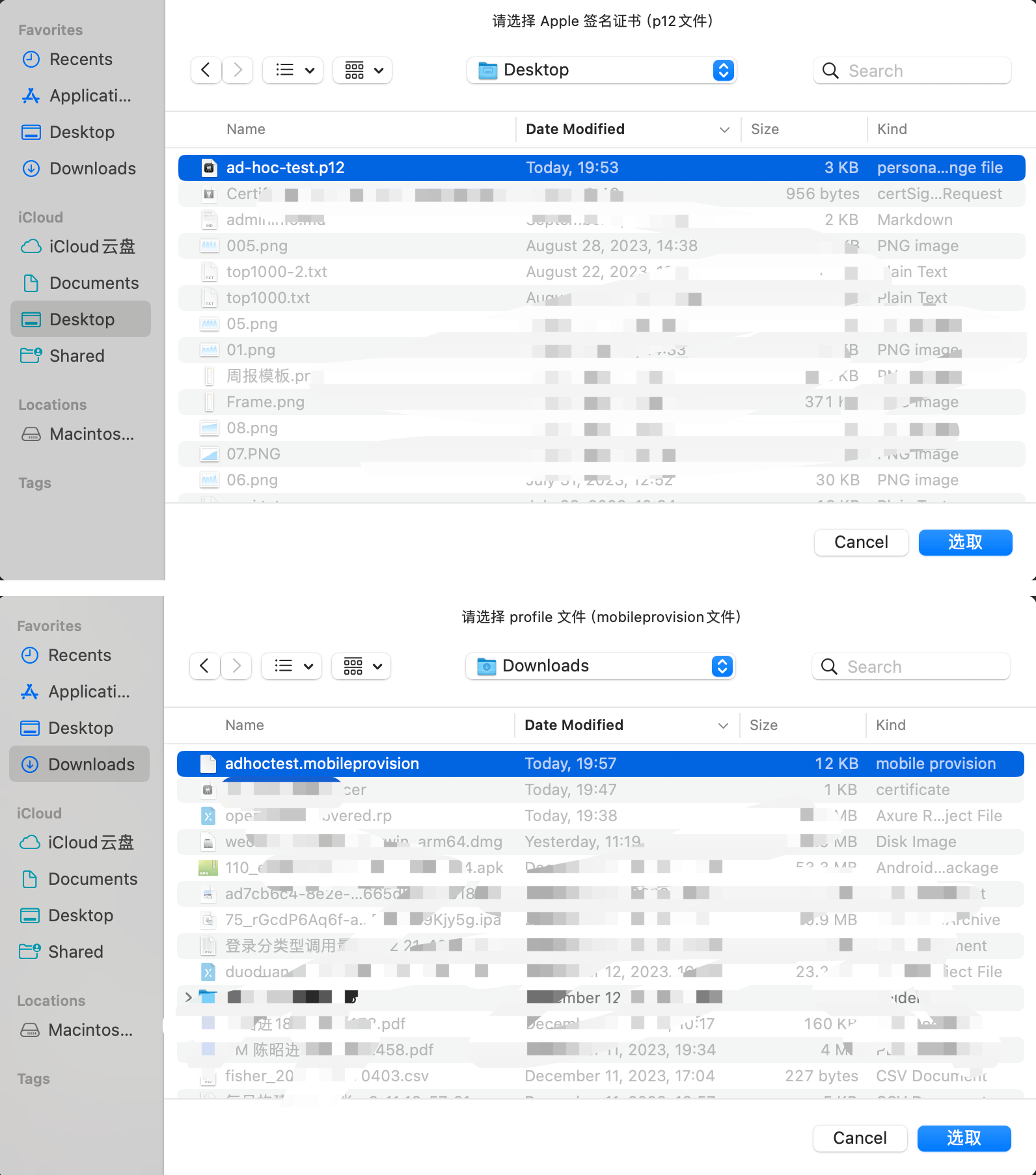
- After completing the configuration in Step 2.1 and clicking OK, the developer tools will start building the IPA. At this time, developers need to select the p12 file. For details, see Generate iOS Certificate and Provisioning Profile for Internal Testing Distribution
- Once the build is complete, the IPA will be automatically uploaded to the platform
2.3 View Uploaded Beta IPA
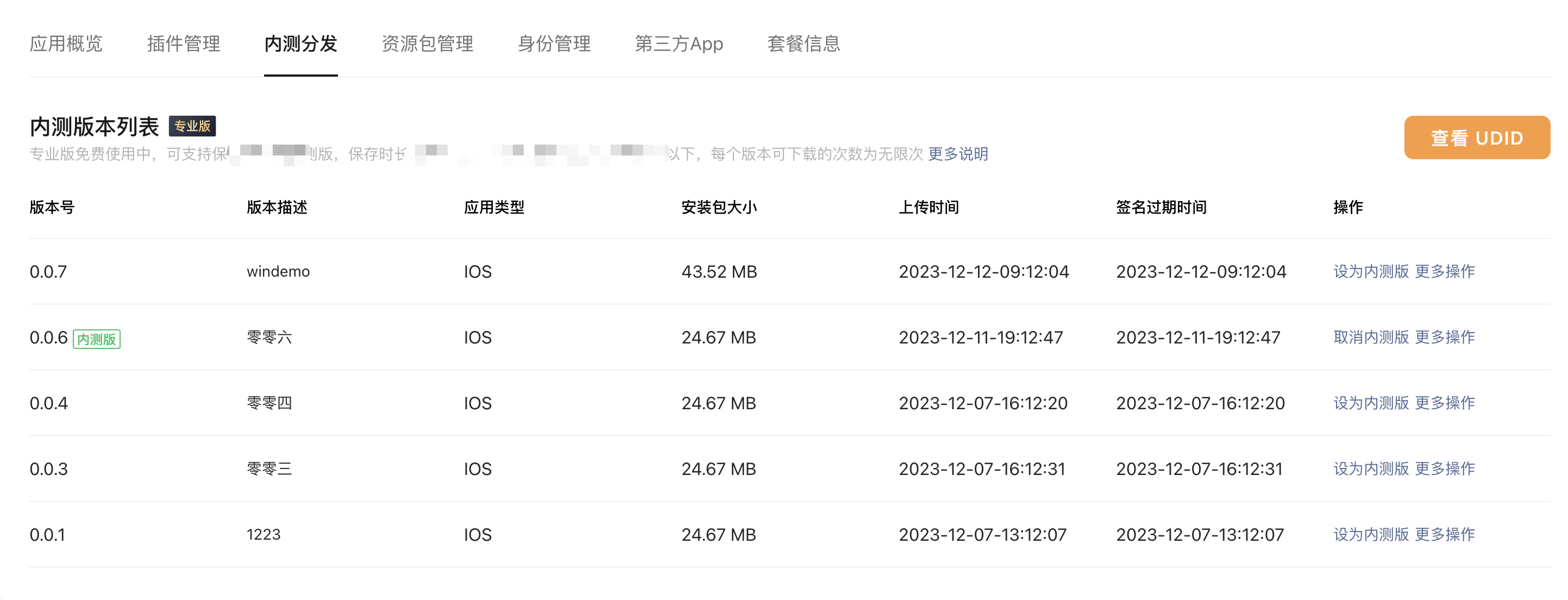
- Developers can go to Multi-platform App Console - Multi-platform App Details - Beta Distribution to view the uploaded beta IPA
2.4 Select a Specific Version's IPA to Generate an Internal Test QR Code
- Developers can navigate to Multi-platform Application Console - Multi-platform Application Details - Internal Test Distribution, select the specified version's IPA, and generate an internal test QR code or URL.

- If a QR code is generated, take a screenshot of the QR code and send it to the tester. The tester can scan it with WeChat to access the app (if permissions are granted). If a URL is generated, send the URL to the tester, who can also access it within WeChat.
- Alternatively, you can generate the QR code directly in WeChat DevTools. The path is: Toolbar - Internal Test - Generate iOS Internal Test QR Code.

- Note: Only one internal test version is active at any given time. Setting a new version as the internal test version will overwrite the previous one.
2.5 View the list of UDIDs installable by the current IPA package
- Send the beta test QR code generated in Step 2.4 to the developer for scanning. If the WeChat user is not an administrator or developer of the Mini Program bound to the current multi-platform app, the error shown below will appear.

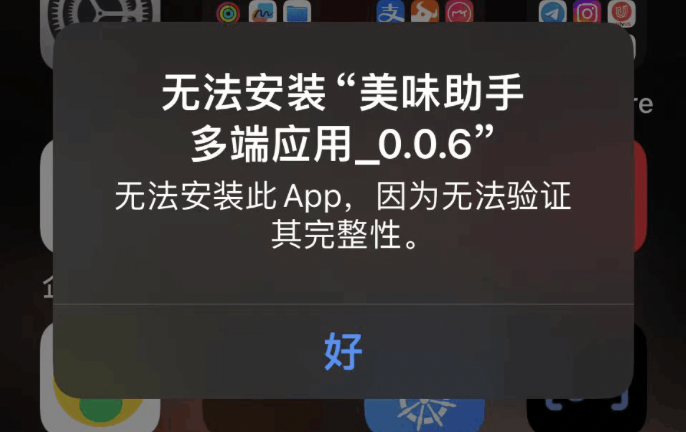
- Send the beta test QR code generated in Step 2.4 to the developer for scanning. If the tester's phone UDID has not been added to the installation package, the IPA cannot be installed after download, and an integrity verification failure error will appear.
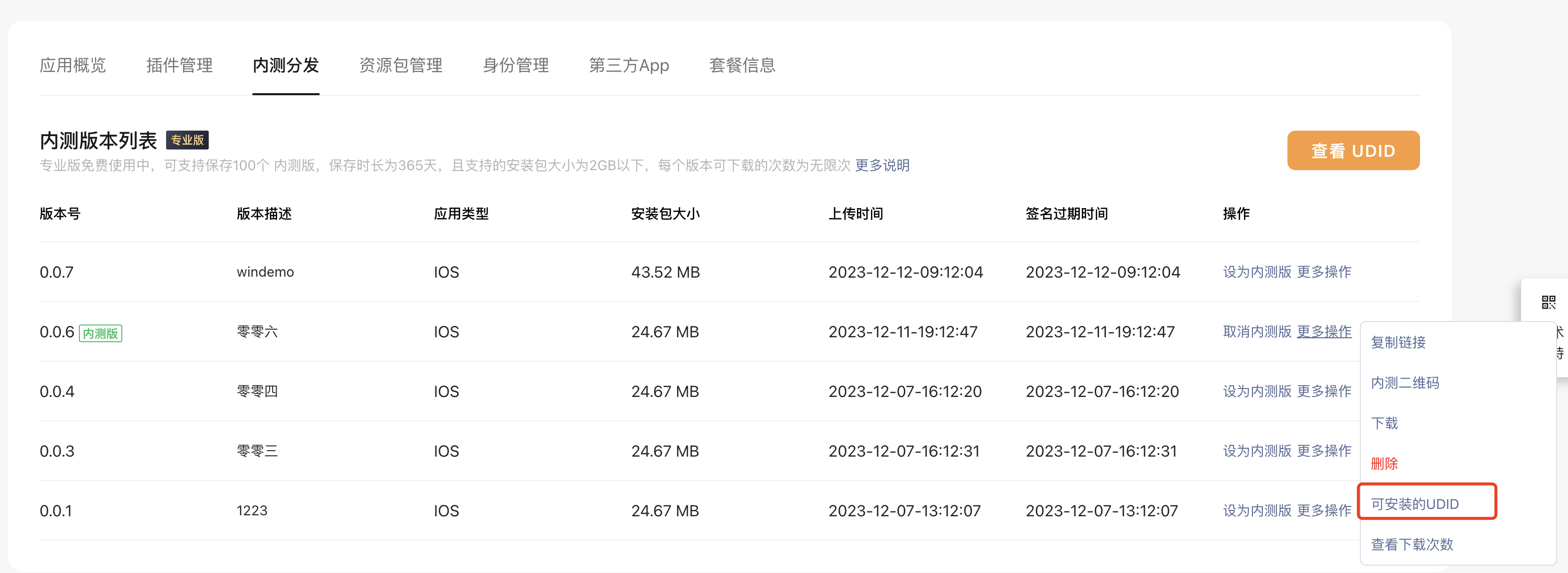
- Therefore, developers can go to Multi-Platform App Console - Multi-Platform App Details - Beta Distribution to view the list of UDIDs installable by the current version.
- For details on how to add device UDIDs to the IPA installation package, see Step 2.6.
2.6 Adding Device UDIDs to the IPA
- Log in to the Apple Developer Portal and navigate to Certificates, Identifiers & Profiles - Devices
- Click Add Device and enter the UDID
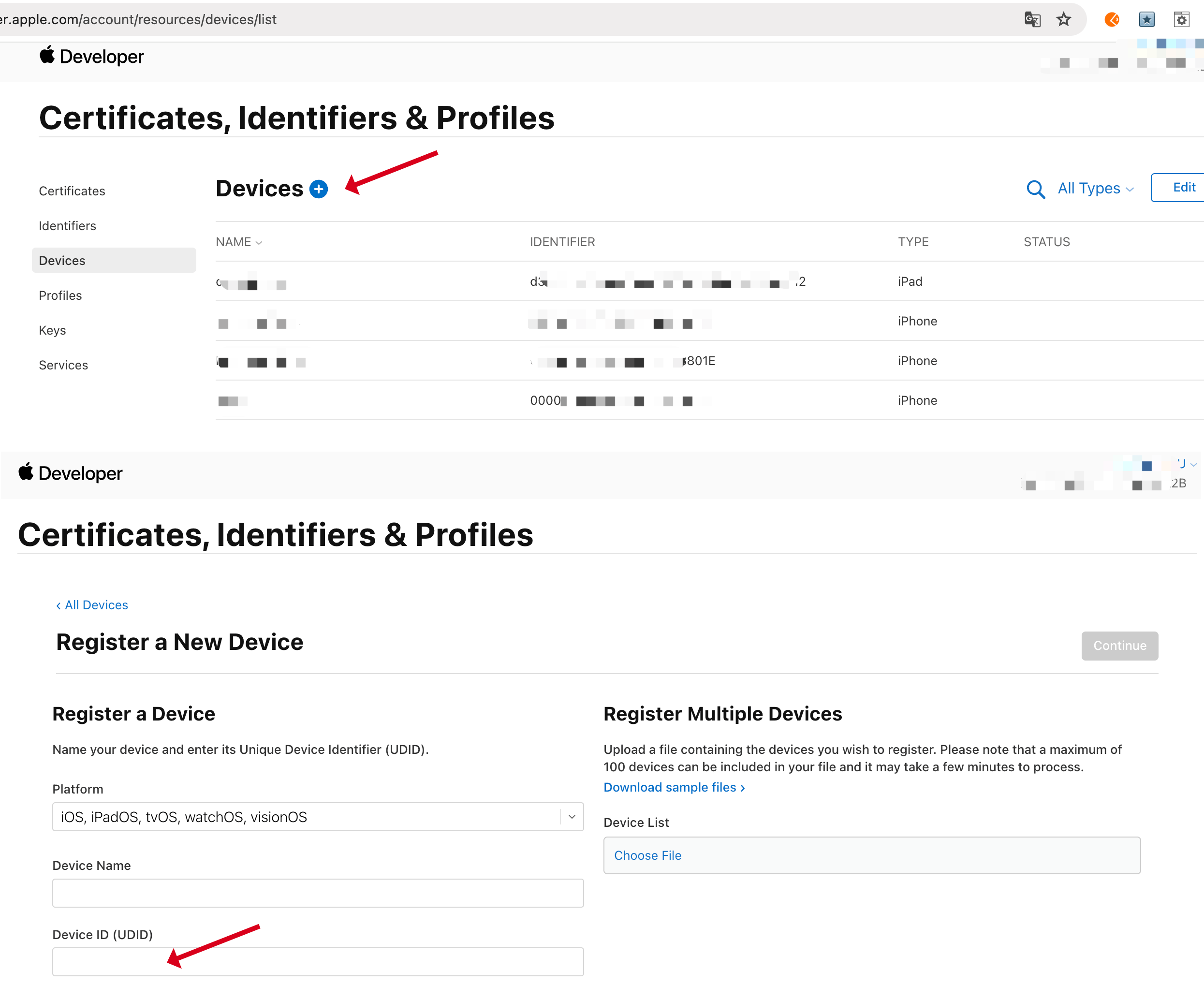
- Then, follow the instructions in Generating iOS Certificates and Provisioning Profiles for Internal Testing Distribution to regenerate the certificate and Provisioning Profile (the files at this stage will contain the device UDIDs), and rebuild the IPA
- The new certificate and Provisioning Profile now include the device UDIDs, allowing test users to install the IPA normally
2.7 View UDID of New Devices
- In Step 2.6, you need to enter the device's UDID. This value can be sent by the tester to the developer, but developers can also navigate to Multi-Platform Console - Multi-Platform App Details - Beta Distribution - View UDID to view and manage UDIDs.

- The UDID list here refers to the UDID information obtained after users scan the "Get UDID" QR code. Developers can also manage UDIDs by modifying remarks.
3. Detailed Test Procedure
3.1 Scan the QR Code to Obtain the Local UDID
- Users can navigate to the Multi-platform Console - Multi-platform App Details - Beta Distribution - View UDID, and then click "Scan QR Code to Get UDID" to obtain the QR code.

- Alternatively, obtain this QR code in the Developer Tools via the following path: Toolbar - Beta - Scan QR Code to Get UDID.

- After scanning the QR code with WeChat, follow the on-screen instructions step by step (select to open with the default browser within WeChat).

- Allow the download of the profile file.

- On the phone, go to "Settings - General - VPN & Device Management", click the downloaded multi-platform app profile, and enter the password to install it.

- After successful installation, the browser will automatically redirect to display the "My UDID" information. Test users can copy all information with one click and send it to the developer. Alternatively, the developer can refer to step 2.7 above to view the tester's UDID information.

- Note: The operation to obtain the UDID only needs to be performed once; it is not necessary to set it up before every IPA download.
3.2 Scan to Download and Install IPA
- You can refer to step 2.4 above to generate and obtain the internal testing QR code. Test users can scan it with WeChat and follow the on-screen instructions step by step (select "Open in Default Browser" within WeChat).

- After opening it in the browser, click to download. The installation will be completed after a brief wait.
