To enhance the service capabilities of Mini Program and improve service quality, WeChat provides Mini Program with customer service messaging capabilities, enabling Mini Program users to conveniently communicate with Mini Program service providers.
I. Overview
Users can use the Mini Program customer service message feature to communicate with Mini Program customer service representatives.
There are two entry points for customer service message sessions:
-
Inside Mini Program: Developers can add a customer service message button component within Mini Program. Users can invoke the customer service chat page within Mini Program to send messages to Mini Program.
-
Customer service messages from previously used Mini Program instances are aggregated and displayed in the " Mini Program Customer Service Messages" box within the WeChat conversation list. Users can view historical customer service messages outside of Mini Program and send messages to Mini Program.
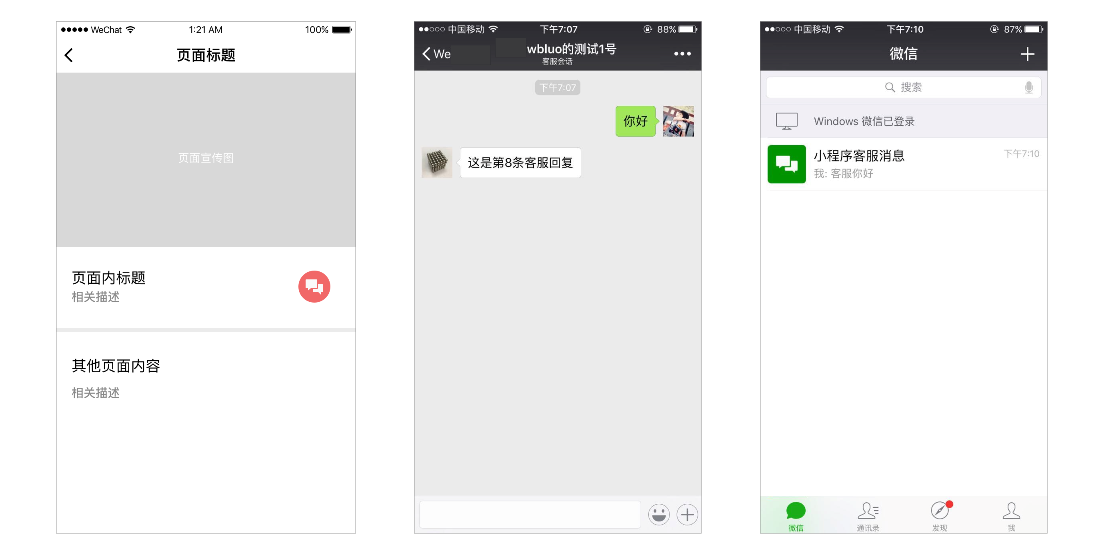
Conditions for sending customer service messages: A user invokes the customer service chat session within Mini Program, or the user sends a message to the Mini Program customer service representative. For specific details on validity periods and message volume limits, refer to the sending conditions description for customer service messages.
Customer service message types: Currently, text, image, and Mini Program card-type messages are supported.
To better meet the needs of Mini Program developers, Mini Program can send customer service messages via the following three methods: 1. Calling the Send Customer Service Message API; 2. Using the web-based customer service tool; 3. Using the mobile "Customer Service Assistant" Mini Program.
2. Delivery Conditions
When specific interactions occur between a user and Mini Program Customer Service (see the list of specific actions below for details), Mini Program can deliver customer service messages to the user.
The list of currently permitted actions is as follows. Different actions result in different limits on the number of messages that can be delivered and different delivery time limits. If the delivery limit is reached, an error code will be returned.
| User Action | Message Delivery Limit | Delivery Time Limit |
|---|---|---|
| User sends a message | 5 messages | 48 hours |
| User enters Customer Service chat | 2 messages | 1 minute |
The allowable number of customer service messages is not cumulative. The user actions described above trigger an update to the allowable delivery limit and the effective delivery time window. The allowable message count is updated to the maximum value of the current delivery limit, and the effective delivery time limit is updated to the maximum valid duration.
III. Sending Customer Service Messages via the Customer Service Message API
When a user sends a message to Mini Program customer service, the WeChat server POSTs the message (or event) data package (in JSON or XML format) to the URL provided by the developer. Upon receiving the request, the developer can call the API to send an asynchronous reply.
If the customer service message permission set for Mini Program has been authorized to a third-party platform, all customer service messages will be pushed to the third-party platform's server, and will no longer be pushed to the developer's server or the web-based customer service tool.
3.1 Fill in Message Push Configuration
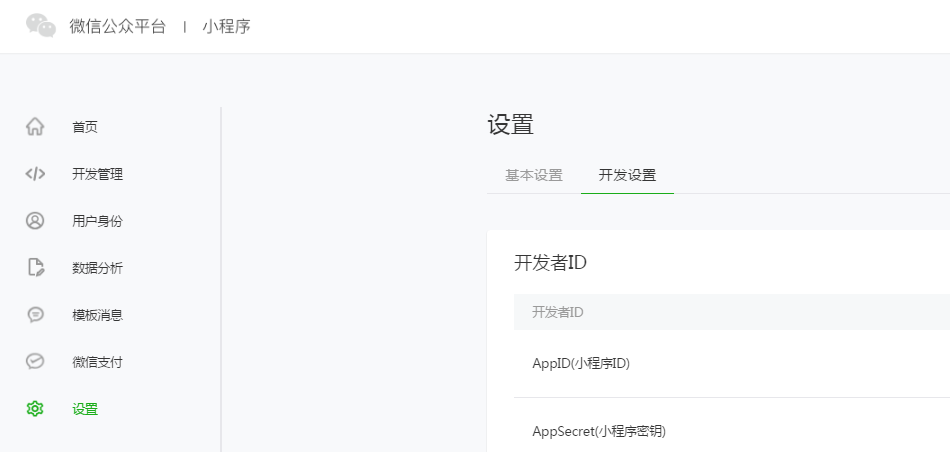
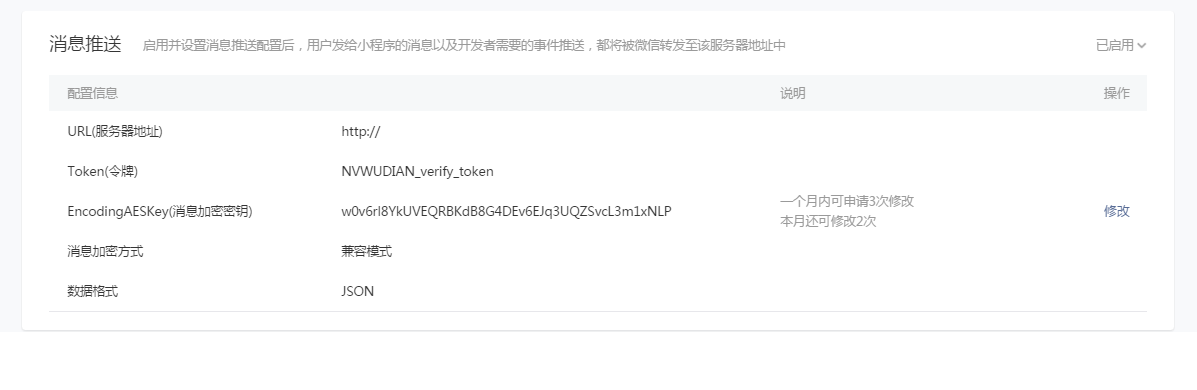
Log in to Mini Program, go to "Settings - Development Settings - Message Push" to enable the message push feature and complete the related configuration (including server URL, Token, and encryption method, etc.).
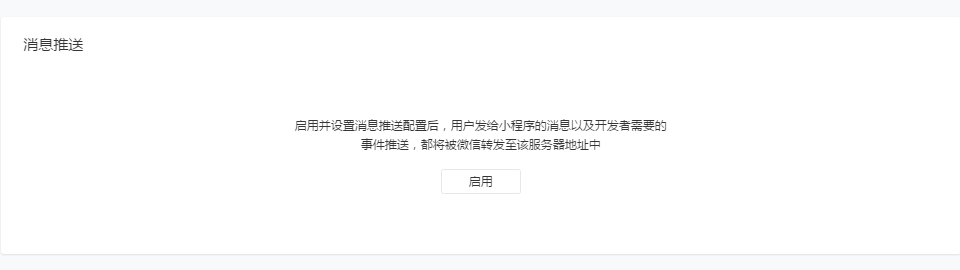
After enabling and configuring the server settings, messages sent by users as well as event pushes required by developers will be forwarded by WeChat to the developer's URL.
3.2 API Invocation
Mini Program Customer Service Message API Documentation
4. Customer Service Tools
Mini Program can also directly use the Web-based Weixin Mini Program Customer Service or the mobile "Customer Service Assistant" Mini Program to reply to customer service messages.
Here is the QR code for the Customer Service Assistant Mini Program:

If Mini Program has not enabled message push, messages sent by users will be forwarded to the Web-based Weixin Mini Program Customer Service and the mobile "Customer Service Assistant." Customer service agents can access and reply to users via the Web-based Weixin Mini Program Customer Service and the mobile "Customer Service Assistant."
If the customer service message permission set for Mini Program has been authorized to a third-party platform, all customer service messages will be pushed to the third-party platform's server, and will no longer be pushed to the developer's server or the web-based customer service tool.
Note: The event "User enters conversation via customer service message button" will not be forwarded to the web-based customer service tool.
4.1 Binding Customer Service Agents
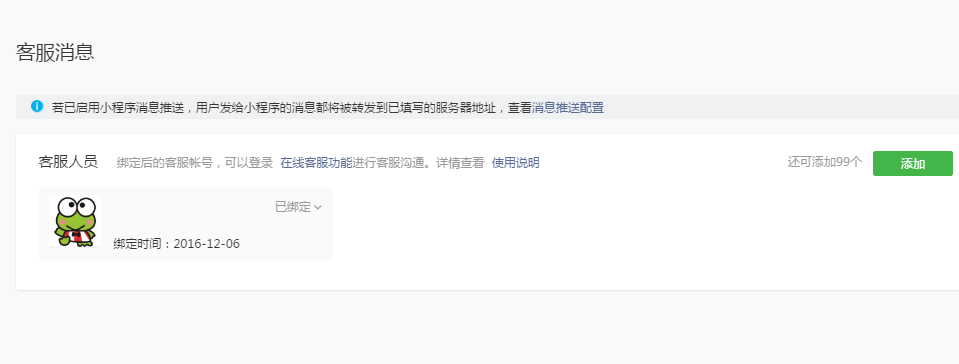
Before using the web and mobile Mini Program customer service tools, the Mini Program administrator must complete the binding of customer service agents in the Mini Program backend. Currently, Mini Program supports binding up to 100 customer service agents.
4.2 Mobile "Customer Service Assistant" Mini Program
Login and Join
Bound Mini Program customer service representatives can search for "Customer Service Assistant" on WeChat or scan the QR code to log in to the Mini Program "Customer Service Assistant," then select the corresponding Mini Program account. After logging in, they can view users in conversation with the Mini Program and choose to join the dialogue.
Switch Customer Service Status
Click the online status to select either Customer Service Online or Customer Service Offline:
- After selecting Customer Service Online, you can still receive message notifications for user inquiries via "Service Notifications" even if you exit the Customer Service Mini Program;
- After selecting Customer Service Offline, you will no longer be able to receive customer service messages or message notifications.
Receiving and Sending Messages
After opening the Mini Program, navigate to the "Pending Queue" to select a user conversation for engagement. For conversations already engaged, customer service representatives can communicate with users within 48 hours. Currently, the system supports sending text, image, and Mini Program card types of messages.
4.3 Usage Instructions for the Web-Based Weixin Mini Program Customer Service Tool
Log in and Join the Conversation
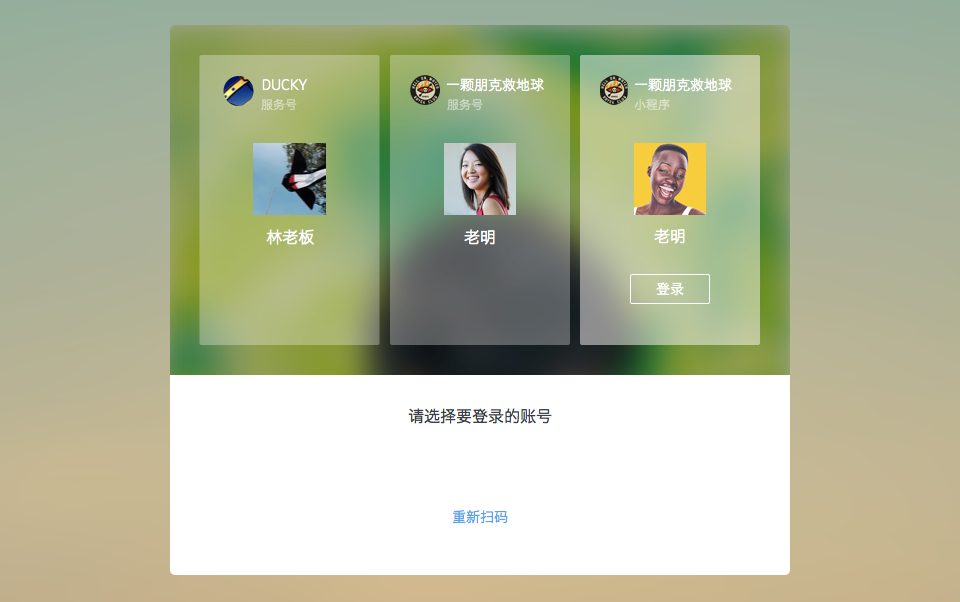
Customer service agents associated with Mini Program can scan the QR code to log in to Web-based Weixin Mini Program Customer Service, select the corresponding Mini Program account, and then view users who are in conversation with Mini Program. They can choose to join the conversation.
Switching Customer Service Status
Click on the online status to select either the online status or the offline status.
Receiving Messages
Manual Connection: Once agents are online, they can manually take over user conversations in the "Pending Connection" list that are marked as "Awaiting Reply".
Automatic Connection: If there are too many user conversations pending connection, you can enable automatic connection in Settings - Connection and Reply.
Send Messages
For sessions that have been connected, customer service representatives can converse with users within 48 hours. Currently, supported message types include text, images, and Mini Program cards.
V. Usage Guidelines
In addition to complying with the Weixin Mini Program Platform Operation Guidelines, Mini Program Customer Service Messages must strictly adhere to the following rules, including but not limited to:
- Maliciously inducing users to perform operations that trigger the delivery of Customer Service Messages, with the aim of obtaining the permission to send such messages to users, is prohibited.
- Malicious harassment is prohibited, including sending messages unrelated to the user's previous messages or causing nuisance to the user.
- Malicious marketing is prohibited, including sending content suspected of false exaggeration or illegal marketing information.
- Using Customer Service Messages to send false, pornographic, violent, or any other information that violates national laws is prohibited.
6. Development Documentation
6.1 Using Customer Service Messages on a Page
Set the open-type attribute of the button component to contact. When a user taps it, they will be directed to the customer service chat. If the user taps a Mini Program message within the conversation, they will be returned to Mini Program. Developers can retrieve the page path path and the corresponding parameters query of the tapped message via the bindcontact event callback. Developers must navigate manually based on the path. Additionally, developers can pass the session source to the customer service team by setting the session-from attribute.
Code Example
<button open-type="contact" bindcontact="handleContact" session-from="sessionFrom"></button>
Page({
 handleContact (e) {
 console.log(e.detail.path)
 console.log(e.detail.query)
}
})
Return Parameter Description
| Parameter | Type | Description |
|---|---|---|
| path | String | The path specified in the Mini Program message |
| query | Object | The query parameters specified in the Mini Program message |
6.2 Backend Integration with Message Services
When a user sends a message to the Mini Program customer service or enters a conversation, the server URL provided by the developer (or the configured cloud function if using Cloud Development) will receive messages and events pushed by the WeChat server. Developers can respond based on their own business logic. For integration and usage instructions, please refer to Message Push.
6.3 Self-check for Backend Message Error Reports
Error Symptom: When a user sends a message, the system displays the text "The service provided by this Mini Program is currently experiencing a failure. Please try again later."
Error Cause: After a Mini Program configures a callback, messages sent by users are pushed to the third-party server. If the push fails, this error is triggered.
Self-check Steps:
- Enable message push for the Mini Program (Mini Program Admin Console - Development Management - Development Settings - Message Push)
- Authorize the third-party platform with "Customer Service Permissions" (Mini Program Admin Console - Settings - Third-party Settings - Third-party Platform Authorization Management)
Special Case: For a Mini Program that has cloud functions enabled but cloud hosting disabled, messages sent by users are pushed to cloud functions. They will not go through the Mini Program customer service system, nor will they be callback'd to the third-party server or the server address configured for Mini Program message push.
6.4 Forwarding Messages to Customer Service
If Mini Program is in development mode, when a regular WeChat user sends a message to the Mini Program customer service, the WeChat server first POSTs the message to the URL provided by the developer. To forward the message to the customer service system, the developer must return a response with MsgType set to transfer_customer_service. Upon receiving this response, the WeChat server forwards the current message to the customer service system.
Once a user is connected to an agent and until the agent closes the session, any messages sent by the user during the active session are directly forwarded to the customer service system. If the session remains open for more than 30 minutes without being closed by the agent, the WeChat server automatically stops forwarding messages to the customer service system and resumes sending them to the URL provided by the developer.
While a user is in the waiting queue, messages sent by the user continue to be pushed to the URL provided by the developer.
Note: Forwarding should only apply to messages sent by WeChat users. Do not forward any other types of events, otherwise, agents will see meaningless messages in the customer service system.
Call Description
<xml>
 <ToUserName><![CDATA[touser]]></ToUserName>
 <FromUserName><![CDATA[fromuser]]></FromUserName>
 <CreateTime>1399197672</CreateTime>
 <MsgType><![CDATA[transfer_customer_service]]></MsgType>
</xml>
Request Parameter Description
| Parameter | Required | Description |
|---|---|---|
| ToUserName | Yes | Receiver's OpenID |
| FromUserName | Yes | Developer's WeChat ID |
| CreateTime | Yes | Message creation timestamp (integer) |
| MsgType | Yes | transfer_customer_service |
6.5 Customer Service Management Server
- Get All Customer Service Accounts
- Get Online Customer Service List
- Add Customer Service Account
- Delete Customer Service Account
- Set Customer Service Admin
- Cancel Customer Service Admin
7. Customer Service Sub- Merchant
7.1 Feature Overview
The sub-service capability allows comprehensive service platform-type Merchants to receive customer support from the WeChat Official Platform.
A single Merchant account can create multiple sub-service accounts for Mini Programs within the platform. Once created, the Merchant's customer service widget can invoke a dedicated conversation session for the specific Mini Program. Multiple sub-service conversation sessions are independent, enabling a higher quality customer service experience for users.
7.2 Access Scope
This feature is available to accounts in the E-Commerce Platform category with a Mini Program. To activate the permission, log in to the Mini Program Admin Console, navigate to Settings > Interface Settings, and enable the capability. The limit on the number of sub- Merchant accounts is 500 per Mini Program account after activation. If you need to increase this limit, send an email to placeofminiprogram@qq.com with the subject line Mini Program Customer Service Sub- Merchant Quantity Increase Request_ Mini Program Name. In the email, please include the AppID of the Mini Program account, the Mini Program name, the usage context, the number of accounts requested, and information about existing products under the business (including apps, websites, and Official Accounts). The limit for sub- Merchant accounts can be increased upon approval.
7.3 Server-side APIs
- Customer Service Sub Merchant API Documentation
- Send Customer Service Message
- Customer Service Typing Status
Some APIs are shared with regular accounts. In addition to the standard parameters, include the
businessidparameter.
7.4 Receive Message Push
For detailed information, please refer to Customer Service Message: Receive Messages and Events
When pushing messages, an additional parameter BusinessId is included, indicating that the message originates from a session of a sub- Merchant.
Taking sending a text message as an example:
JSON Format Example
{
 "ToUserName": "toUser",
 "FromUserName": "fromUser",
 "CreateTime": 1482048670,
 "MsgType": "text",
 "Content": "this is a test",
 "MsgId": 1234567890123456,
 "BusinessId": 1
}
XML Format Example
<xml>
 <ToUserName><![CDATA[toUser]]></ToUserName>
 <FromUserName><![CDATA[fromUser]]></FromUserName>
 <CreateTime>1482048670</CreateTime>
 <MsgType><![CDATA[text]]></MsgType>
 <Content><![CDATA[this is a test]]></Content>
 <MsgId>1234567890123456</MsgId>
 <BusinessId>1</BusinessId>
</xml>
7.5 Mini Program Component Initiates a Sub Merchant Customer Service Session
Add the business-id attribute to the button component, representing the sub Merchant ID.