I. Product Introduction
To protect user rights and enhance transaction security, virtual items provided by developers within Mini Program (including virtual currency, unlocked features, subscription content, paid services, tips, and virtual gifts) require integration with Mini Program's virtual payment system for both purchase and payment. Developers can activate a new WeChat Pay Merchant account through the Mini Program management backend’s Virtual Payment module, enabling services like bill inquiry and fund withdrawal. The platform charges a technical service fee based on the payment amount generated by this payment method.
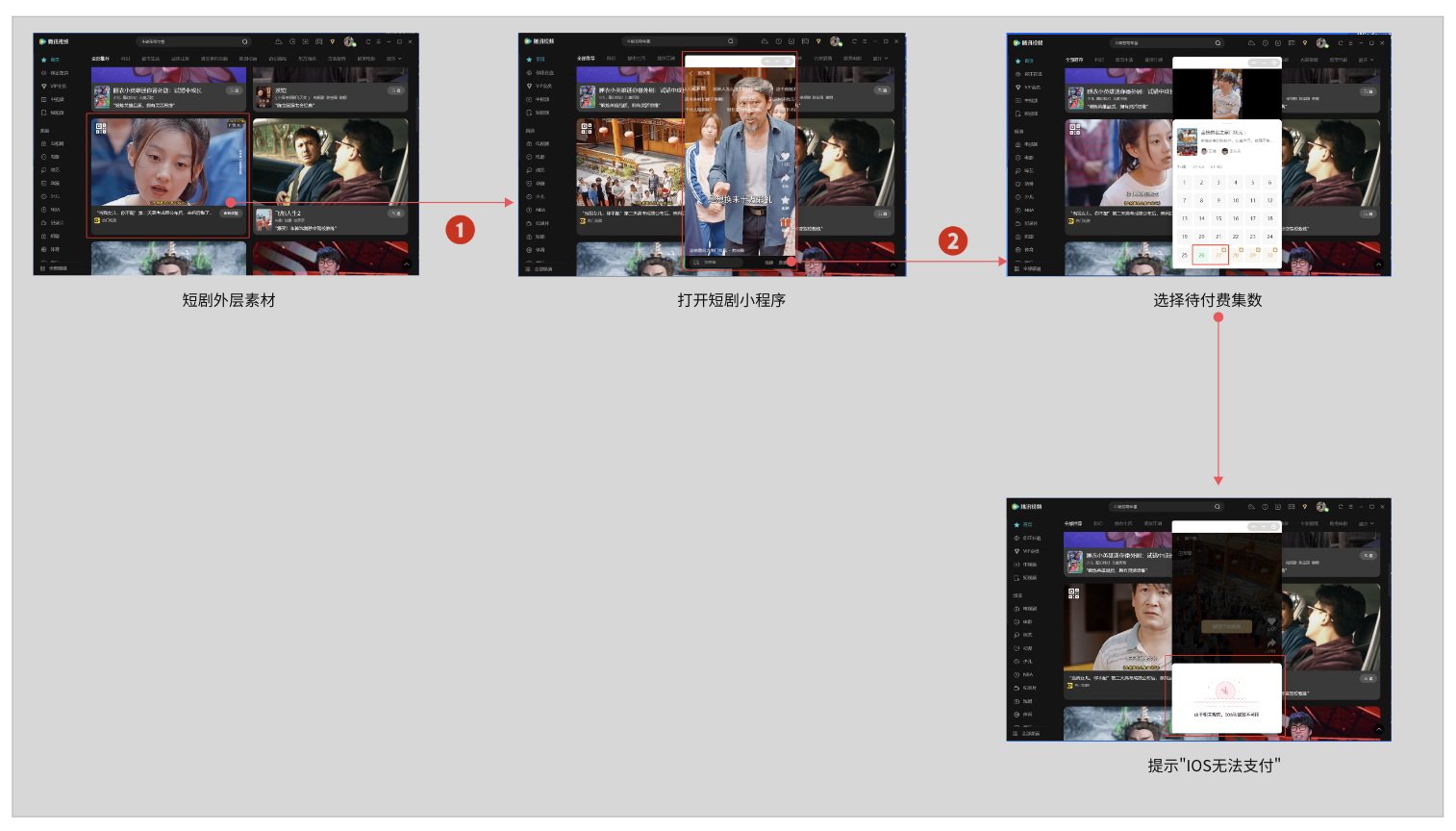
This document outlines the core processes of virtual payment, applicable to Android, HarmonyOS, and Windows platforms. iOS requires additional activation and adaptation procedures; please refer to the relevant documentation for details.
⚠️ Please use the sandbox environment for testing. Using the live environment will incur technical service fees.
⚠️ For Android/HarmonyOS/Windows: Use version 2.19.2 or later of the base library.
⚠️ For iOS: Use WeChat client version 8.0.68 or later.
1.1 Activation Requirements
| Requirement | Description |
|---|---|
| Certified Mini Program | The entity must be a certified Mini Program |
| Enterprise/Institution/Individual Merchant | The Mini Program entity must be an enterprise, institution, or individual Merchant |
| Complete Entity Information | Missing information must be corrected via the platform’s modification link |
1.2 Activation Process
After completing the qualification application, click [Virtual Payment] in the left sidebar to access the activation page.
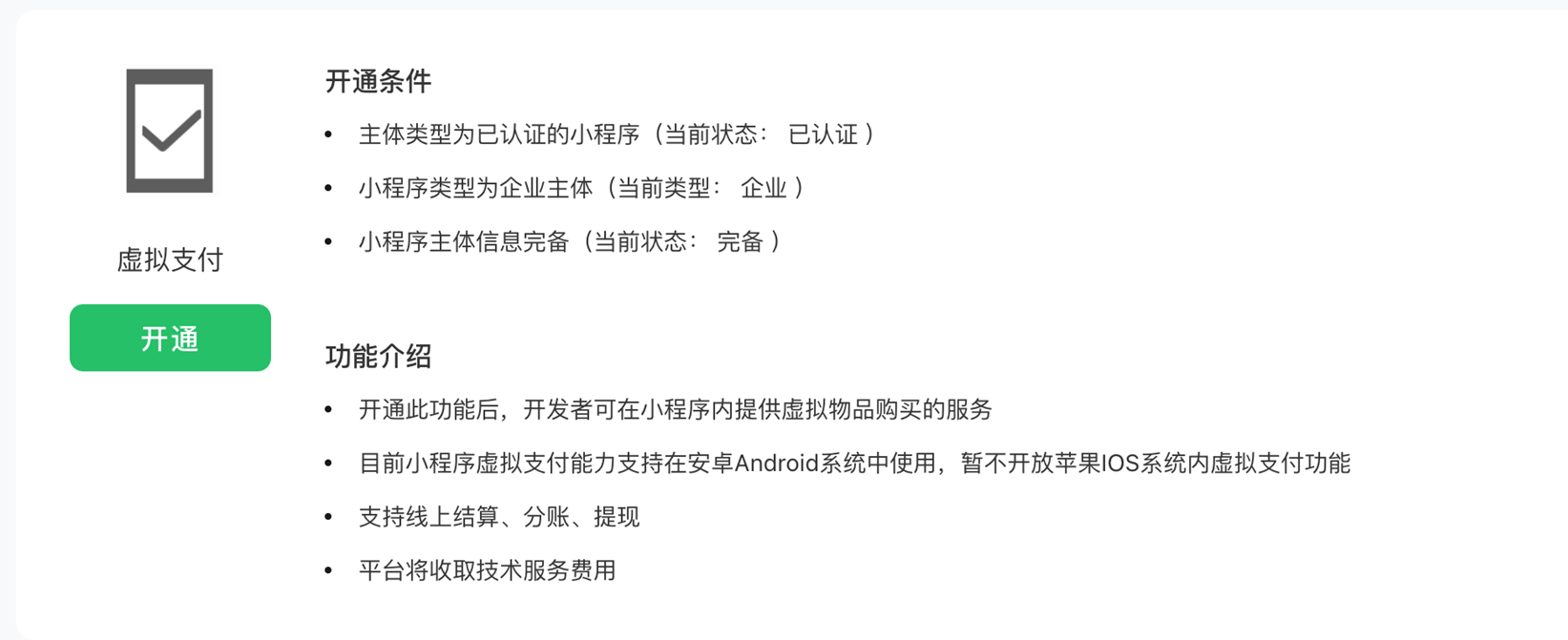
If your account meets the requirements, click [Activate] to sign the agreement and upload documents, thereby activating a new Merchant account.
1.3 Activation Steps
Step 1: Read the Agreement
Read the virtual payment agreement and check the box “I have read and agree to the terms” before proceeding.
Step 2: Submit Merchant Documents to Activate the Account
Provide business license details, withdrawal account information, and payment administrator details.
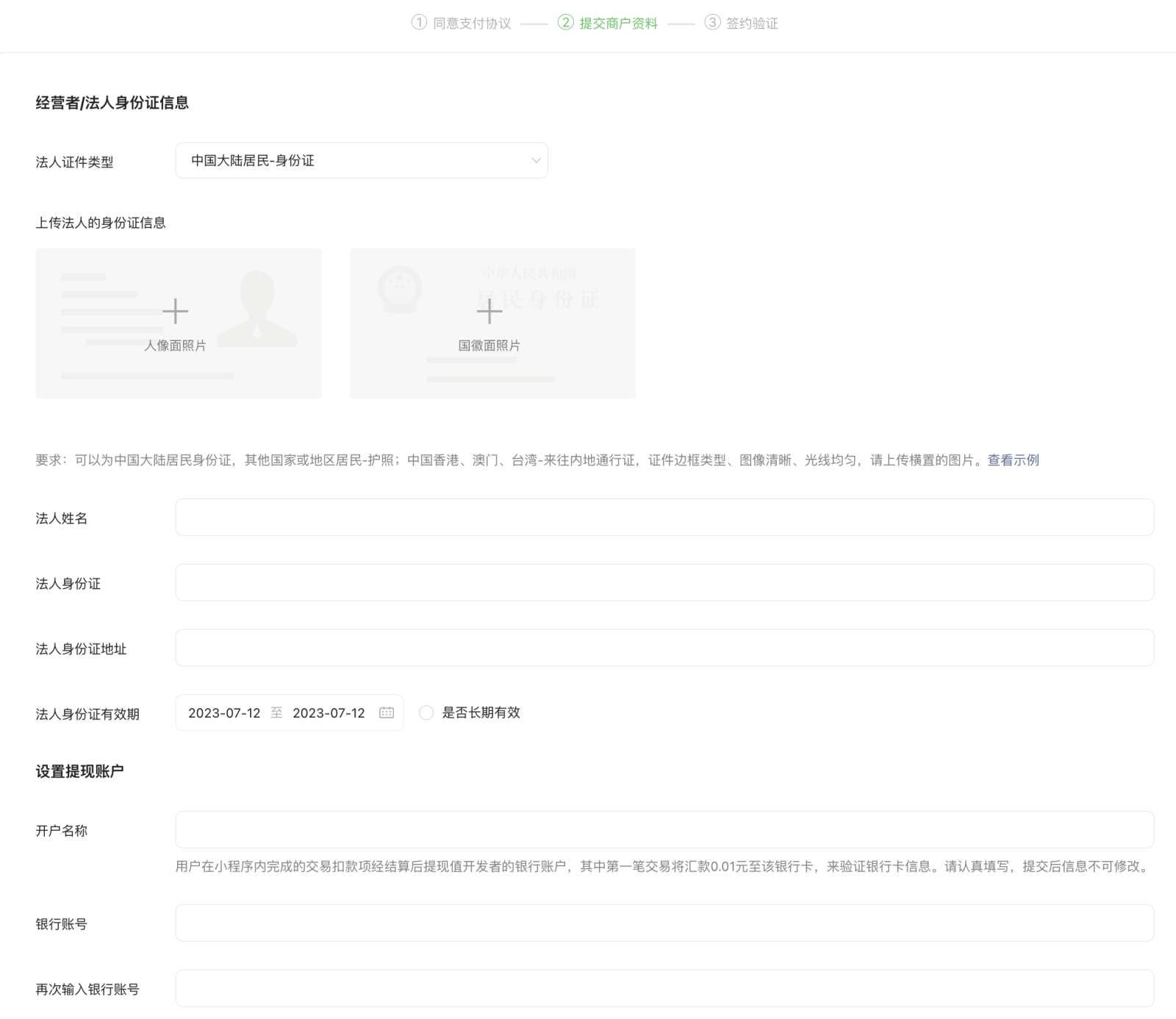
Step 3: Check Account Status and Review Documents
After submitting the documents, wait for approval on the same page. Approval usually takes 1–7 working days, and the status can be checked upon subsequent visits.
Step 4: Account Verification
Perform account verification (skip if the payment administrator is a corporate legal representative).
Step 5: Scan Code to Sign Agreement
Scan the code to complete the agreement signing. After signing, the documents will be reviewed. Developers can leave the page.
⚠️ Account verification and signing may not be immediate. Developers can exit the page and resume configuration later.
Wait approximately 1–2 working days before checking the Virtual Payment module. If the status shows “Signed” or you’ve entered the Merchant management module, the signing is complete and the secondary Merchant account has been activated.
Step 6: Access the Merchant Management Backend for Bill/Order Inquiry, Token/Item Configuration, and Fund Management
Once the previous steps are completed, the Virtual Payment section will transform into the Merchant management module. The platform provides a Merchant management backend for configuring basic information and managing tokens and items (choose item or token management as needed).
Detailed functions are as follows:
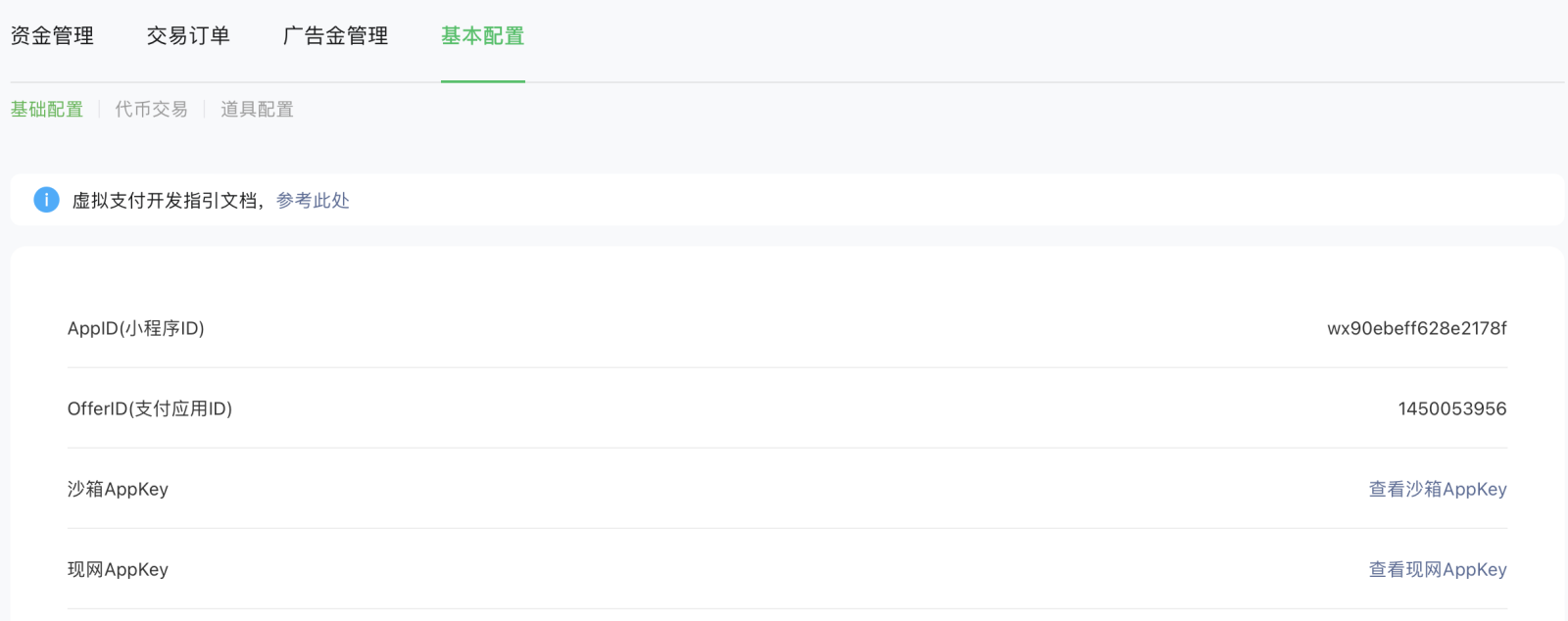
Basic Configuration
-
Basic Info: Developers can view their basic configuration details here, including appid/offerid/appkey, shipping settings, etc.
-
Token Configuration: Developers can configure tokens by entering names and setting conversion rates. Tokens cannot be modified after creation, and names must comply with legal regulations.
-
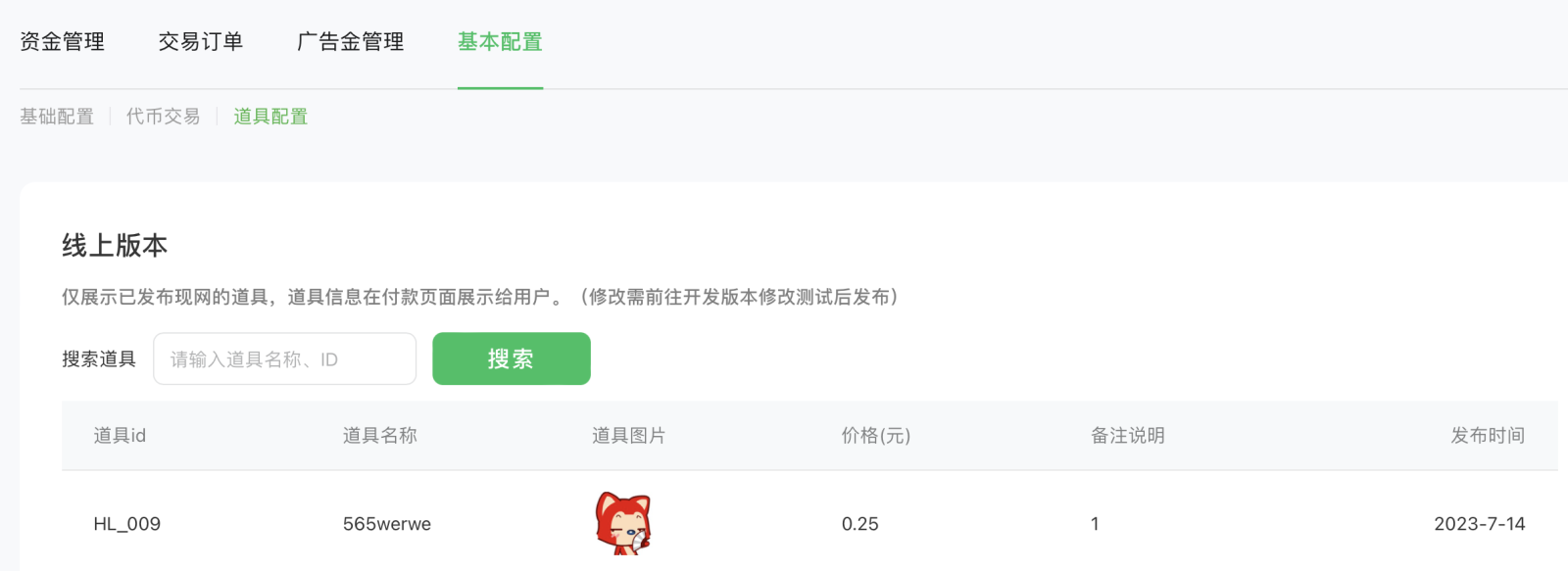
Item Management: Developers can upload items for development and release versions. Items can be edited, saved, and released, with shipping configurations available (item names must comply with legal regulations).
Fund Management
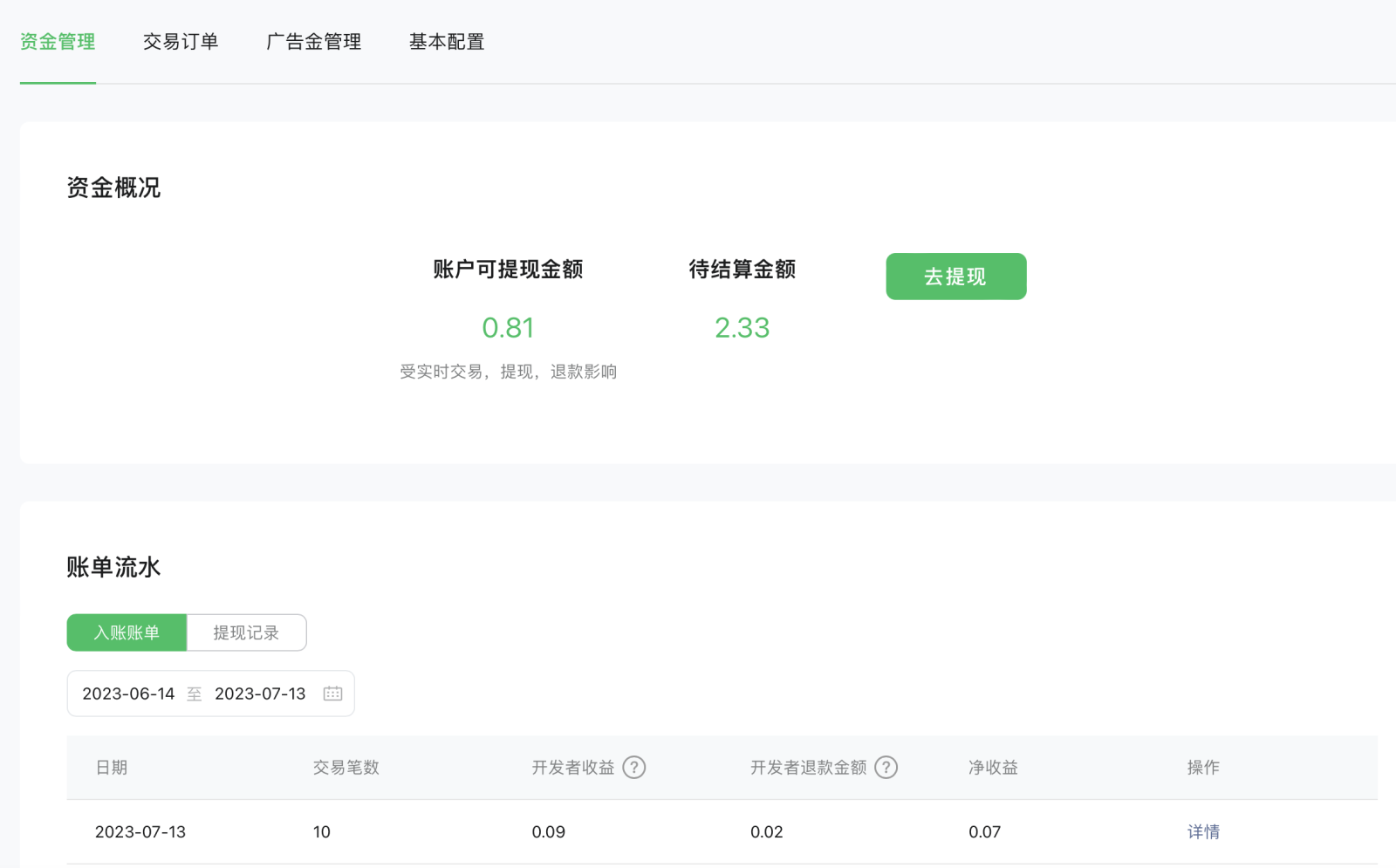
Supports checking account balances, withdrawals, daily bill viewing (including order numbers and developer earnings), and bill detail viewing (download functionality will be added later).
Note: The pending settlement amount refers to the amount not yet allocated (before deducting technical service fees).
Settlement cycle: T+3. Funds are frozen after a transaction and allocated 3 days later.
Transaction Orders
It is possible to query order status (including the transaction and shipping status of token/gadget orders), and refunds can be processed (download functionality will be available later).

Advertising Funds
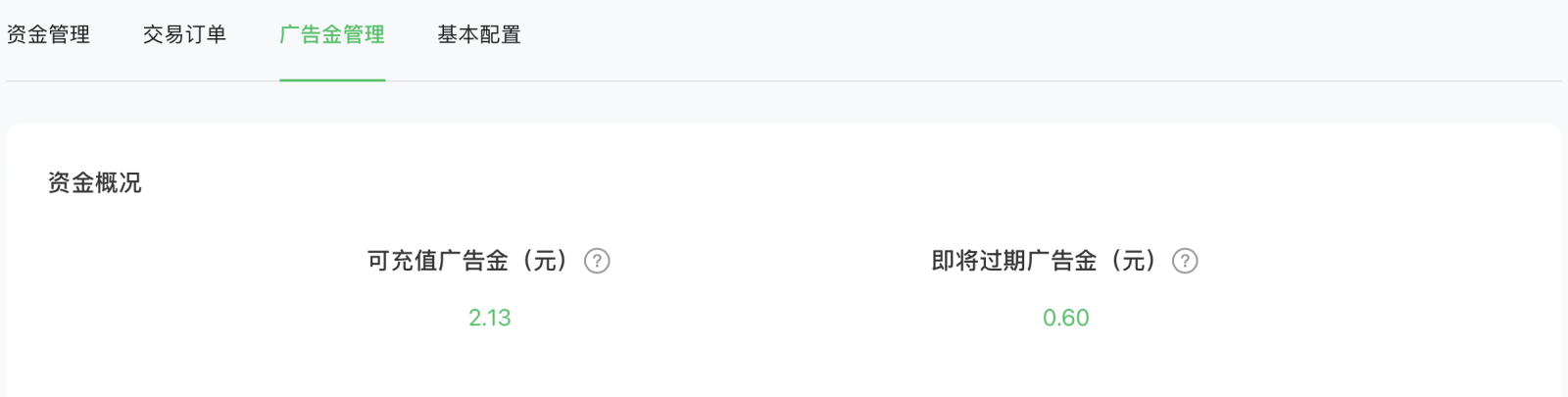
The platform will establish advertising fund policies to support developers' ad campaigns. Merchant can check the advertising funds granted by the platform in the Virtual Payment -- Advertising Fund Management interface.
II. Development Process
2.1 Sequence Diagrams
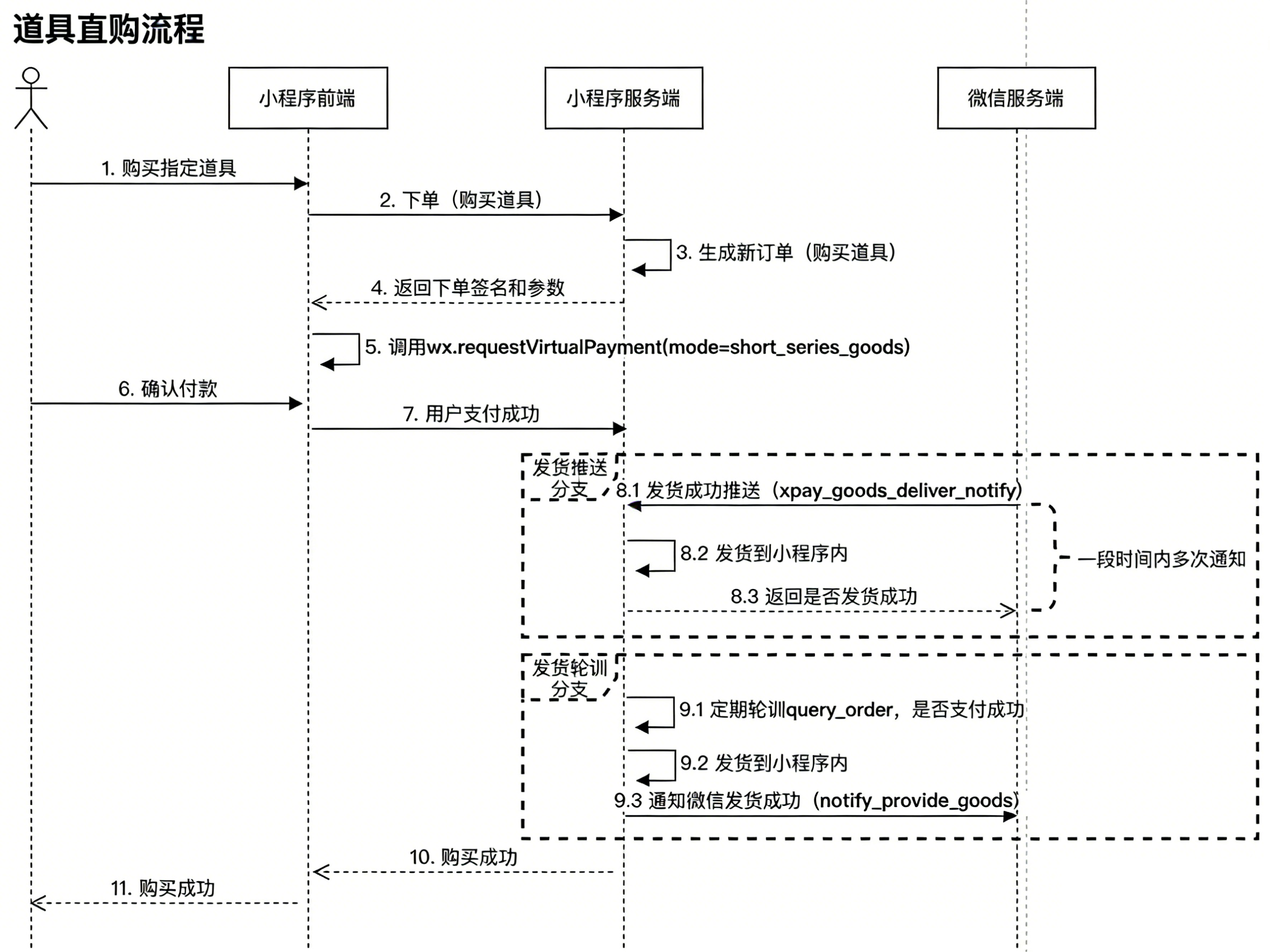
Gadget Direct Purchase Flowchart
Notes
- 【7. User Payment Successful】: Triggered by the success callback of wx.requestVirtualPayment. It may be lost if, for example, WeChat exits abnormally.
- It is recommended to implement either [Shipping Push Branch] or [Shipping Polling Branch]. Using both together ensures a more reliable experience.
Token Recharge Flowchart
Notes
- 【10. User Payment Successful】: Triggered by the success callback of wx.requestVirtualPayment. It may be lost if, for example, WeChat exits abnormally.
- It is recommended to implement either [Payment Push Branch] or [Payment Polling Branch]. Using both together ensures a more reliable experience.
2.2 Client API
The basic library interface wx.requestVirtualPayment is used to initiate virtual payments. It includes logic for placing orders and initiating payment processes.
2.3 Server API
Token-related
| Interface Name | Request Path | Description |
|---|---|---|
| Query Token Balance | /xpay/query_user_balance | This interface is used to query token balance. |
| Deduct Tokens | /xpay/currency_pay | This interface is used to deduct tokens, typically for token-based payments. |
| Token Payment Refund | /xpay/cancel_currency_pay | This interface is used to refund token payments (the reverse operation of currency_pay). |
| Token Gift | /xpay/present_currency | This interface is for gifting tokens. Currently, it does not support querying gift records by order number. Gifts can be attempted repeatedly until a successful response (0) is returned or up to a maximum of 268490004 attempts. |
Gadget-related
| Interface Name | Request Path | Description |
|---|---|---|
| Batch Upload Gadget | /xpay/start_upload_goods | Starts a batch upload of gadgets. Only one gadget can be uploaded at a time; multiple gadgets require separate requests. |
| Query Batch Upload Task | /xpay/query_upload_goods | This interface is used to query the status of batch upload tasks. |
| Start Batch Release Task | /xpay/start_publish_goods | Initiates a batch release of gadgets. Only one gadget can be released at a time; multiple gadgets require separate requests. |
| Query Batch Release Task | /xpay/query_publish_goods | This interface is used to query the status of batch release tasks. |
Orders and Billing
| Interface Name | Request Path | Description |
|---|---|---|
| Query Created Orders | /xpay/query_order | This interface is used to query created orders (cash orders, not tokenized orders). |
| Initiate Order Refund Task | /xpay/refund_order | Initiates a refund for orders processed via the jsapi interface. This interface only confirms the start of the refund process. To track its status, use the query_order interface later. The refund is considered complete once the status indicates it’s finished. |
| Notify Order Completion | /xpay/notify_provide_goods | Notifies that the goods have been delivered (applicable only to cash orders). If the xpaygoodsdeliver_notify message is successfully sent, there’s no need to call this API. |
| Download Mini Program Invoice | /xpay/download_bill | Used to download the Mini Program invoice. Calling this API once generates a download URL, which can be retrieved periodically thereafter. |
Fund Management
| Interface Name | Request Path | Description |
|---|---|---|
| Create Withdrawal Request | /xpay/create_withdraw_order | This interface is used to create a withdrawal request. |
| Query Withdrawal Requests | /xpay/query_withdraw_order | This interface is used to query withdrawal requests. |
| Check Merchant Account Balance for Withdrawal | /xpay/query_biz_balance | Retrieves the available balance in the merchant account for withdrawal. |
Advertising Funds
| Interface Name | Request Path | Description |
|---|---|---|
| Query Advertising Fund Recharge Account | /xpay/query_transfer_account | This interface is used to query the account for advertising fund recharges. |
| View Advertising Fund Distribution History | /xpay/query_adver_funds | This interface provides a history of advertising fund distributions. |
| Recharge Advertising Funds | /xpay/create_funds_bill | Used to recharge advertising funds. |
| Link Advertising Fund Recharge Account | /xpay/bind_transfer_accout | This interface binds an account to advertising fund recharges. |
| View Advertising Fund Recharge History | /xpay/query_funds_bill | Displays a history of advertising fund recharges. |
| Track Advertising Fund Recovery | /xpay/query_recover_bill | This interface tracks the recovery of advertising funds. |
| Download Merchant Order Information Related to Advertising Funds | /xpay/download_adverfunds_order | This interface downloads order information related to advertising funds using Merchant. |
Complaint Handling
| Interface Name | Request Path | Description |
|---|---|---|
| Get Complaint List | /xpay/get_complaint_list | This interface is used to retrieve the complaint list. |
| Get Complaint Details | /xpay/get_complaint_detail | This interface is used to obtain complaint details. |
| Get Negotiation History | /xpay/get_negotiation_history | This interface is used to fetch negotiation history. |
| Respond to User | /xpay/response_complaint | This interface is used to respond to users. |
| Complete Complaint Handling | /xpay/complete_complaint | This interface is used to finalize complaint processing. |
| Upload Media Files | /xpay/upload_vp_file | This interface is used to upload media files such as images and proof documents. |
| Get Signature Header for WeChat Pay-Submitted Complaint Images | /xpay/get_upload_file_sign | This interface is used to obtain the signature header for complaint images submitted via WeChat Pay. |
2.4 Message Pushing
| Push Type | Event Value | Trigger Moment |
|---|---|---|
| Item Delivery Notification | xpay_goods_deliver_notify | Sent after a user successfully purchases an item with cash. |
| Token Payment Notification | xpay_coin_pay_notify | Sent after a successful token deduction by the user. |
| Refund Notification | xpay_refund_notify | Sent upon completion of a refund. |
| User Complaint Notification | xpay_complaint_notify | Sent when a user files a complaint. |
Explanation of Push Response Format
Note: If the push response format is incorrect, WeChat will retry the push up to 15 times.
Currently, three methods are supported:
-
[Recommended] The ErrCode method listed in the documentation
When the push content is in XML format, the response must also be in XML:
<xml><ErrCode>0</ErrCode><ErrMsg><![CDATA[success]]></ErrMsg></xml> -
Similarly, if the push content is in JSON format, the response should be in JSON format:
{"ErrCode":0,"ErrMsg":"success"} -
An empty response or a response indicating “success” equates to ErrCode = 0, indicating success.
Item Delivery Notification (xpay_goods_deliver_notify)
Request Parameters
| Field | Type | Description |
|---|---|---|
| ToUserName | String | Mini Program original ID |
| FromUserName | String | The openid of the message sender; in gift delivery scenarios, it is always the official WeChat openid |
| CreateTime | Number | Message sending time |
| MsgType | String | Message type, always set to: event |
| Event | String | Event type xpay_goods_deliver_notify |
| OpenId | String | User’s openid |
| OutTradeNo | String | Business order number |
| Env | Number | Environment configuration 0: Live environment (also known as production environment) 1: Sandbox environment |
| WeChatPayInfo | Object | WeChat Pay information; may be absent for non-WeChat Pay payment methods |
| GoodsInfo | Object | Gift parameter information |
| TeamInfo | Object | Group buying information |
WeChatPayInfo Structure:
| Field | Type | Description |
|---|---|---|
| MchOrderNo | String | WeChat Pay Merchant order number |
| TransactionId | String | Transaction ID (WeChat Pay order number) |
| PaidTime | Number | User payment time, represented as a Linux timestamp in seconds |
GoodsInfo Structure:
| Field | Type | Description |
|---|---|---|
| ProductId | String | Gift ID |
| Quantity | Number | Quantity of the gift |
| OrigPrice | Number | Original price of the gift (in cents) |
| ActualPrice | Number | Actual payment price of the gift (in cents) |
| Attach | String | Additional information passed through |
TeamInfo Structure:
| Field | Type | Description |
|---|---|---|
| ActivityId | String | Activity ID |
| TeamId | String | Group ID |
| TeamType | Number | Group type: 1 - All members pay; 2 - Split payment and refund |
| TeamAction | Number | Group action: 0 - Create group; 1 - Join group |
Return Parameters
| Field | Type | Required | Description |
|---|---|---|---|
| ErrCode | Number | Yes | Submission status. 0: Successful; others: Failed |
| ErrMsg | String | No | Error reason for debugging. Provided when errcode is not 0 |
Token Payment Notification (xpay_coin_pay_notify)
Request Parameters
| Field | Type | Description |
|---|---|---|
| ToUserName | String | Mini Program Original ID |
| FromUserName | String | The openid of the event message. In item delivery scenarios, it’s always the official WeChat openid |
| CreateTime | Number | Message submission time |
| MsgType | String | Message type, always “event” |
| Event | String | Event type xpay_coin_pay_notify |
| OpenId | String | User’s openid |
| OutTradeNo | String | Business order number |
| Env | Number | Environment configuration: 0: Live environment (also known as production); 1: Sandbox environment |
| WeChatPayInfo | Object | WeChat Pay information. May be absent for non-WeChat Pay channels |
| CoinInfo | Object | Token-related parameters |
WeChatPayInfo Structure:
| Field | Type | Description |
|---|---|---|
| MchOrderNo | String | WeChat Pay Merchant order number |
| TransactionId | String | Transaction ID (WeChat Pay order number) |
| PaidTime | Number | User payment time, represented as a Linux timestamp in seconds |
CoinInfo Structure:
| Field | Type | Description |
|---|---|---|
| Quantity | Number | Quantity |
| OrigPrice | Number | Original price of the item (in cents) |
| ActualPrice | Number | Actual payment price of the item (in cents) |
| Attach | String | Additional information passed through |
Response Parameters
| Field | Type | Required | Description |
|---|---|---|---|
| ErrCode | Number | Yes | Submission status. 0: Successful; Others: Failed |
| ErrMsg | String | No | Error reason for debugging purposes. Provided when errcode is not 0 |
Refund Notification (xpay_refund_notify)
Request Parameters
| Field | Type | Description |
|---|---|---|
| ToUserName | String | Mini Program original ID |
| FromUserName | String | The openid of the message sender; in gift delivery scenarios, it’s always WeChat’s official openid |
| CreateTime | Number | Message sending time |
| MsgType | String | Message type, always “event” |
| Event | String | Event type e.g., xpay_refund_notify |
| OpenId | String | User’s openid |
| WxRefundId | String | WeChat refund order number |
| MchRefundId | String | Merchant refund order number |
| WxOrderId | String | WeChat order number corresponding to the refund order |
| MchOrderId | String | Merchant order number corresponding to the refund order |
| RefundFee | Number | Refund amount, in fen units |
| RetCode | Number | Refund status: 0 for success, non-0 for failure |
| RetMsg | String | Detailed refund result; in case of failure, it indicates the reason |
| RefundStartTimestamp | Number | Start time of refund, in seconds |
| RefundSuccTimestamp | Number | End time of refund, in seconds |
| WxpayRefundTransactionId | String | WeChat Pay transaction ID for the refund |
| RetryTimes | Number | Number of retries, starting from 0. Retry intervals are 2, 4, 8, 16… with a maximum of 15 attempts |
| TeamInfo | Object | Group information |
| ** |
TeamInfo Structure:
| Field | Type | Description |
|---|---|---|
| ActivityId | String | Activity ID |
| TeamId | String | Group ID |
| TeamType | Number | Group type: 1 for full payment, 2 for split refunds |
| TeamAction | Number | Group action: 0 for creating a group, 1 for joining a group |
| Field | Type | Required | Description |
|---|---|---|---|
| ErrCode | Number | Yes | Submission status. 0: Successful, others: Failed |
| ErrMsg | String | No | Error reason for debugging. Provided when ErrCode is not 0 |
User Complaint Notification (xpay_complaint_notify)
Request Parameters
| Field | Type | Description |
|---|---|---|
| ToUserName | String | Mini Program Original ID |
| FromUserName | String | The openid of the message sender; fixed to WeChat’s official openid in gift delivery scenarios |
| CreateTime | Number | Message submission time |
| MsgType | String | Message type, always set to: event |
| Event | String | Event type xpay_complaint_notify |
| OpenId | String | User’s openid |
| WxOrderId | String | WeChat order number |
| MchOrderId | String | Merchant Order number |
| TransactionId | String | WeChat Pay transaction ID |
| ComplaintId | String | Complaint reference number |
| ComplaintDetail | String | Complaint details |
| ComplaintTime | Number | Complaint timestamp in seconds |
| RetryTimes | Number | Number of retries, starting from 0. Retry intervals are 2, 4, 8, 16..., with a maximum of 15 attempts |
| RequestId | String | Request identification number |
Response Parameters
| Field | Type | Required | Description |
|---|---|---|---|
| ErrCode | Number | Yes | Submission status. 0: Successful, others: Failed |
| ErrMsg | String | No | Error reason for debugging. Provided when ErrCode is not 0 |
2.5 Signature Details
Both user-side signatures and payment signatures are utilized in the base library wx.requestVirtualPayment and server APIs.
Payment Signature
The pseudocode for the signature algorithm is as follows:
paySig = to_hex(hmac_sha256(appKey, uri + '&' + signData))
Parameter Explanation (WeChat API vs Server API):
| Parameter | wx API | Server API |
|---|---|---|
| appKey | Can be found under Mini ProgramMP: Virtual Payment -> Basic Configuration -> Sandbox AppKey and Live AppKey. Note: Select the appropriate AppKey based on the env value. env = 0 for Live AppKey, env = 1 for Sandbox AppKey | Same as above |
| signData | The signData field from the basic library | The post body of the API request |
| uri | Always set to requestVirtualPayment | Example: For /xpay/query_user_balance, uri would be /xpay/query_user_balance |
Refer to the calc_pay_sig function below.
User-Side Signature
The pseudocode for the signature algorithm is as follows:
signature = to_hex(hmac_sha256(sessionKey, signData))
Parameter Explanation (WeChat API vs Server API):
| Parameter | wx API | Server API |
|---|---|---|
| sessionKey | session_key | Same as above |
| signData | The signData field from the basic library | API’s post body |
2.6 Referenced Python Script
Taking the call to the query_user_balance interface as an example, the signature calculation is as follows:
#!/usr/bin/python
# -*- coding: utf-8 -*-
""" Example of pay_sig signature algorithm calculation """

import hmac
import hashlib
import json
import time

def calc_pay_sig(uri, post_body, appkey):
    """ pay_sig signature algorithm
      Args:
     uri - The URI part of the requested API, without the query string. Example: /xpay/query_user_balance
          post_body - The data body of the HTTP POST request
          appkey    - The AppKey for the corresponding environment
      Returns:
          The payment request signature, pay_sig
    """
    need_sign_msg = uri + '&' + post_body
    pay_sig = hmac.new(key=appkey.encode('utf-8'), msg=need_sign_msg.encode('utf-8'),
                       digestmod=hashlib.sha256).hexdigest()
    return pay_sig

def calc_signature(post_body, session_key):
    """ Signature algorithm for user login state
      Args:
          post_body   - The data body of the HTTP POST request
          session_key - The valid session_key for the current user, obtained from the auth.code2Session interface
      Returns:
          The signature for the user login state
    """
    need_sign_msg = post_body
    signature = hmac.new(key=session_key.encode('utf-8'), msg=need_sign_msg.encode('utf-8'),
                       digestmod=hashlib.sha256).hexdigest()
    return signature

# Ensure the uri does not contain parameters, i.e., remove “?” and everything after it
# For the basic library’s wx.requestVirtualPayment, the uri is fixed as requestVirtualPayment
uri = '/xpay/query_user_balance'

# The appkey here is a placeholder. In practice, it should be replaced with the actual AppKey based on the payment environment (specified by the env parameter)
appkey = "12345"

# Note: The JSON serialization result may vary depending on the language or version.
# Therefore, for stability purposes, an example using one of the serialized versions is provided.
# In practice, ensure that the `post_body` used for signing matches the actual HTTP request body.

"""
# Different APIs require different Post Body parameters. Here, we use the `query_user_balance` API as an example (matching the URI).
post_body = json.dumps({
    "openid": "xxx",
    "user_ip": "127.0.0.1",
    "env": 0
})
"""
post_body = '{"openid": "xxx", "user_ip": "127.0.0.1", "env": 0}'

# Step 1: Calculate the pay_sig (payment request signature algorithm)
pay_sig = calc_pay_sig(uri, post_body, appkey)
print("pay_sig:", pay_sig)

# If the returned pay_sig does not match, follow these steps to troubleshoot:
# 1. Verify the algorithm: Ensure that `uri`, `post_body`, and `appkey` remain constant, and that your signature matches the output of `calc_pay_sig`.
# 2. Confirm the parameters:
#    - `uri` should not contain parameters (ignore everything after "?").
#    - `post_body` must be identical to the body sent in the actual HTTP request.
#    - `appkey` must correspond to the environment specified in the request (determined by the `env` parameter).
assert pay_sig == "c37809f27c6d7fd1837ad2500a04512b66b34fd793a39a385fade56dca89a4b5"

# Step 2: Calculate the signature (signature algorithm for logged-in users)
# `session_key` must be a valid session key for the current user (obtain it using the `auth.code2Session` API).
# For simplicity, we use a fixed `session_key` here.
session_key = "9hAb/NEYUlkaMBEsmFgzig=="
signature = calc_signature(post_body, session_key)
print("signature:", signature)

# If the returned signature does not match, refer to the troubleshooting guide below.
assert signature == "089d9e8dc5d308977360c4b79ec600a93d736802802a807d634192328032f6c7"
2.7 Payment Functionality on Windows Clients
Integration Steps
- Use the
wx.getSystemInfoorwx.getDeviceInfoAPI to retrieve theplatformvalue. - Adapt the code to work on Windows as well.
- Test the functionality on a Windows client using WeChat Developer Tool’s real-device debugging feature.
// Example code for payment functionality compatible with both Android and Windows:
if(wx.getSystemInfoSync().platform == 'android' || wx.getSystemInfoSync().platform == 'windows') {
    wx.requestVirtualPayment({...})
}
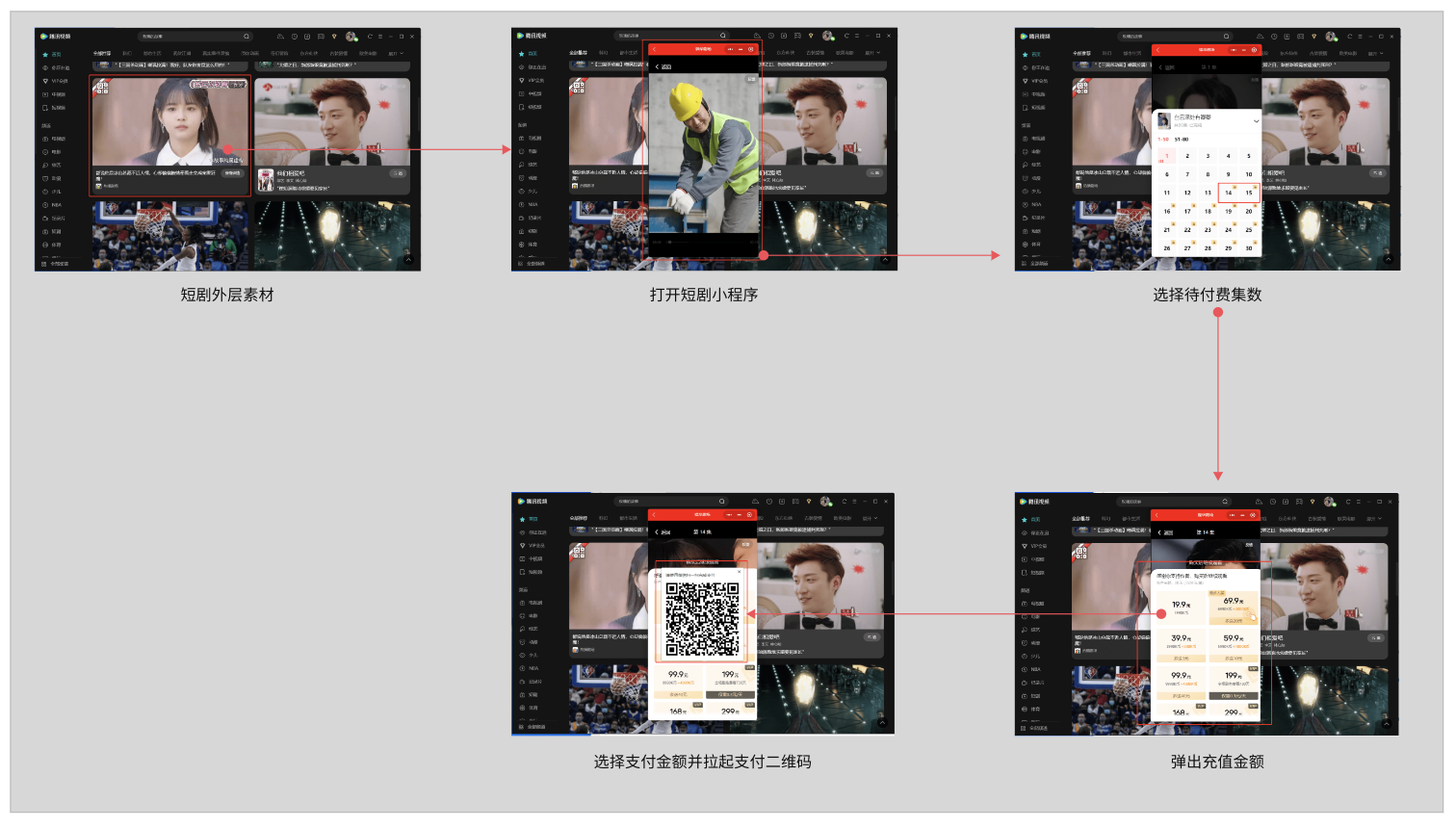
The normal payment process for Windows clients is shown in the following image:
An error scenario where the developer hasn’t adapted the code for Windows clients is shown in the following image: