
# Old Canvas Canvas
This document describes the old version of the Canvas interface, does not support the same layer rendering, poor performance.
It is recommended to refer to the Previous Canvas Migration Guide Migration to the new Canvas 2D interface .
# Canvas Drawing Steps
All drawings in canvas must be done in JavaScript:
WXML: (We will use this WXML as a template in the following examples without special declarations and will not repeat it)
<canvas canvas-id="myCanvas" style="border: 1px solid;"/>
JS: (We'll put JS in onLoad in the next example)
const ctx = wx.createCanvasContext('myCanvas')
ctx.setFillStyle('red')
ctx.fillRect(10, 10, 150, 75)
ctx.draw()
# Create a Canvas drawing context
First, we need to create a Canvas drawing context CanvasContext .
CanvasContext is an object built into Weixin Mini Program, with some drawing methods:
const ctx = wx.createCanvasContext('myCanvas')
# Step 2: Drawing description using the Canvas drawing context
Next, we describe what we want to draw in the canvas.
Set the fill color of the drawing context to red:
ctx.setFillStyle('red')
Use thefillRect (x, y, width, height)method to draw a rectangle filled with the red color just set:
ctx.fillRect(10, 10, 150, 75)
# Step 3: Draw a picture
Tell the canvas component that you want to draw the description:
ctx.draw()
# Results:

# coordinate system
The canvas is in a two-dimensional grid.The upper left corner coordinates are(0, 0).
In the previous section, we used this methodfillRect (0, 0, 150, 75).
It means: From the upper left corner(0,0), draw a150 x 75px of rectangle.
# Code examples
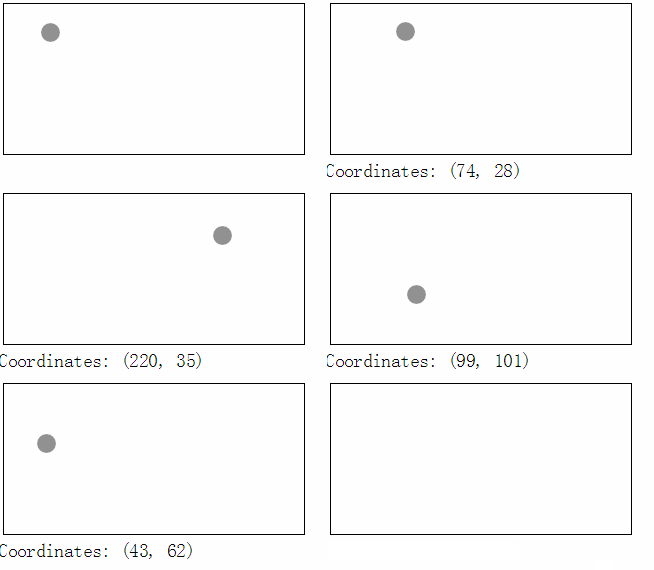
We can add some events to the canvas to observe its sitting system
<canvas canvas-id="myCanvas"
  style="margin: 5px; border:1px solid #d3d3d3;"
  bindtouchstart="start"
  bindtouchmove="move"
  bindtouchend="end"/>

<view hidden="{{hidden}}">
  Coordinates: ({{x}}, {{y}})
</view>
Page({
  data: {
    x: 0,
    y: 0,
    hidden: true
  },
  start (e) {
    this.setData({
      hidden: false,
      x: e.touches[0].x,
      y: e.touches[0].y
    })
  },
  move (e) {
    this.setData({
      x: e.touches[0].x,
      y: e.touches[0].y
    })
  },
  end (e) {
    this.setData({
      hidden: true
    })
  }
})
When you place your finger in the canvas, the coordinates of the touch point are displayed below:
# gradual change
Gradient can be used to fill a rectangle, circle, line, text, etc. A filling color may not be fixed as a fixed color.
We offer two ways of changing colors:
Createlineargradient (x, y, x1, y1)Create a linear gradientCreatecirculargradient (x, y, r)Create a gradient starting from the center of the circle
Once we have created a gradient object, we must add two color gradient points.
The addColorStop (position, color) method is used to specify the position and color of the color gradient point. The position must be between 0 and 1.
setFillStyle and setStrokeStyle Method Set the gradient and then paint the description.
# UsingcreateLinearGradient ()
const ctx = wx.createCanvasContext('myCanvas')

// Create linear gradient
const grd = ctx.createLinearGradient(0, 0, 200, 0)
grd.addColorStop(0, 'red')
grd.addColorStop(1, 'white')

// Fill with gradient
ctx.setFillStyle(grd)
ctx.fillRect(10, 10, 150, 80)
ctx.draw()

# UsingcreateCircularGradient ()
const ctx = wx.createCanvasContext('myCanvas')

// Create circular gradient
const grd = ctx.createCircularGradient(75, 50, 50)
grd.addColorStop(0, 'red')
grd.addColorStop(1, 'white')

// Fill with gradient
ctx.setFillStyle(grd)
ctx.fillRect(10, 10, 150, 80)
ctx.draw()
