In large companies, tasks are meticulously divided among employees, with staff in various roles often working together on the same Mini Program project. To address this, the Mini Program platform offers robust permission management capabilities that enable project managers to oversee team collaboration more efficiently.
Previously, after developing a webpage, developers had to upload the code and resources to a server so users could access it via the Internet. On the Mini Program platform, once development is complete, developers must submit the Mini Program code package through the developer tools before publishing it on the Mini Program backend. Users can then access the Mini Program through searches or other entry points.
This chapter covers key considerations for team collaboration, as well as the concepts and processes involved before and after publishing a Mini Program .
Collaboration
If you are developing a Mini Program alone, you can skip this section for now; however, if working in a team, it’s essential to understand these concepts first.
In most cases, multiple team members work on the same Mini Program project, each with distinct responsibilities and permissions. Larger companies have an even more detailed division of labor. To illustrate the relationships between different team roles and permission management, we use a hypothetical project member organizational structure to demonstrate how teams collaborate to publish a Mini Program .
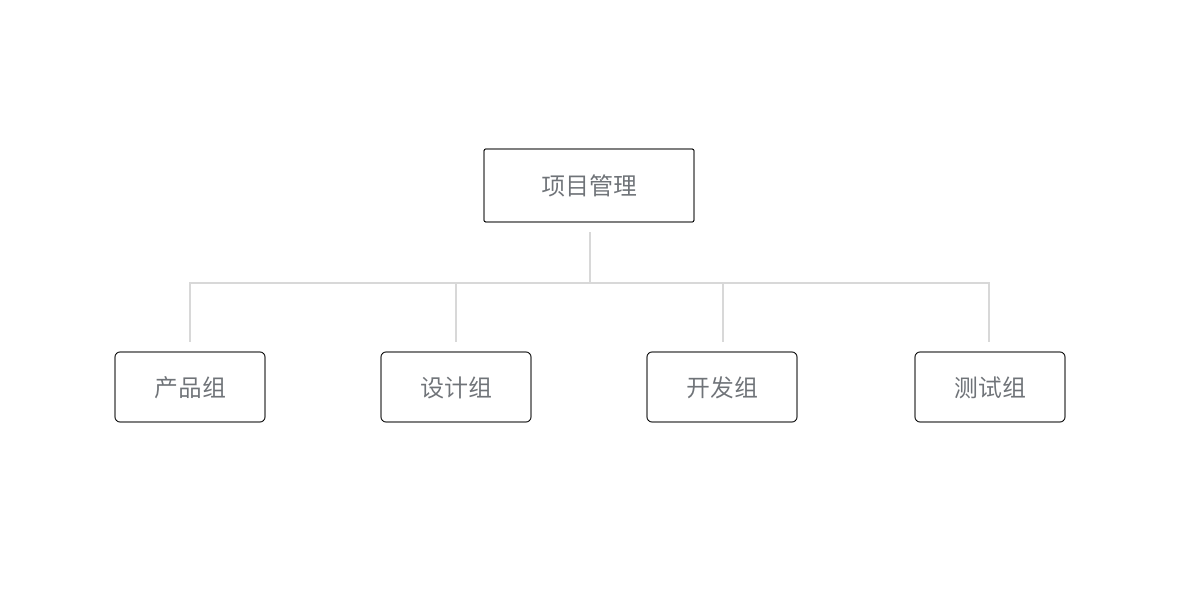
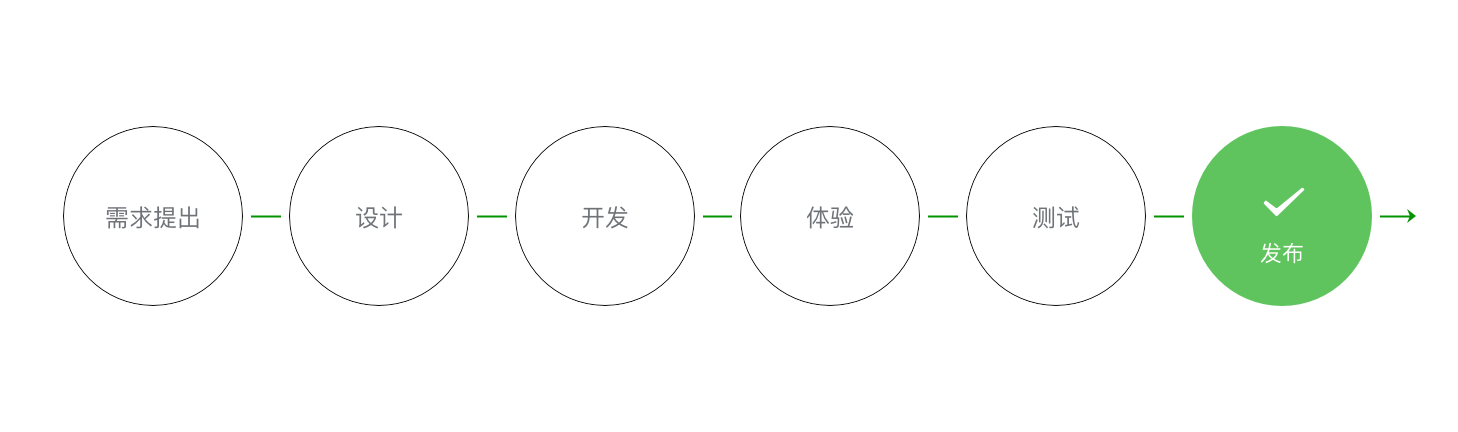
Project management members are responsible for overseeing the overall progress and risks of the project, as well as controlling the timing of Mini Program releases to the public. The product team outlines requirements, while the design team discusses them with the product team, abstracts the requirements, creates visual workflows and diagrams, and produces design proposals. The development team writes the code based on these designs. After coding is completed, the product and design teams test the overall workflow of the Mini Program , and the testing team develops test cases to conduct various boundary tests. The typical team composition and workflow are shown below.
Mini Program Member Management
Mini Program member management involves overseeing both project members and trial users.
- •Project Members: These are individuals involved in the development and operation of Mini Program . They can log in to the Mini Program management backend, including operators, developers, and data analysts. Administrators can add or remove project members in “Member Management” and assign roles to them.
- •Trial Users: These are individuals who participate in beta testing of Mini Program . They can use the trial version of Mini Program but are not considered project members. Both administrators and project members can add or remove trial users.
Different project members have varying permissions to ensure secure and orderly Mini Program development.
| Permission | Operator | Developer | Data Analyst |
|---|---|---|---|
| Developer Permissions | √ | ||
| Trial User Permissions | √ | √ | √ |
| Login | √ | √ | √ |
| Data Analysis | √ | ||
| WeChat Pay | √ | ||
| Promotion | √ | ||
| Development Management | √ | ||
| Development Settings | √ | ||
| Suspend Service | √ | ||
| Unlink Official Account | √ | ||
| Tencent Cloud Management | √ | ||
| Mini Program Plugins | √ | ||
| Game Operation Management | √ |
Description of Each Permission
- •Developer Permissions: Allows use of the Mini Program developer tools and the development version of Mini Program for coding.
- •Trial User Permissions: Enables use of the trial version of Mini Program .
- •Login: Permits access to the Mini Program management backend without requiring administrator approval.
- •Data Analysis: Uses the Mini Program statistics module to view data related to Mini Program .
- •WeChat Pay: Utilizes the Mini Program WeChat Pay (virtual payment) module.
- •Promotion: Uses the Mini Program publisher and advertiser modules.
- •Development Management: Handles submission for review, publishing, and rolling back of Mini Program .
- •Development Settings: Allows setting the Mini Program server domain name, message push notifications, and scanning ordinary QR codes to open Mini Program .
- •Suspend Service Setting: Pauses online services for Mini Program .
- •Unlink Official Account: Allows disassociation of an Mini Program from an associated official account.
- •* Mini Program Plugins: Enables development, management, and configuration of Mini Program* plugins.
- •Game Operation Management: Provides access to features such as material management and game community management in the Mini Program management backend.
It is important to note that project managers control sensitive operations such as publishing, rolling back, and removing Mini Program from service. These permissions should not be granted to unauthorized personnel.
Mini Program Versions
In a typical software development process, developers write code, test the development version until it reaches a stable state suitable for testing, then provide this version to product managers and testers for evaluation. After fixing all bugs, the final version is released for external users. The Mini Program versioning system is designed based on this workflow.
| Permission | Description |
|---|---|
| Development Version | Allows using the developer tools to upload code to this version. Only the latest uploaded code per user is retained. You can submit the code for review by clicking “Submit for Review.” This version can be deleted without affecting the online or pending-review versions. |
| Trial Version | Enables selection of a specific development version as a trial version, with one copy designated for trials. |
| Pending Review Version | Only one version can be under review at a time. Once approved, it can be published online or resubmitted for review to replace the existing version. |
| Online Version | The version used by all online users. It is updated once a new version is released. |
Given that Mini Program projects are developed collaboratively, multiple developers may work on the same Mini Program simultaneously. Often, after coding in the Mini Program developer tools, developers need to test on actual devices. Therefore, each developer has their own development version. Since development versions are unstable and developers frequently update the code, the Mini Program platform allows one of the development versions to be set as a trial version. It is recommended to assign a dedicated developer role during project development to upload stable code for testing and set that version as a trial version.
Publishing Online
Generally, a Mini Program goes through several steps from completion to going live: preview → upload code → submit for review → publish.
Preview
The developer tools allow you to preview a Mini Program , helping to check its actual performance on mobile devices.
Click the preview button in the top toolbar of the developer tools. The tools will automatically package the current project and upload the Mini Program code to WeChat’s servers. Upon success, a QR code will appear on the screen. Scanning this QR code with the WeChat account of the current Mini Program developer will display the actual appearance of the Mini Program on a mobile device.
Upload Code
Unlike previewing, uploading code is intended for submission for trial use or review.
Click the upload button in the top toolbar of the developer tools, fill in the version number and project notes. Note that the version number and project notes are provided to assist administrators in tracking versions, while developers can fill them in according to their needs.
After successful upload, log in to the Mini Program management backend → Version Management → Development Versions to find the newly uploaded version.
You can set this version as either a Trial Version or Submit for Review.
Submit for Review
To ensure the quality of Mini Program and compliance with relevant standards, publishing Mini Program requires review.
After uploading the Mini Program code in the developer tools, log in to the Mini Program management backend → Version Management → Development Versions to locate the uploaded version.
In the list of development versions, click Submit for Review and fill in the required information as prompted to submit the Mini Program for review.
It is crucial to thoroughly test the version before submitting it for review, as repeated rejections due to issues may delay subsequent steps.
Publishing
Once approved, the administrator will receive a notification via WeChat confirming that the Mini Program has passed review. Log in to the Mini Program management backend → Version Management → Approved Versions to view the approved version.
Click Publish to release the Mini Program . Mini Program offers two publishing modes: full rollout and phased rollout. Full rollout means that once published, all users accessing Mini Program will use the latest version. Phased rollout allows certain users to access the latest version at specific times; this approach is also known as grayscale deployment. Generally, full rollout is sufficient for regular Mini Program releases. However, as Mini Program functionalities increase and the user base grows, phased rollout is an effective way to manage risks.
Mini Program Code
In many scenarios, users enter a Mini Program quickly by scanning a QR code. During the early stages of Mini Program design, the Mini Program platform provided standard QR codes. When scanning a QR code, users cannot predict what service they will encounter, as behind it could be an official account, Mini Program , a web page, a payment page, or a friend request feature. To give users clear expectations before scanning, WeChat introduced Mini Program codes.

Mini Program codes are more distinctive and visually striking compared to standard QR codes. They highlight the brand identity of Mini Program more clearly, aiding developers in promoting their Mini Program . After publishing a Mini Program , the Mini Program management platform provides options to preview and download the corresponding Mini Program code, which developers can use for promoting Mini Program services both online and offline.
Operation Data
There are two convenient ways to view the operational data of Mini Program.
Method 1: Log in to the Mini Program admin dashboard and navigate to Data Analysis. Clicking on the relevant tabs will display the corresponding data.
Method 2: Use WeAnalysis to conveniently check operational data directly within WeChat.