Before using the Cloud Testing Service, please ensure that:
- Testing on Mini Program is not supported. You must have an Experience Version or Production Version of Mini Program to use this service.
- The user must be a developer or administrator of this Mini Program.
- Only Mini Program is supported. Mini Games are not supported. For Mini Games, please refer to Mini Game Cloud Testing Service.
Enabling Cloud Testing Services
There are two ways to enable Cloud Testing Services:
- Install the Cloud Testing plugin in WeChat DevTools. We recommend enabling Cloud Testing this way, as it syncs the
Mini Programand user information from WeChat DevTools, eliminating the need to log in again. - Directly access the Web address of the Cloud Testing Services and scan the QR code with WeChat to log in.
Install Cloud Testing Plugin
The Cloud Testing service is currently integrated into WeChat DevTools as a plugin. Please download or update to the latest version of WeChat DevTools. Download Link
After developers log in to WeChat DevTools and open the Mini Program source code (Note: You must open the official Mini Program source code, guest mode is not supported!).
Once opened, go to the navigation bar at the top, click "Settings" => "Extensions Settings" to open the window shown in the figure below. Under "Other Plugins," select the "Cloud Testing" plugin to install it.
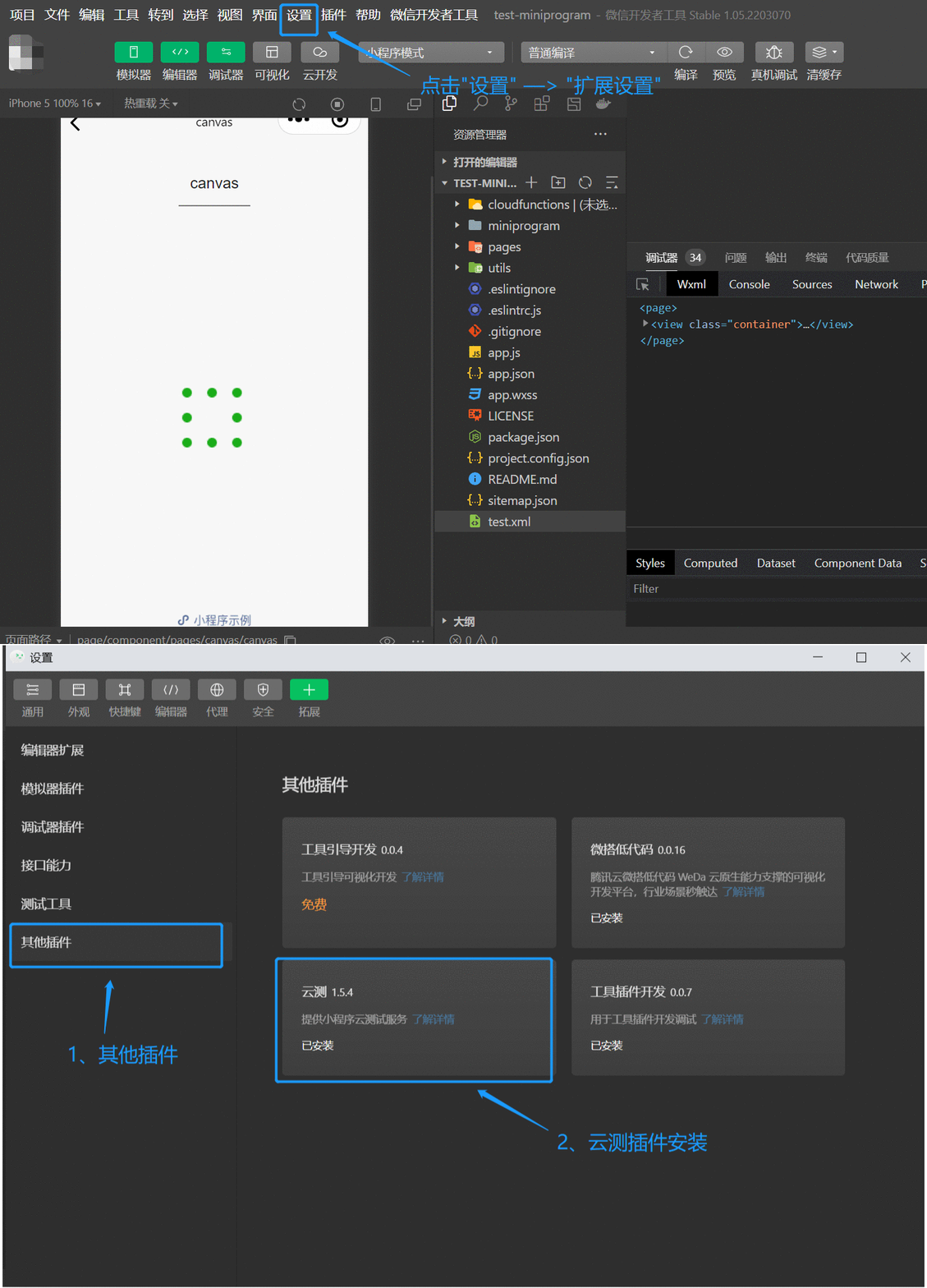
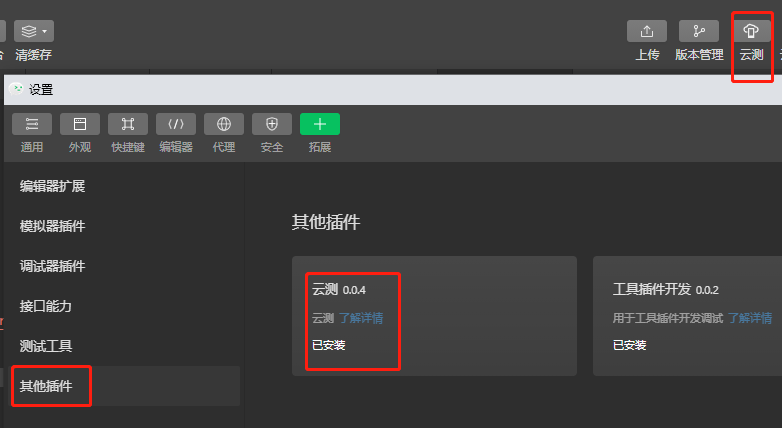
After successful installation, a Cloud Testing button will appear in the top-right corner of WeChat DevTools. Click it to access the Cloud Testing plugin.
Can't find the Cloud Testing plugin?
Submit for Testing
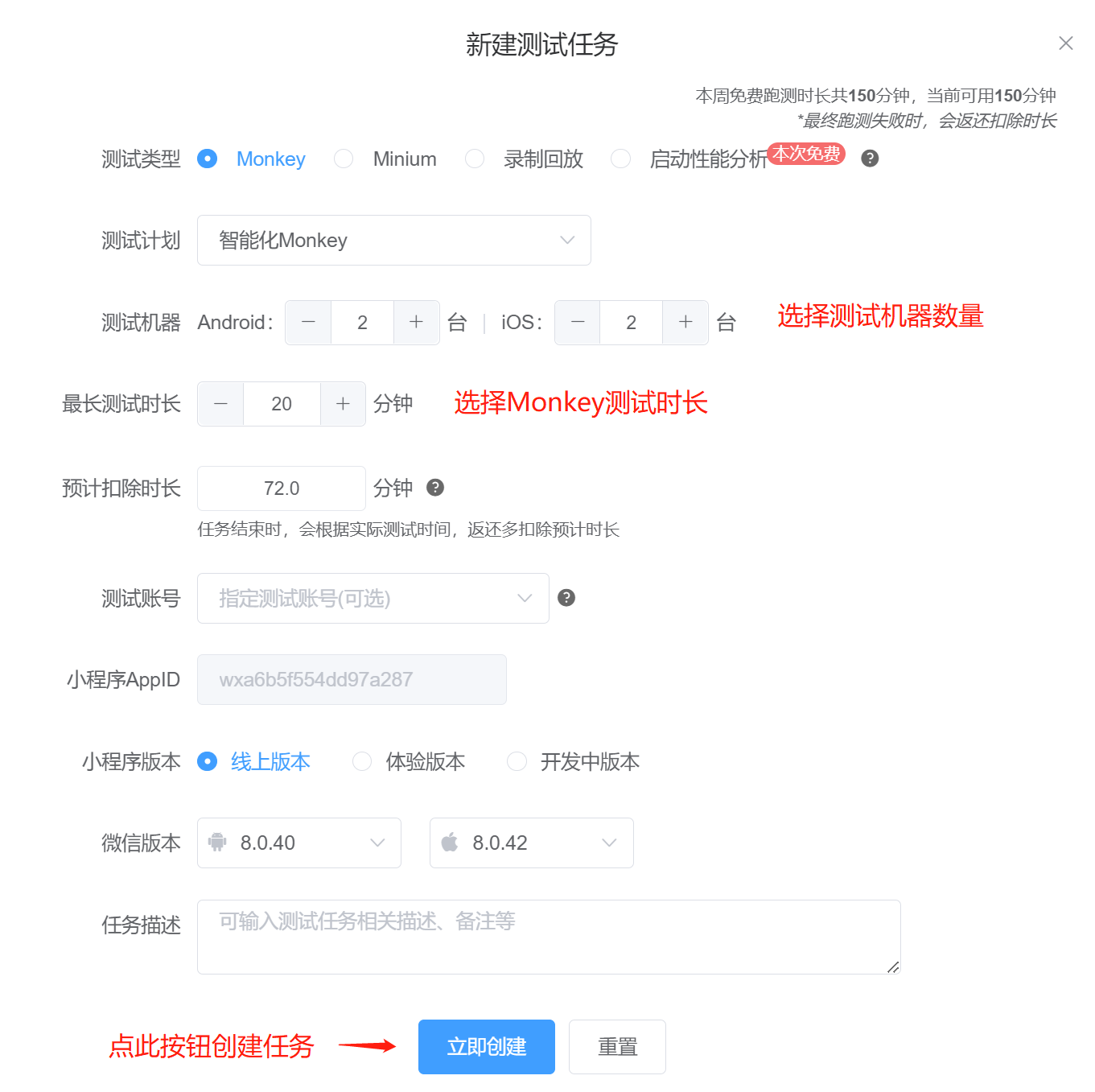
After entering the Cloud Testing service, click New Task in the upper-right corner of the page, select the type of Mini Program, and click Create Now to create a new task.
View Report
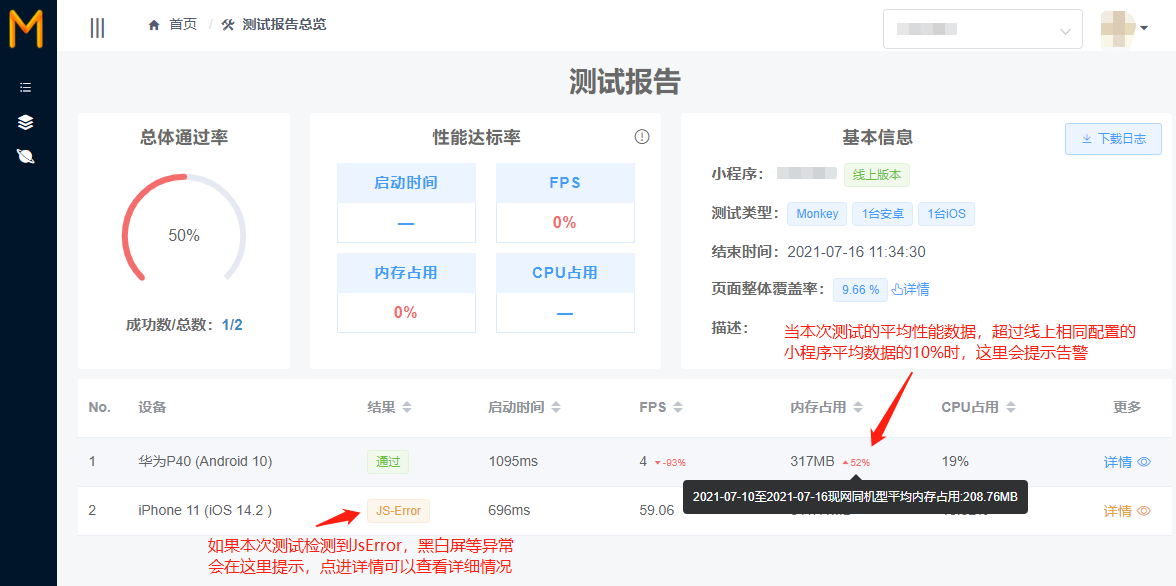
After the automated testing task is completed, the Developer Tools will automatically notify the user of the test results. Users can also directly click the View Report button on the test task page to access the report page.
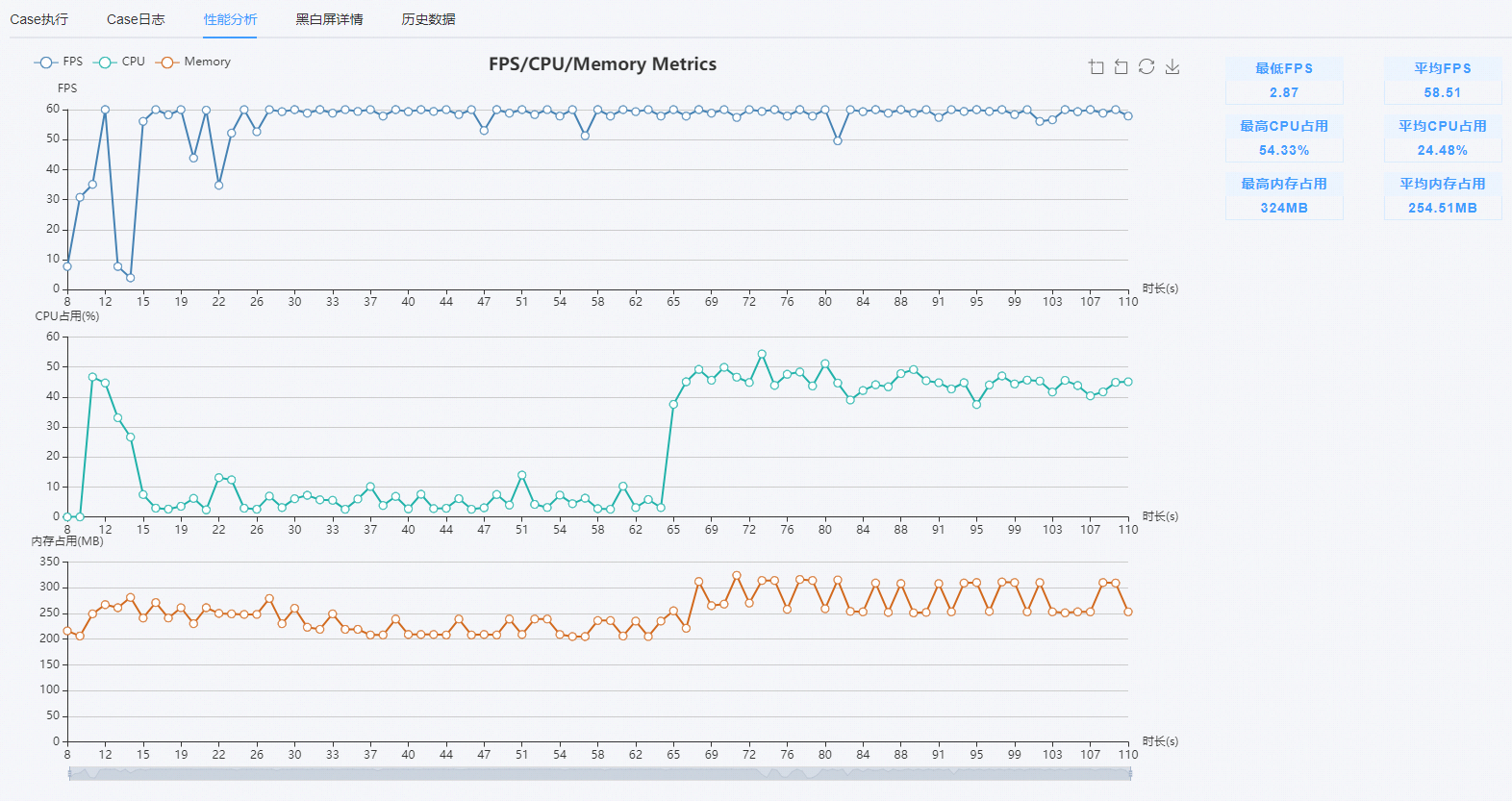
The overall report page displays the execution status of the current task, including pass rate, performance compliance rate, average performance data for each case, comparison with live network average data, and device models , among other information.
View Report Details
Click the Details button for each case to enter the Test Details page. It displays information such as case execution screenshots, logs, detailed performance data, and comparisons of historical performance data for the same device model. If JS errors or black/white screens are detected during the check, separate tabs will be used to display these error messages.