To help you get started quickly, the Video Tutorial for this section is now available on WeChat Academy.
Record and Replay allows you to specify test scenarios with even greater precision than intelligent Monkey testing. Developers can pre-record test steps using DevTools and then replay the test process by executing the recorded script in the cloud testing service. The specific usage steps are as follows:
1. Recording Cases in Developer Tools
It is recommended to download the latest stable version of the Developer Tools. Download
1. Enter the Record and Playback Page
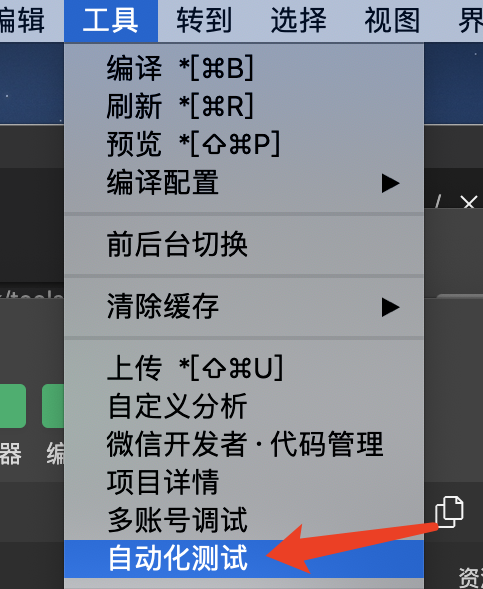
Click Tools -> Automated Testing to enter the Record and Playback page. If the entry is not found, please ensure that the Developer Tools are updated to the latest version.
2. Confirm the Recording Account
The cloud testing service supports two types of accounts for recording and playback:
- Record using your real account
- Record using a virtual account
Recording with Real Accounts
The Cloud Testing service now supports synchronizing test cases recorded with real accounts. Please note:
- The recording account must be a Mini Program administrator or developer; otherwise, it cannot be synchronized to the Cloud Testing service.
- Before synchronizing test cases to Cloud Testing, you must first add this account to the test accounts in the Cloud Testing service. For details, refer to Testing with Real WeChat Accounts.
Recording with a Virtual Account
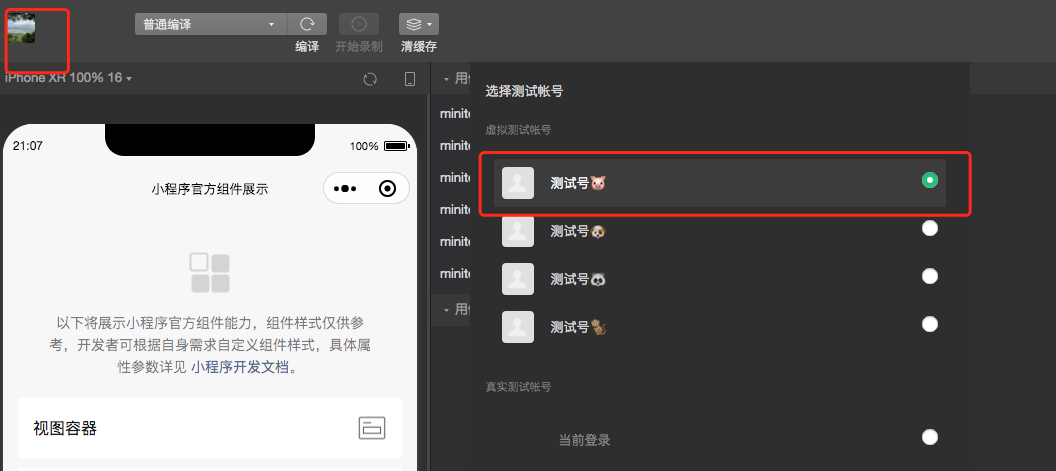
When recording with a virtual account, you can select any one of the 24 virtual accounts in the open automated testing window, and click the avatar to switch to the virtual test account for recording.
For usage instructions on virtual accounts, refer to Virtual Accounts.
3. Clear Cache
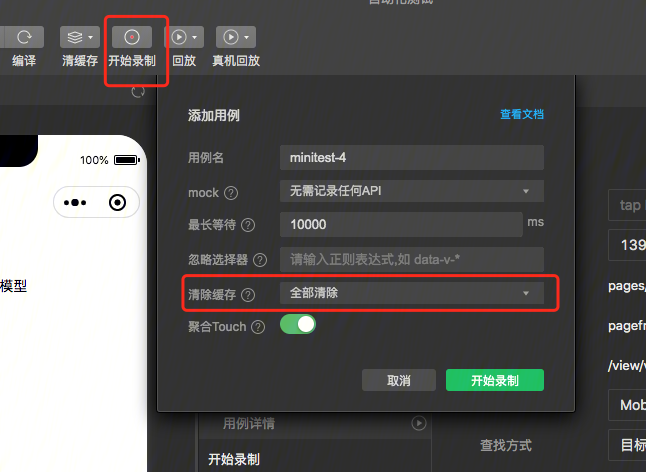
When replaying on the Cloud Testing platform, test cases run on real devices. Cached data, such as local login states in WeChat Developer Tools, cannot be synchronized to real devices. If you do not clear the cache before recording a test case, it may cause replay failures.

4. Create a New Test Case and Start Recording
It is strongly recommended to clear the cache before recording each test case.
5. New Management
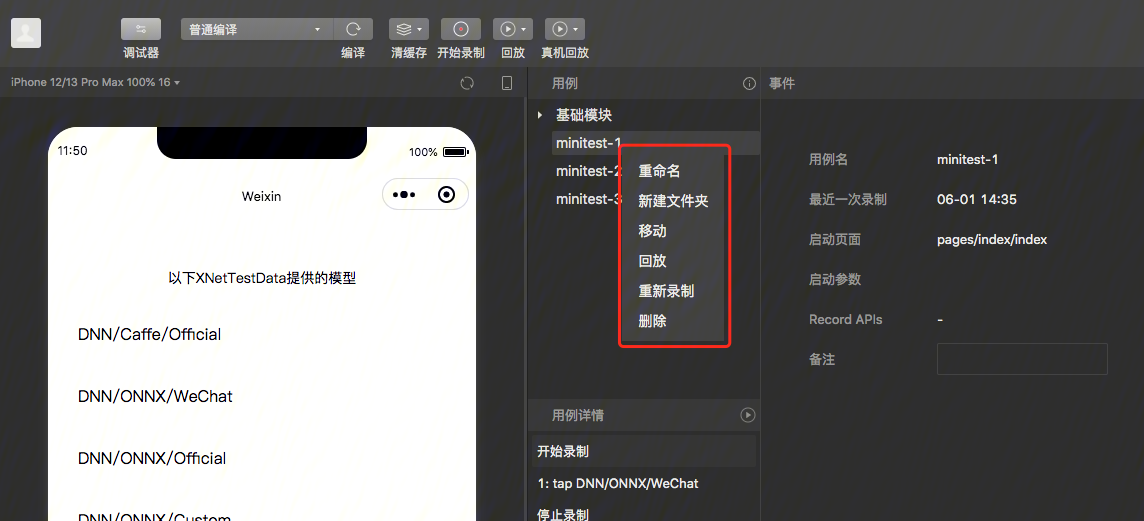
Right-click the use case name to create a new folder. Right-click to move or drag and drop to manage case files.
6. Test Case Editing
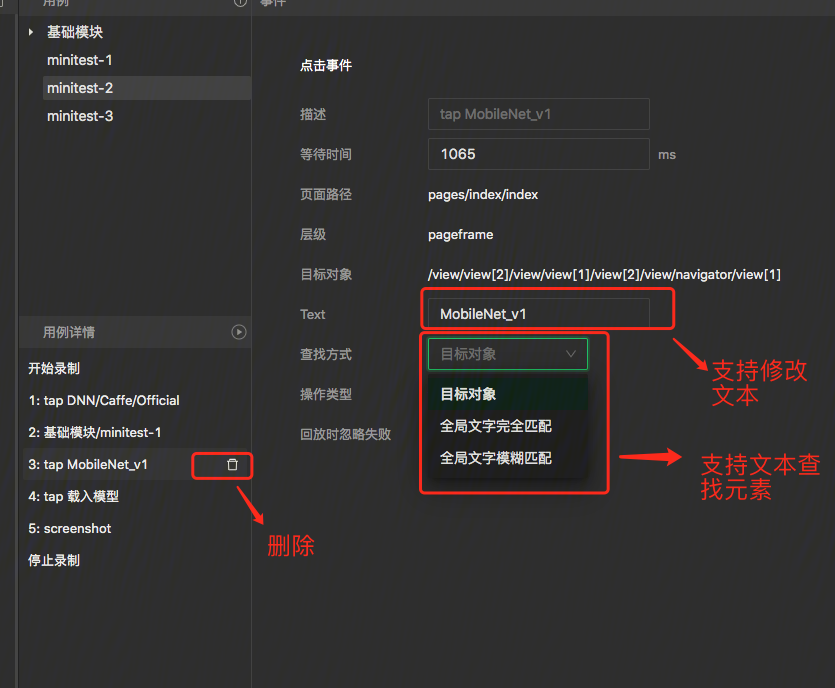
You can delete a specific operation. Element lookup by text is supported, and the first matching text node is returned as the target object. Additionally, the text content can be modified.
7. Replay in Developer Tools
After recording is complete, please verify in the Developer Tools that the replay is successful. Click Replay to initiate the replay process; if it fails, the reason for failure will be displayed.
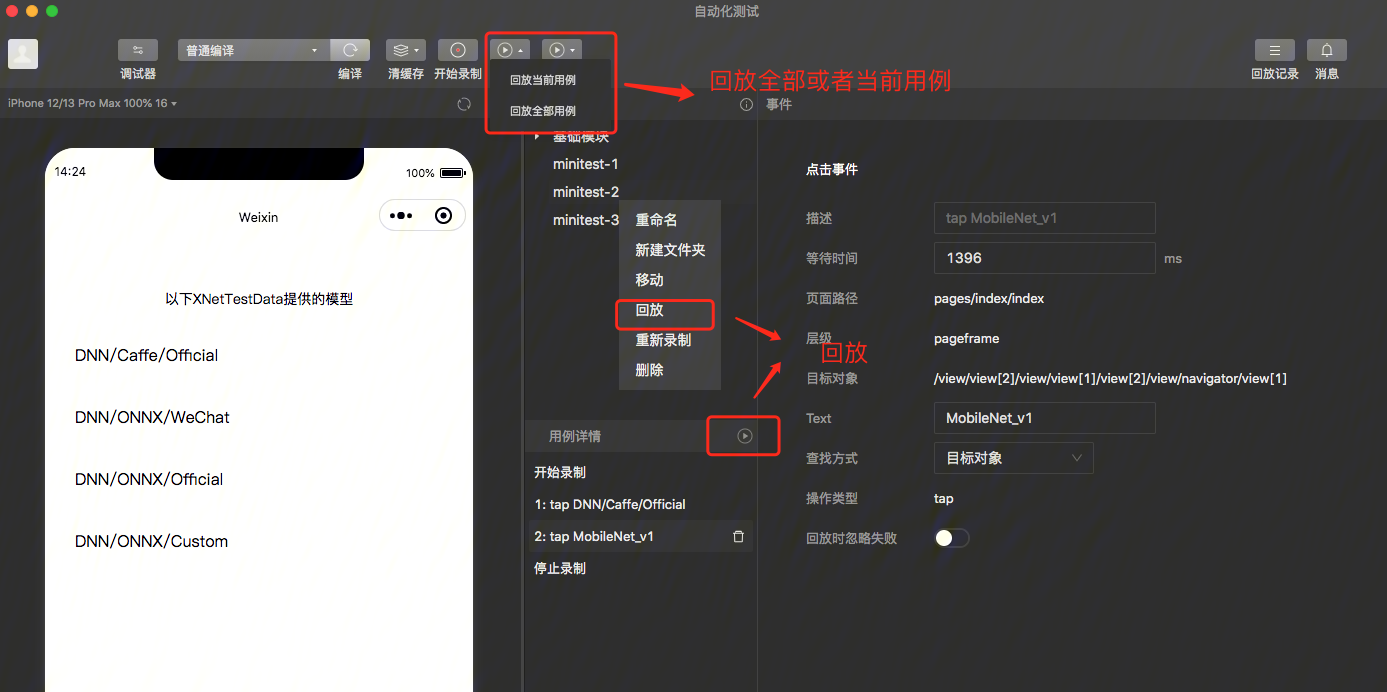
The above are the basic recording steps. For more details, please refer to the documentation.
2. Replay Cases in Cloud Testing Service
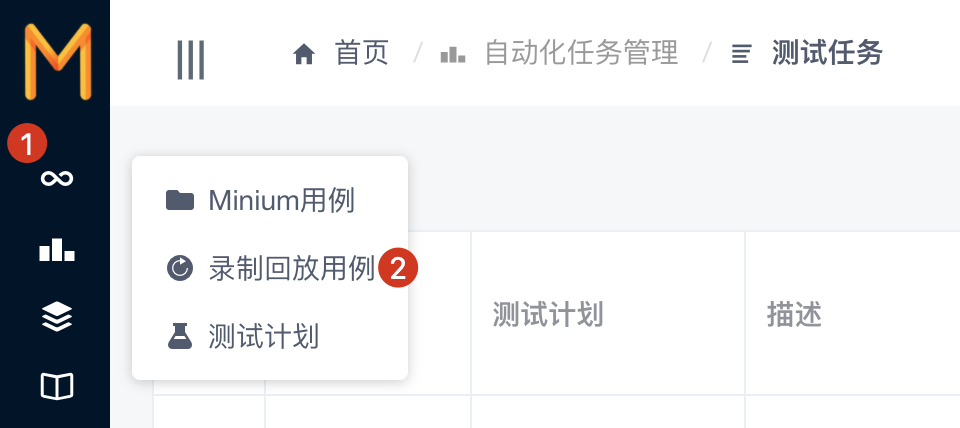
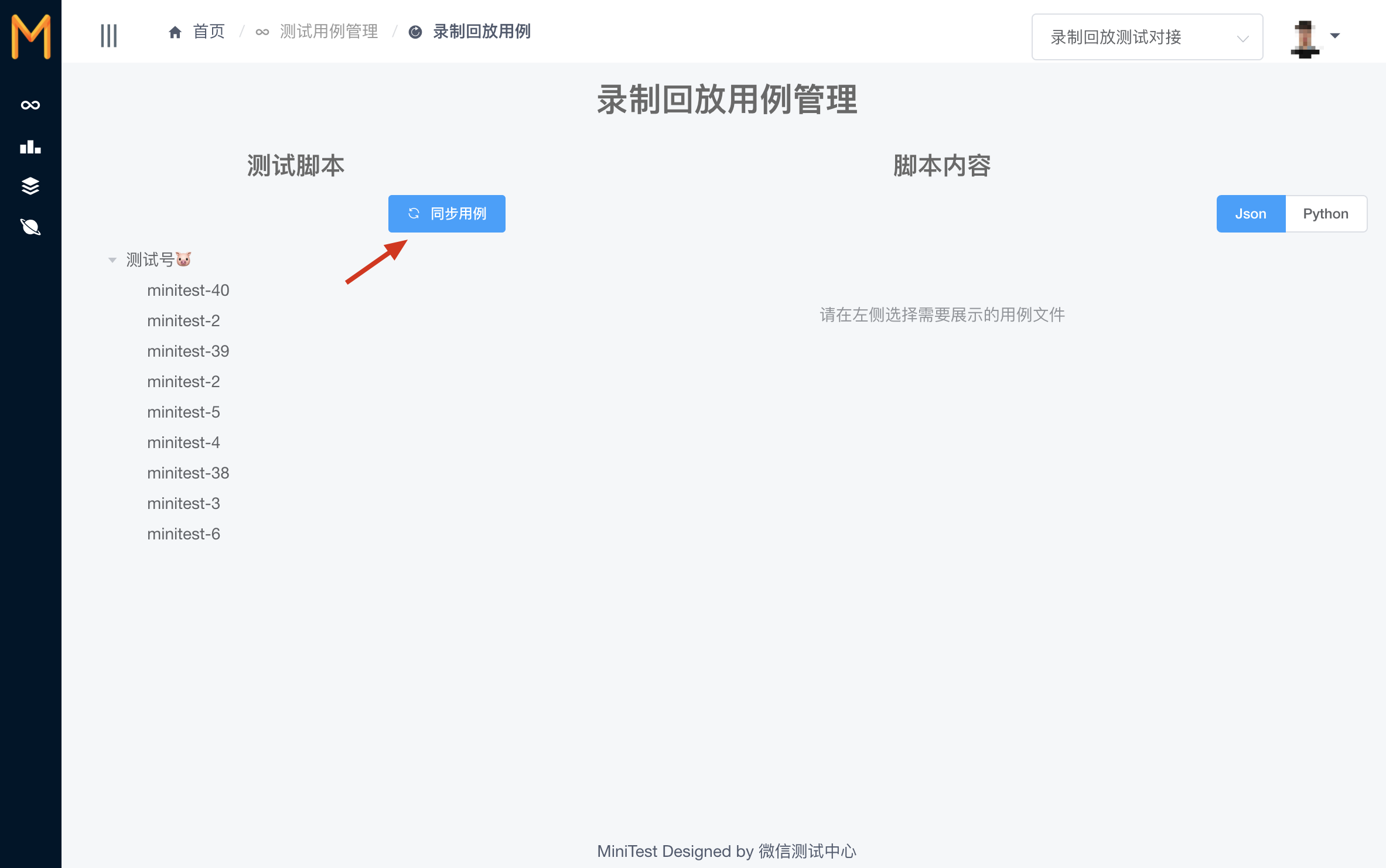
1. Sync Record & Playback Test Cases to the Cloud Testing Service in the Cloud Testing Plugin
Notes:
-
If the test cases were recorded with a real account, you must first add the account in the Account Management section of the Cloud Testing Service.
-
Case overwriting rules are based on the modification timestamp. If the timestamp of a recorded case file has not changed, re-uploading it will not trigger an update. However, if the timestamp of a case file with the same name has changed, it will be overwritten directly.
-
It is recommended that developers keep the paths of recorded test cases as short as possible. If there are too many test cases, consider configuring multiple different test plans to manage them.
2. Create a Record and Playback Test Plan
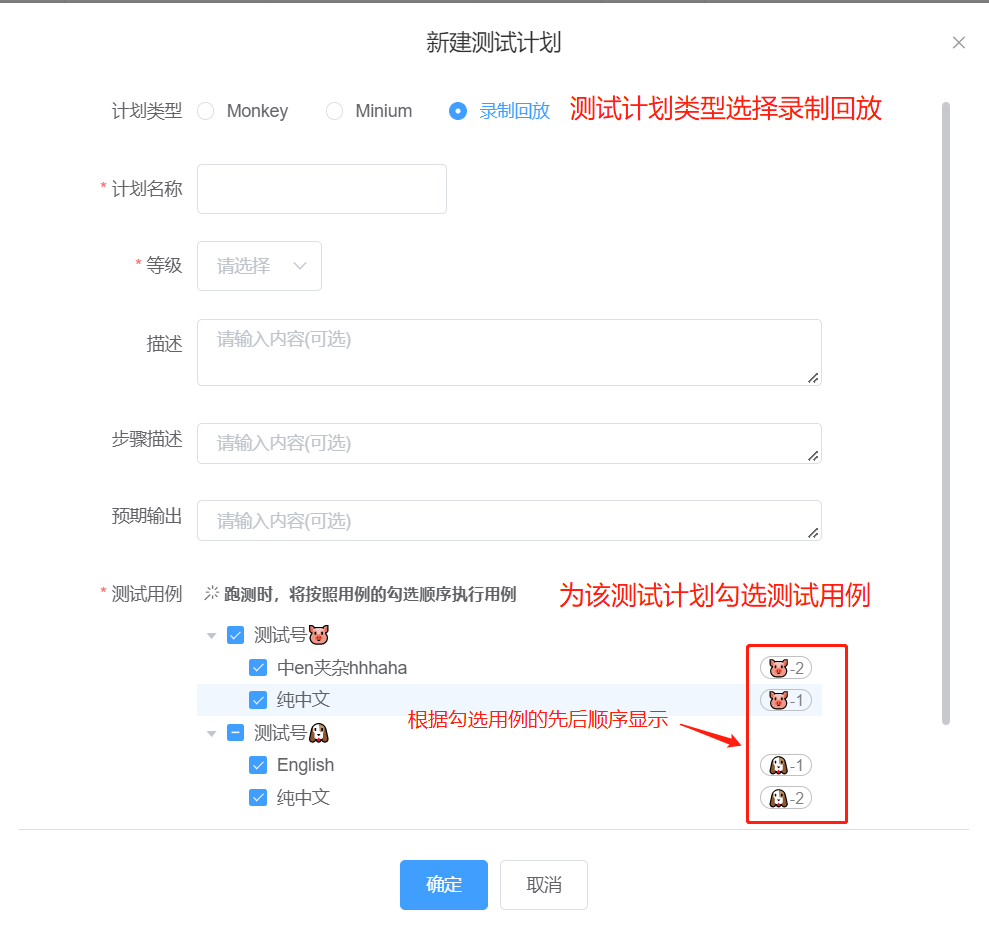
On the Test Plan page, create a new Record and Playback test plan.

Select Record and Playback for Plan Type. When Test Cases are selected, cases will be executed based on the order of the selected test cases.
3. Start Testing
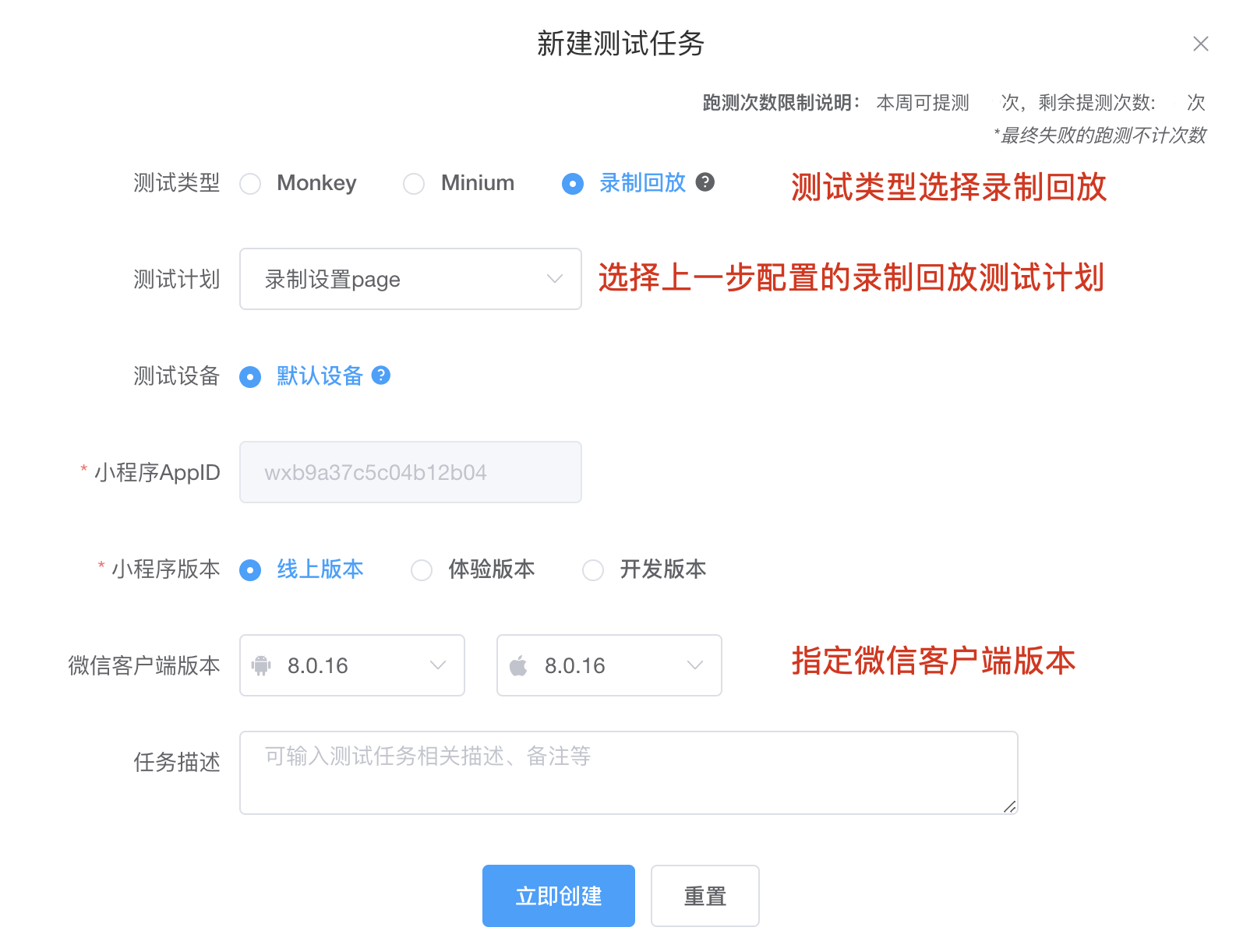
After configuring the test plan, click on the test task, select Record & Playback as the test type, and launch the test plan to replay the recorded cases on the Cloud Testing Service.
To maximize the replay success rate, the Cloud Testing Service uses the same account for replay as was used during recording. If both Android and iOS platforms are selected simultaneously, accounts must wait in a queue, which may significantly increase task duration.
Note: To improve machine utilization, a minimum of 10 minutes will be deducted from the duration for each test machine. If the case execution time is less than 10 minutes, it will be billed as 10 minutes. Please allocate the number of cases per machine reasonably.
Additionally, for paid users, Record & Playback supports Compatibility Testing, allowing recorded cases to run on multiple device models. Please note that under Compatibility Testing, an idle account will be randomly selected for replay, rather than using the same account as during recording. If cases are strongly account-dependent, it is not recommended to run Compatibility Testing. Refer to Test Duration Usage Guide for payment instructions.
3. More Reference Materials
- [Video Tutorial] Record and Playback
- Mini Program Record and Playback In-Depth Guide
- [Official Tutorial] Modular Configuration Guide for Record and Playback
- Summary of Common Questions About Record and Playback
- Have You Learned Record and Playback for Zero-Code Test Case Generation?
Need Help
If you have any suggestions or requirements, please visit the Need Help page, scan the code to join the official WeCom group for cloud testing, and contact the group owner for feedback.