Developers can pre-record test operations and then execute the recording script to replay the test process.
Runtime Environment Requirements
- Download and install Developer Tools version
1.05.2110202or higher. Download Link - Base library version
2.19.6or above
Usage Flow
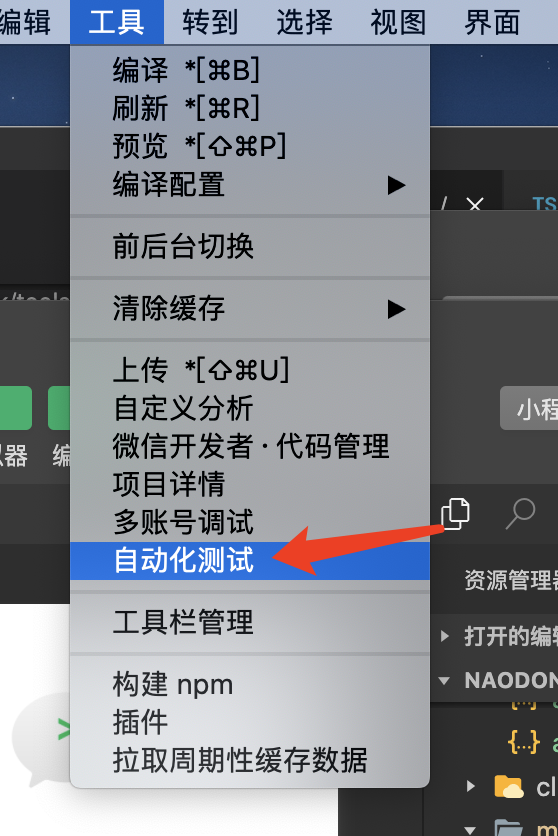
1. Tools -> Automated Testing
2. Create a New Case and Start Recording
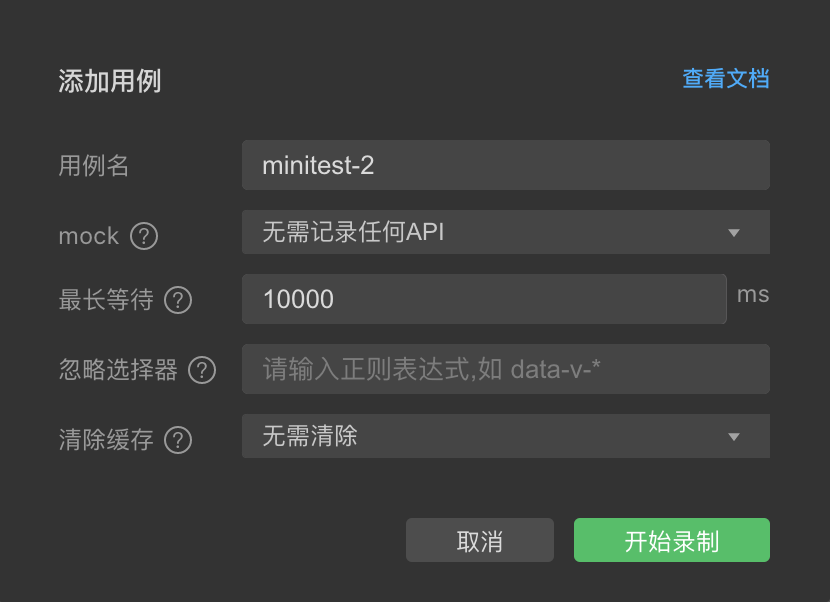
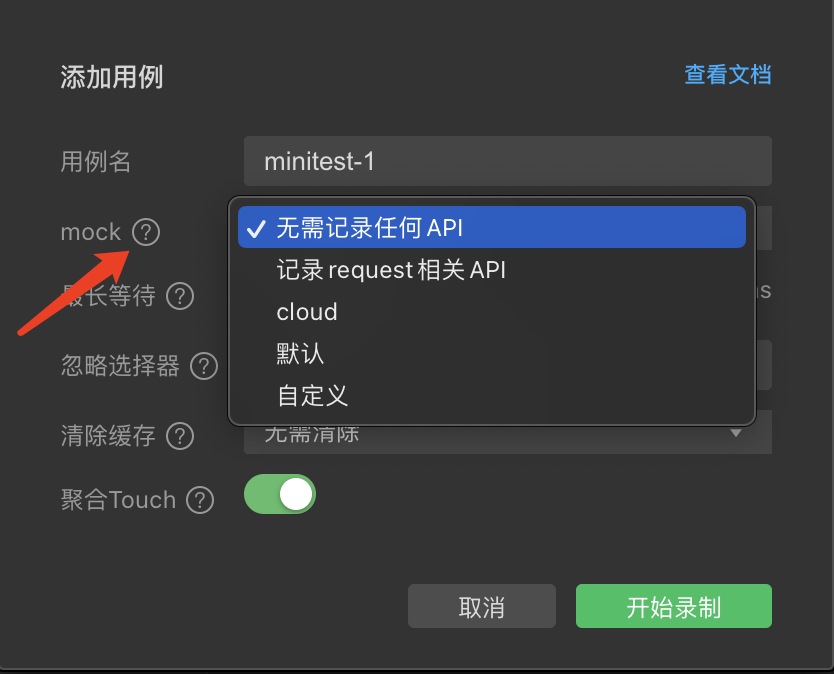
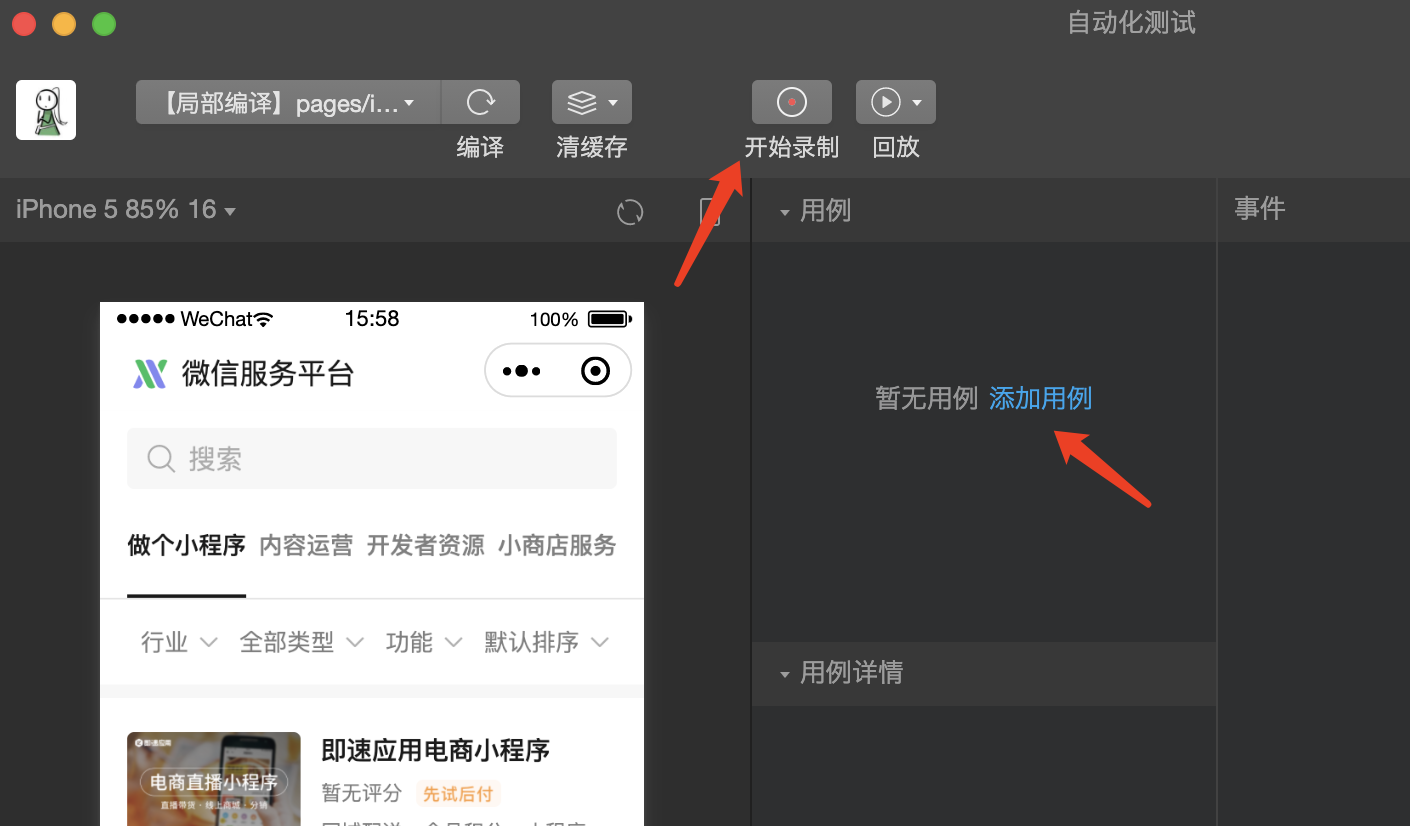 Creating a new case will pop up a creation dialog.
1. Allows modifying the case name
2. Choose whether to start mock
3. Modify the maximum wait time during recording. The maximum wait time refers to the maximum waiting time between two steps during recording. For example, if set to 3 seconds, even if the interval between two operations exceeds 3s, the recorded `waitfor` value will still be 3s. The default value is 10s.
4. If random classnames generated upon each compilation affect the playback success rate, you can configure rules to ignore these randomly generated classnames.
5. If you need to simulate the situation of a new app, you can configure cache clearing.
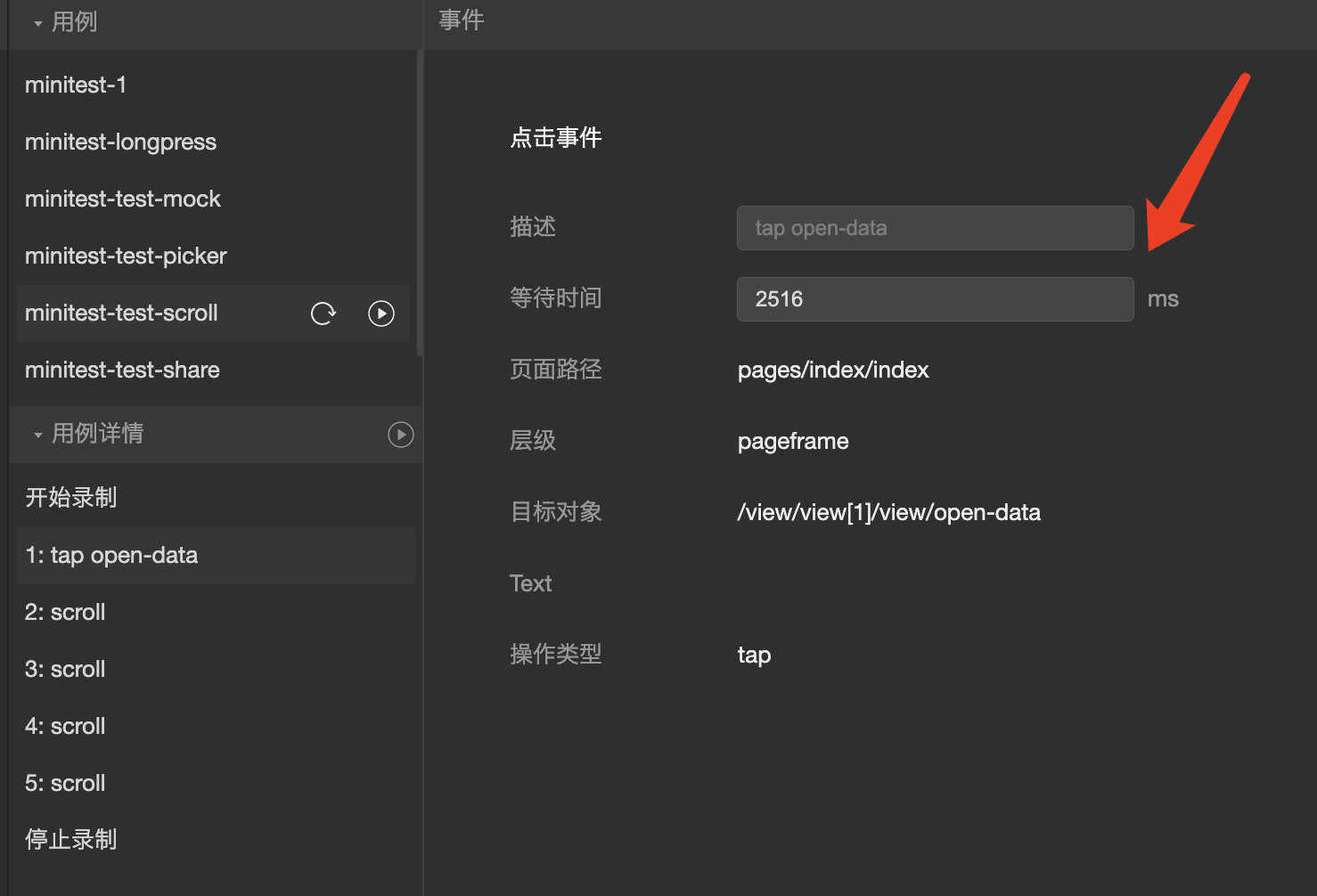
 After starting the recording, you can record by normally clicking on Mini Program elements. After recording ends, you can further fine-tune the wait time, etc.
3. cgi mock
Supports mocking interfaces such as wx.request and wx.cloud.callFunction.
Note: The minimum tool version that supports cloud development-related interfaces is 1.06.2206242.
4. Assertions/Checks
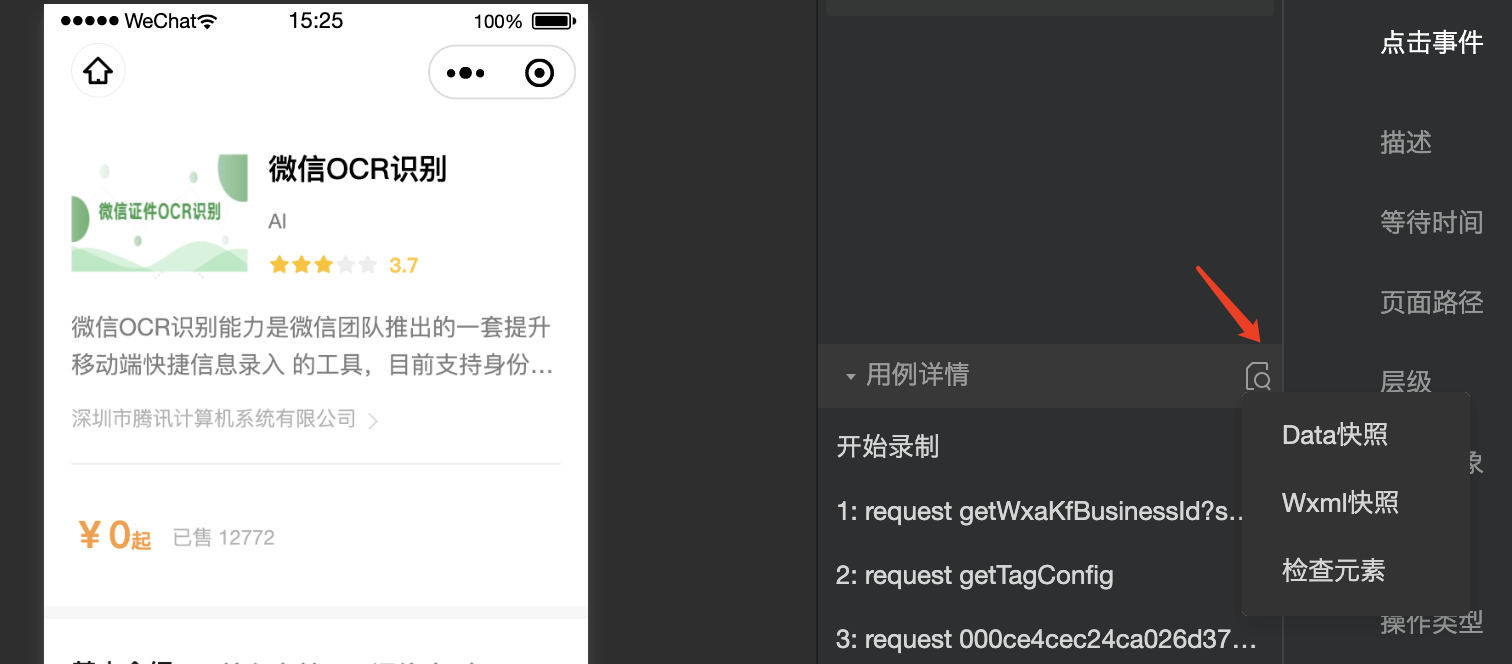
During recording, you can log data snapshots/WXML snapshots for matching verification during playback.
Alternatively, you can select an element to assert its existence or whether its innerText matches a specific value.
4.1 Data Snapshot
Click Data Snapshot to record the current page.data. During playback, when the process reaches this step, it retrieves page.data again for matching.
By default, a full match of the data is performed.
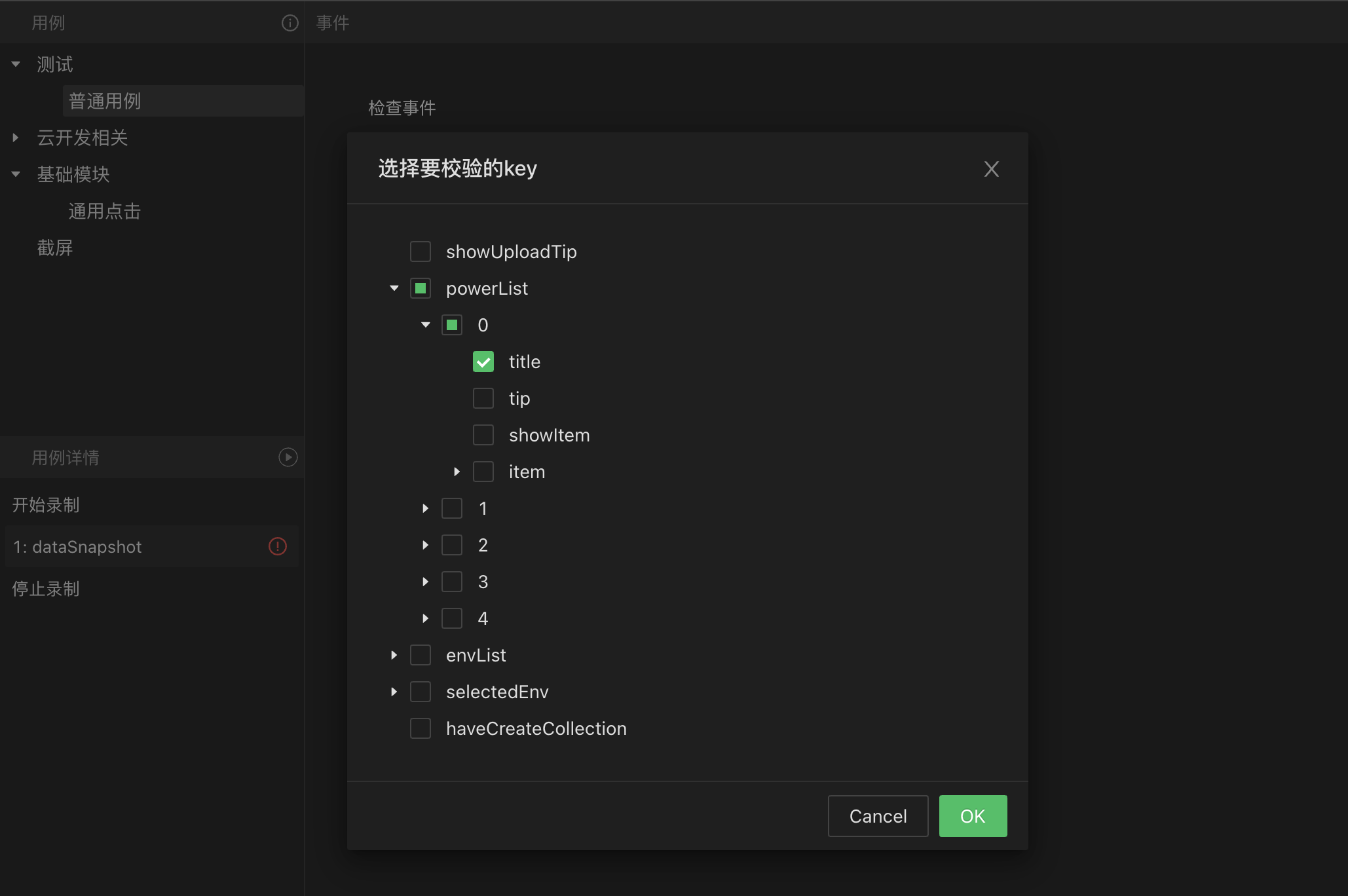
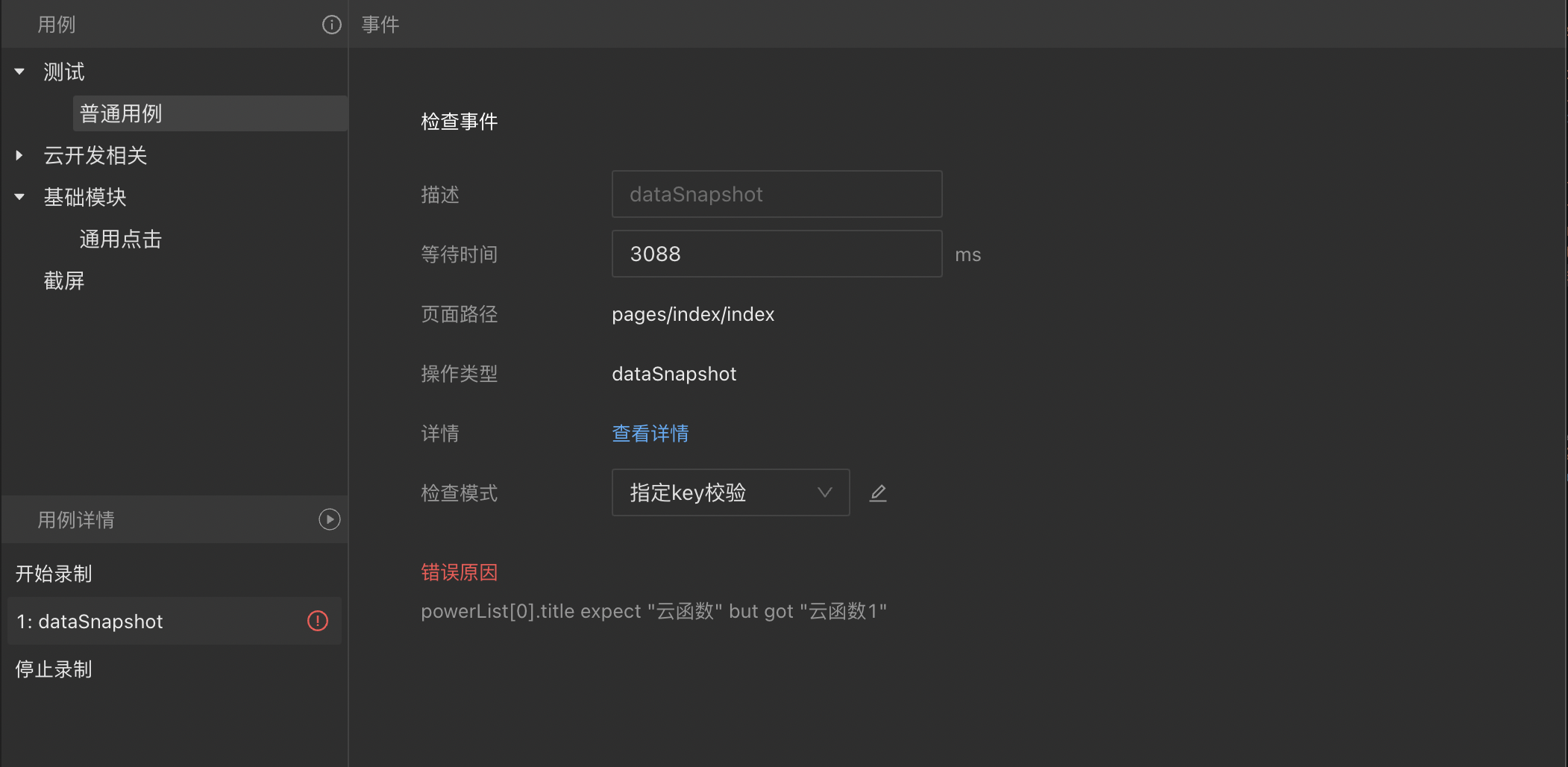
Starting from version 1.06.2206242, you can select specific keys for matching.
4.2 wxml Snapshot
Similar to the data snapshot, this records the wxml string.
4.3 Inspect Element
When "Inspect Element" is selected, the icon will be highlighted. At this point, you can select an element from Mini Program . Clicking on the element will not trigger any bound events.
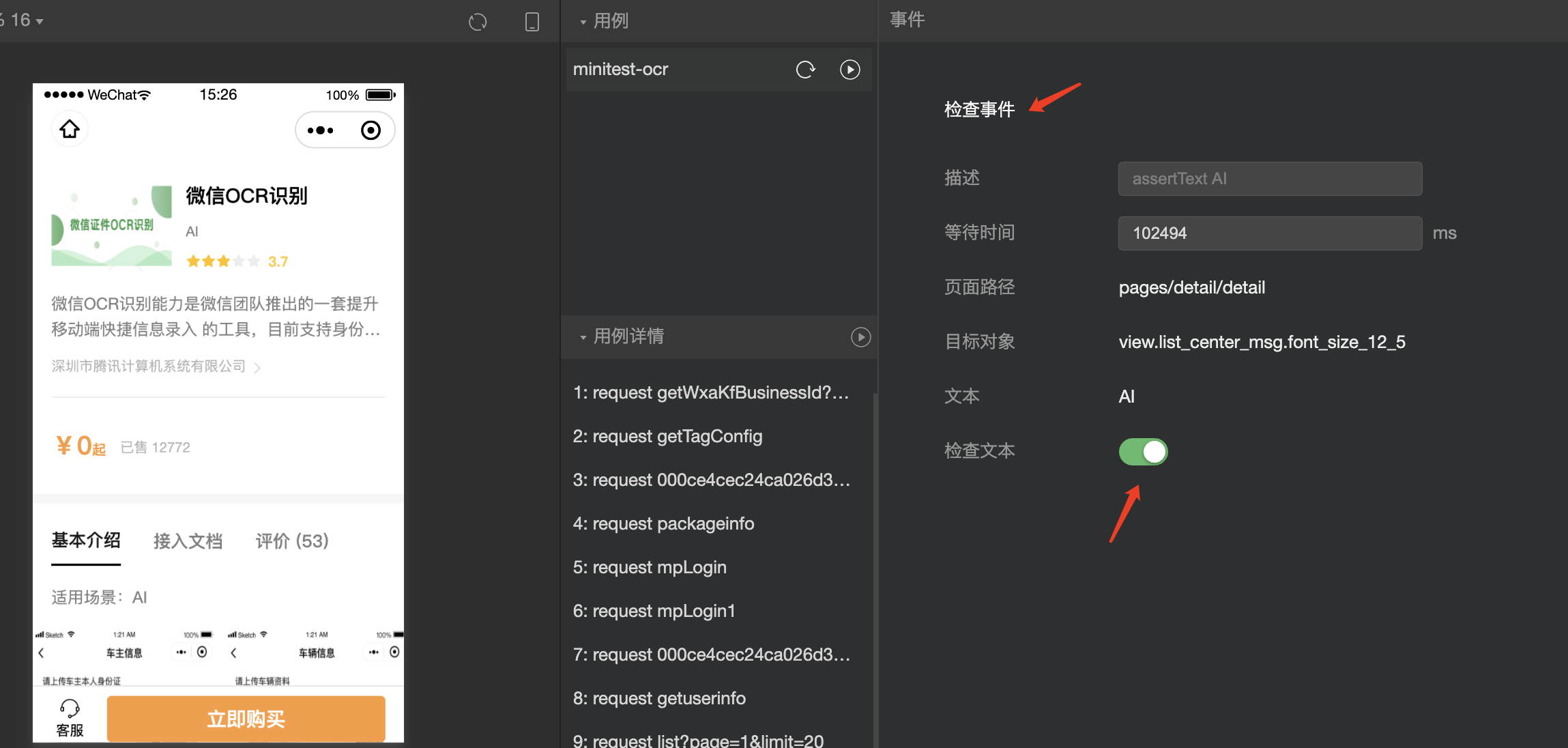
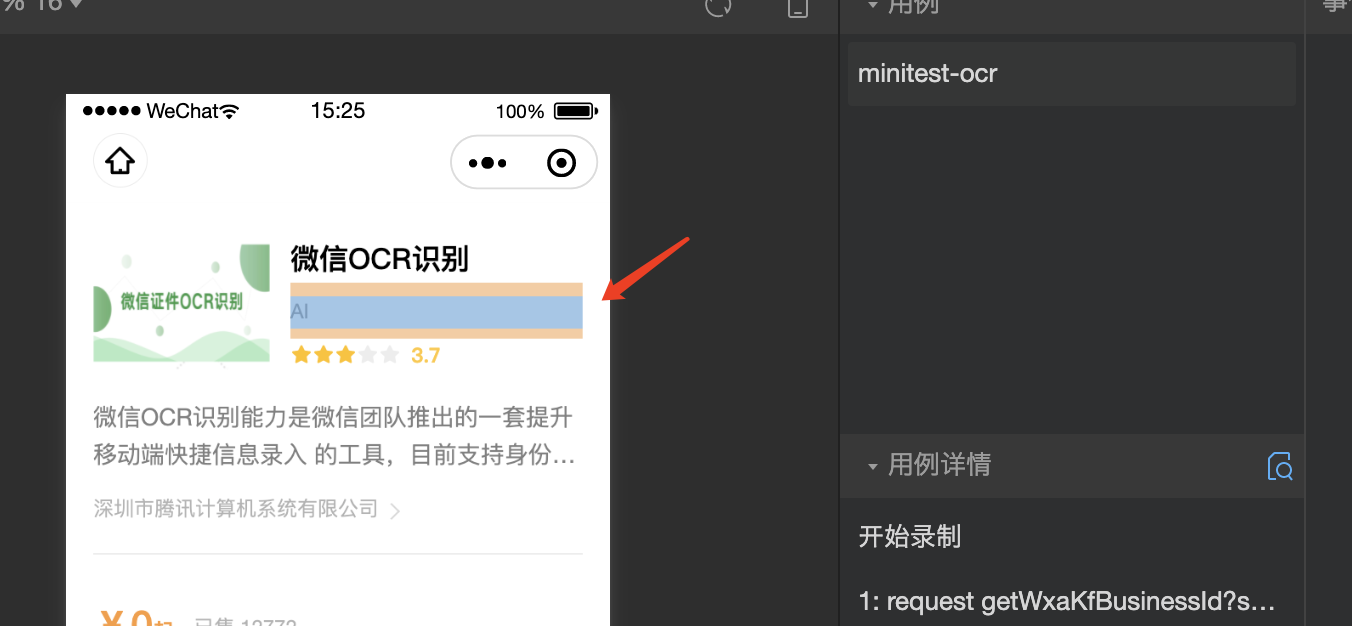 By default, it checks for the existence of an element. After recording is finished, you can manually turn on the switch for checking text.
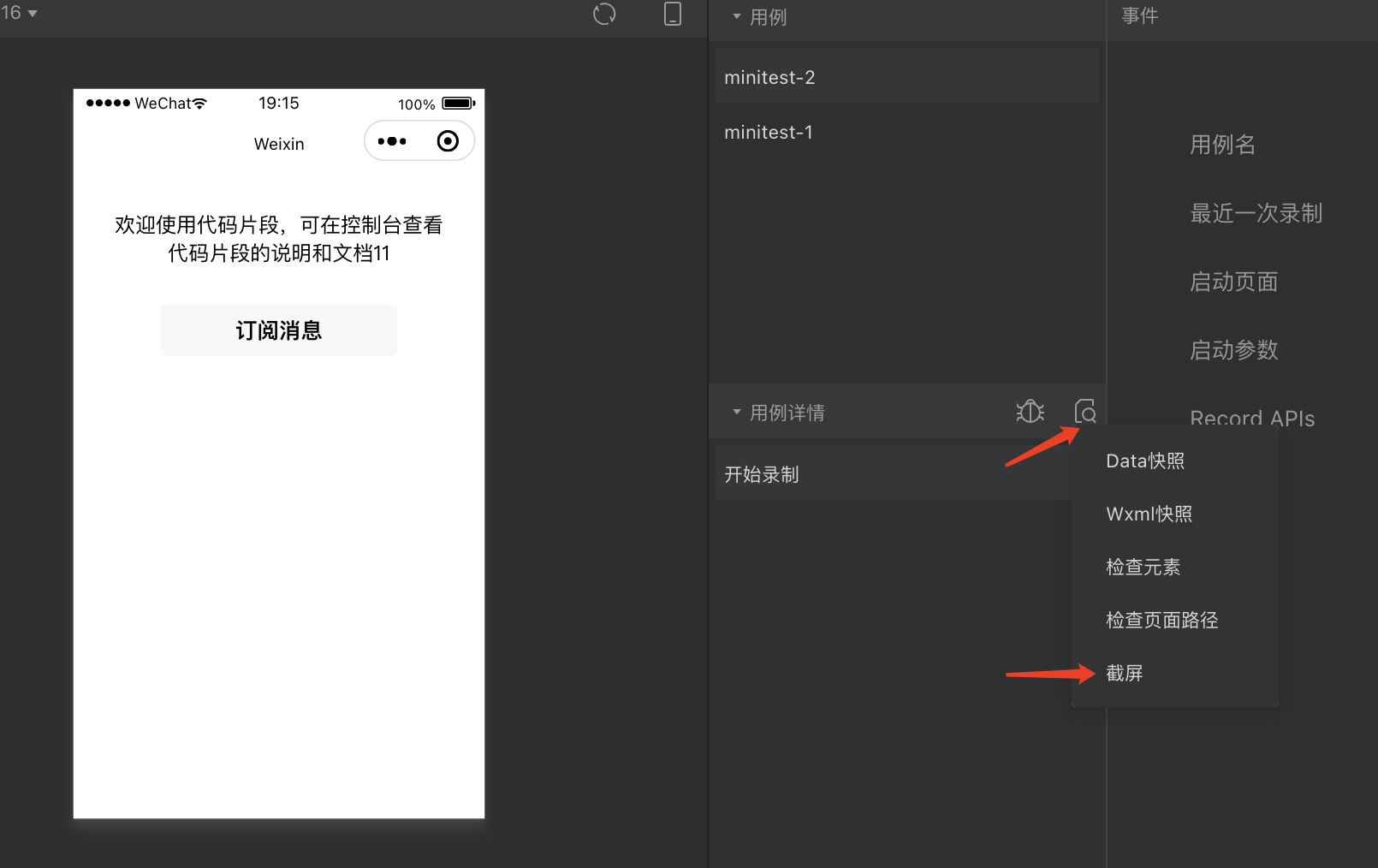
4.4 Screenshot (Minimum available tool version: 1.06.2206090)
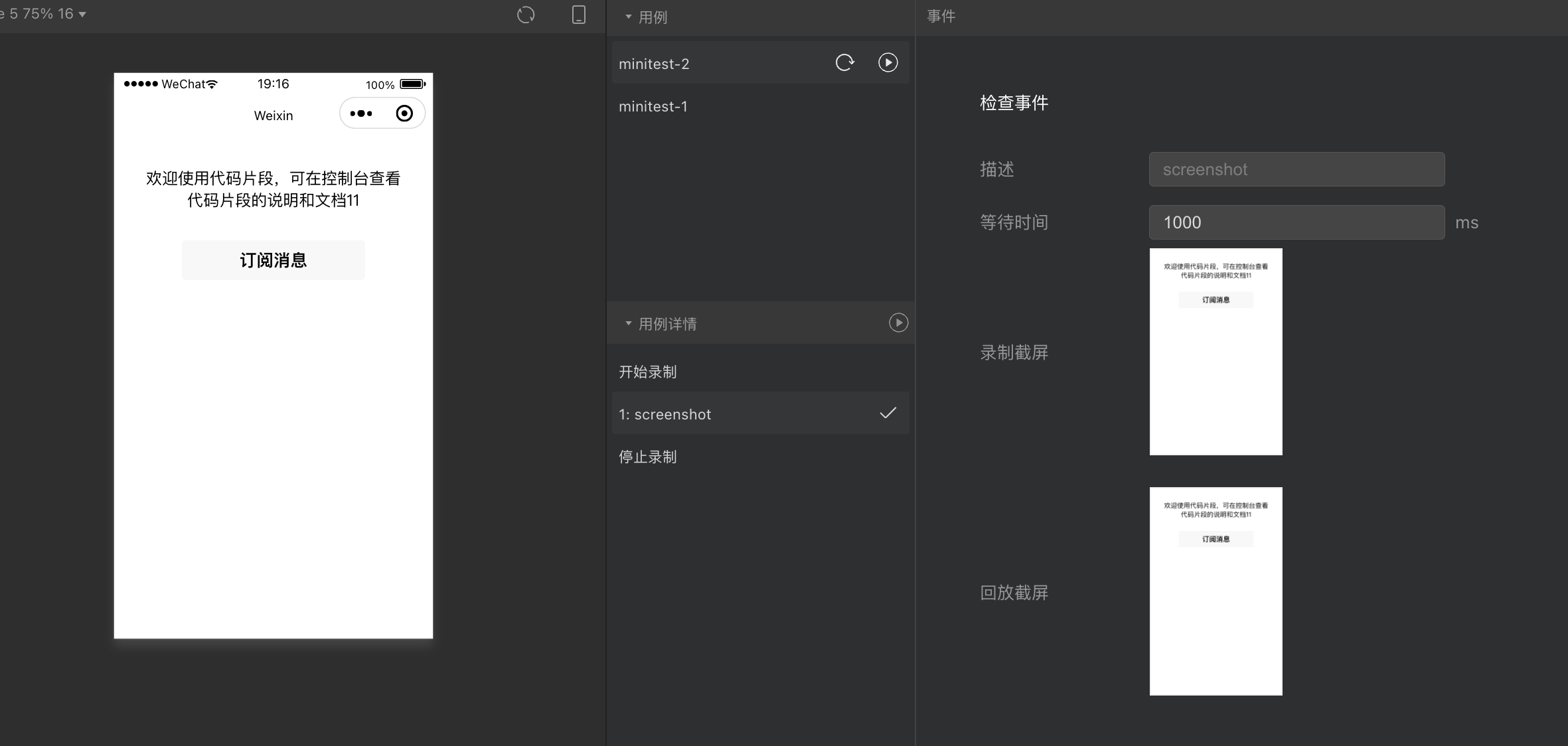
After clicking Screenshot, the result is stored in the test case in base64 format.
 During replay, both the screenshot captured during recording and the screenshot captured during the current replay are displayed.
5. Re-record
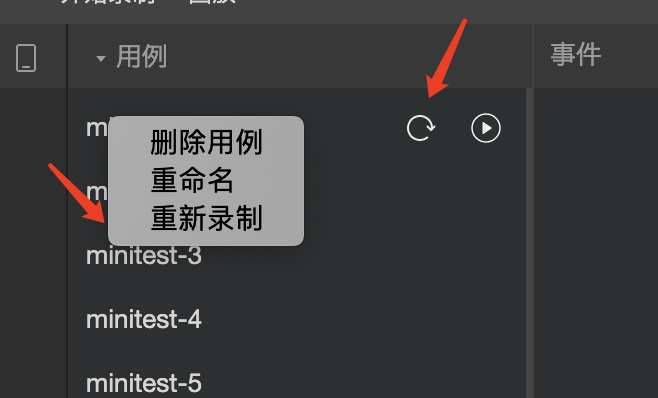 Note: Re-recording will overwrite the previously recorded test case steps.
6. Replay
Click "Replay" to initiate the replay operation. If it fails, the reason for the failure will be displayed.
Additionally, you can replay test cases on physical devices after scanning the QR code.
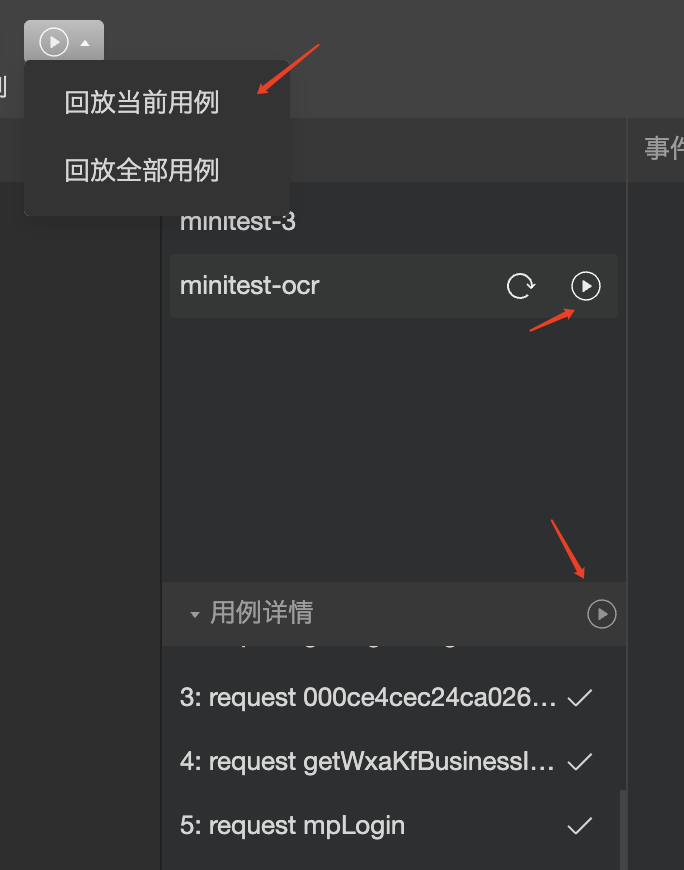
7. Replay All
Selecting Replay All generates a concise test report and saves it locally.
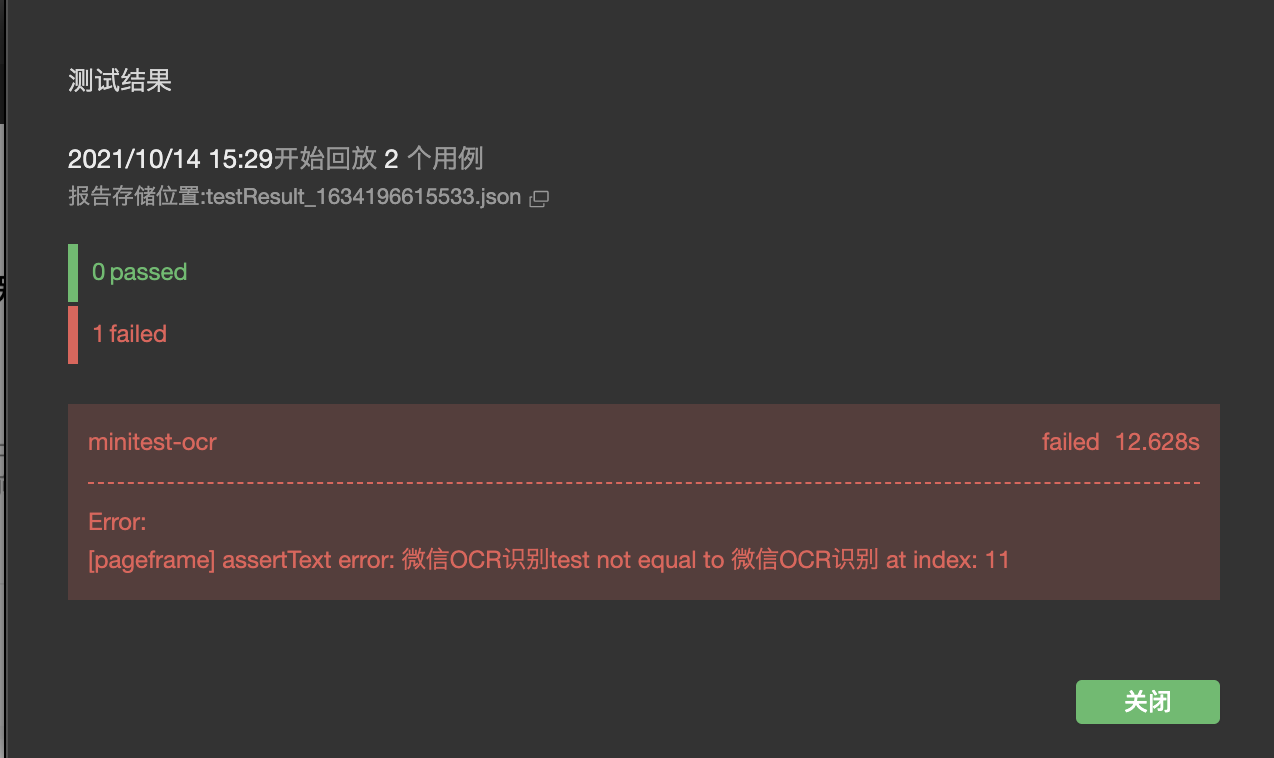
You can also choose to replay via the command line using the tool. For detailed instructions, see Command Line Invocation
# Open Automated Testing Window
cli auto-replay --project /Users/username/demo

# Open the Automated Testing Window and Replay All Test Cases
cli auto-replay --project /Users/username/demo --replay-all
8. Replay Configuration
Tools version 1.06.2211012 and above allow configuring screenshots during replay.
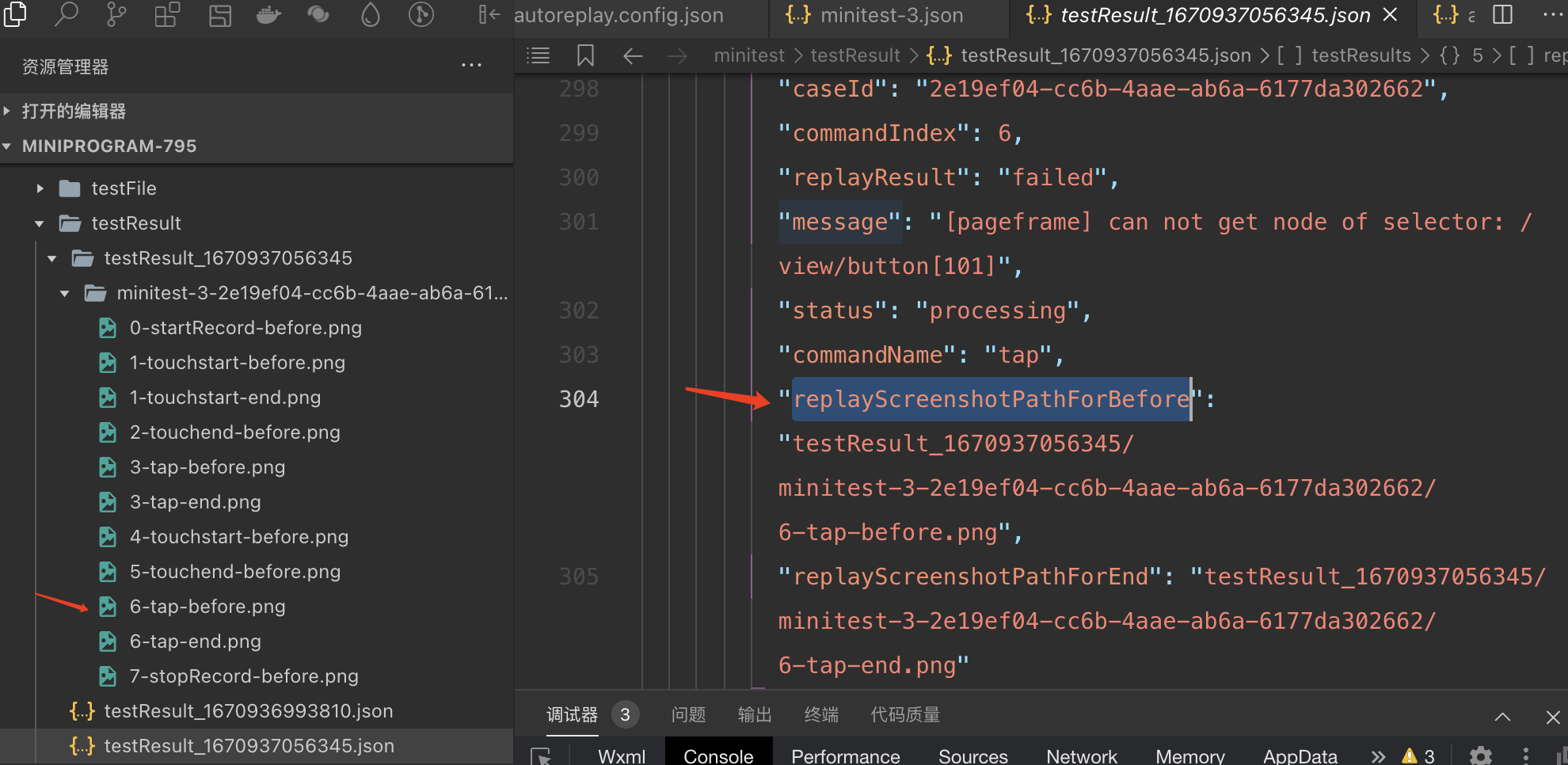
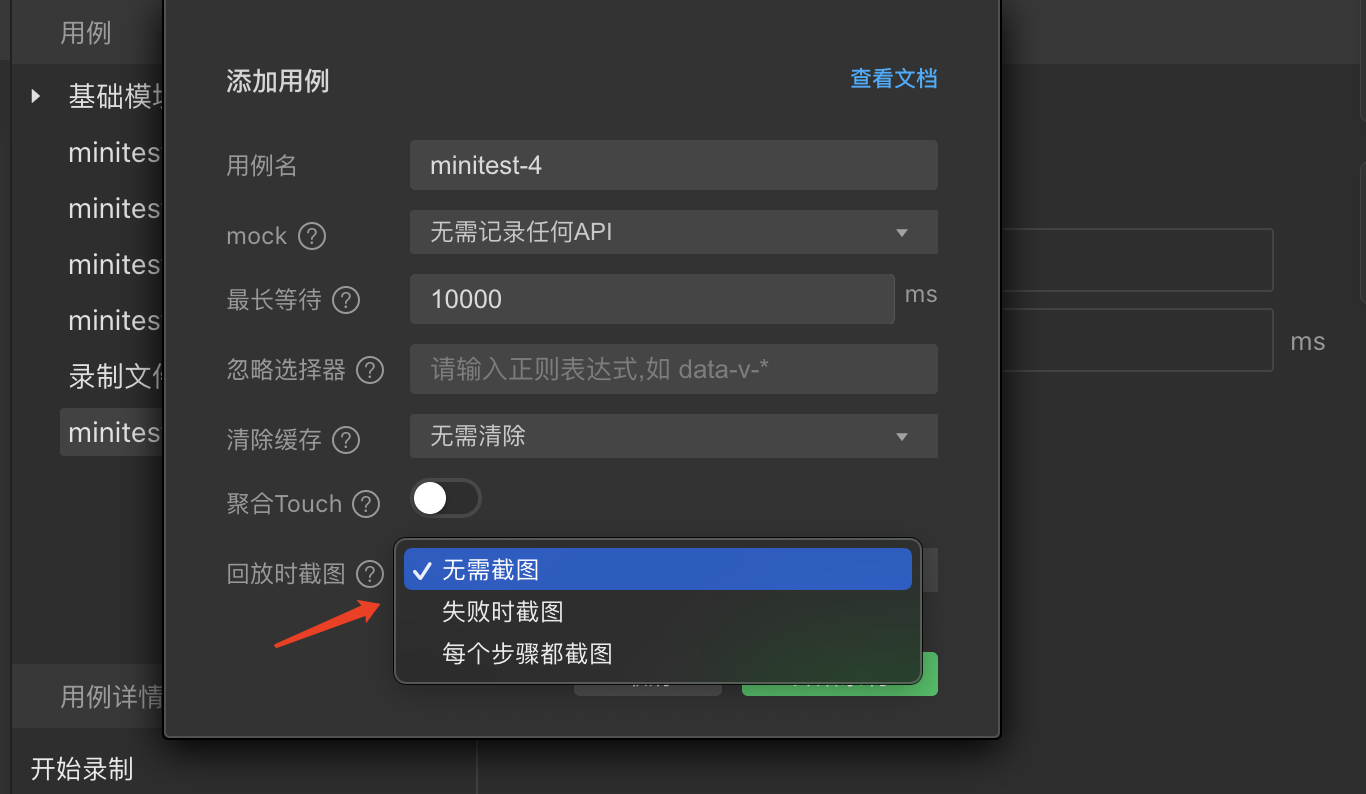 If a screenshot is configured for when a step fails, the image content is stored as base64 in the replay result file.
If a screenshot is configured for every step, the images are saved in a folder with the same name as the replay result file.
9. Mini Program Cloud Test Replay
Local replay is based on the local code version of the Developer Tools. If developers wish to test with other Mini Program versions (such as replaying multiple test cases in the Trial Version during regression testing), they can try using Mini Program Cloud Test.
Mini Program Cloud Test allows recorded test cases to be replayed in the Development, Trial, and Production versions. It supports scheduled tasks and API tasks, and generates detailed test reports. For detailed usage documentation, refer to Using Recording and Replay in Cloud Test Service.
Other
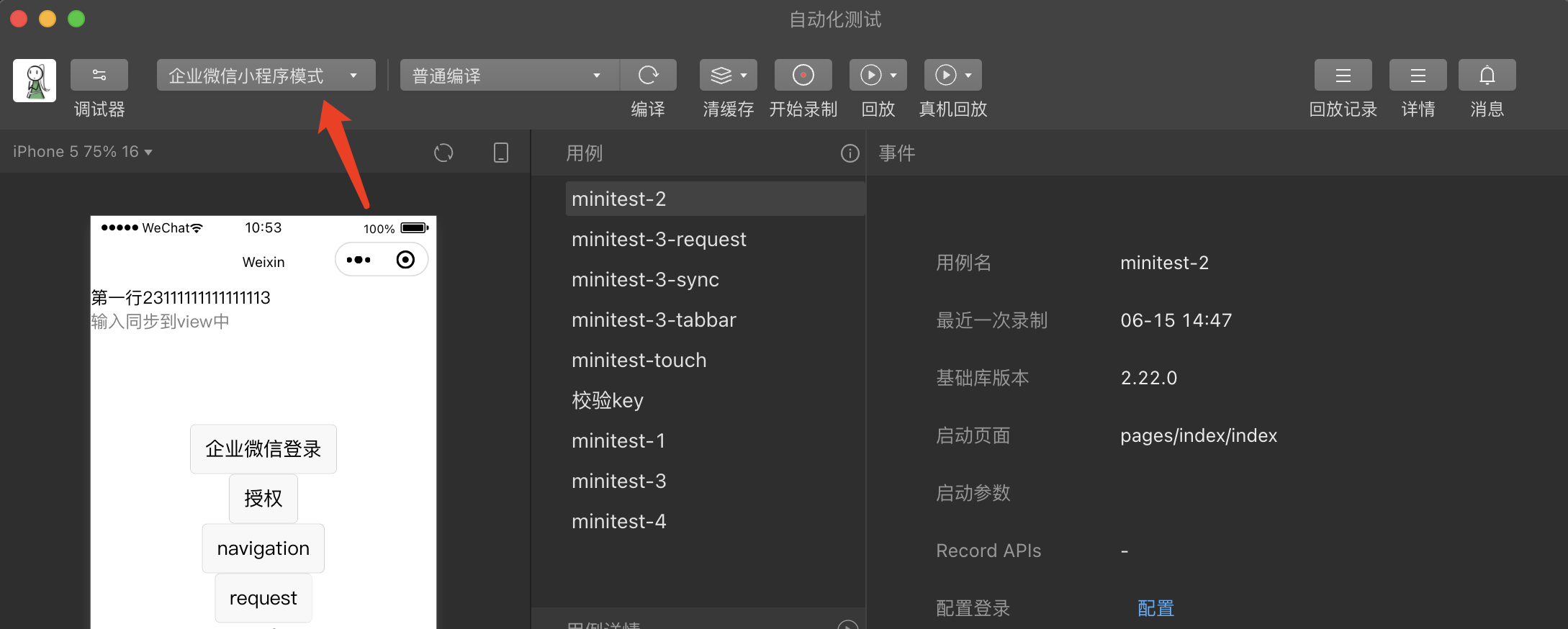
Enterprise WeChat Weixin Mini Program Support
Recording and playback for automated testing with Enterprise WeChat Weixin Mini Program is supported in tool version 1.06.2209152 and above.
Switch to Enterprise WeChat Weixin Mini Program mode and select Base Library 2.20.3. You can then use the recording and playback feature just as you would with a standard Mini Program.
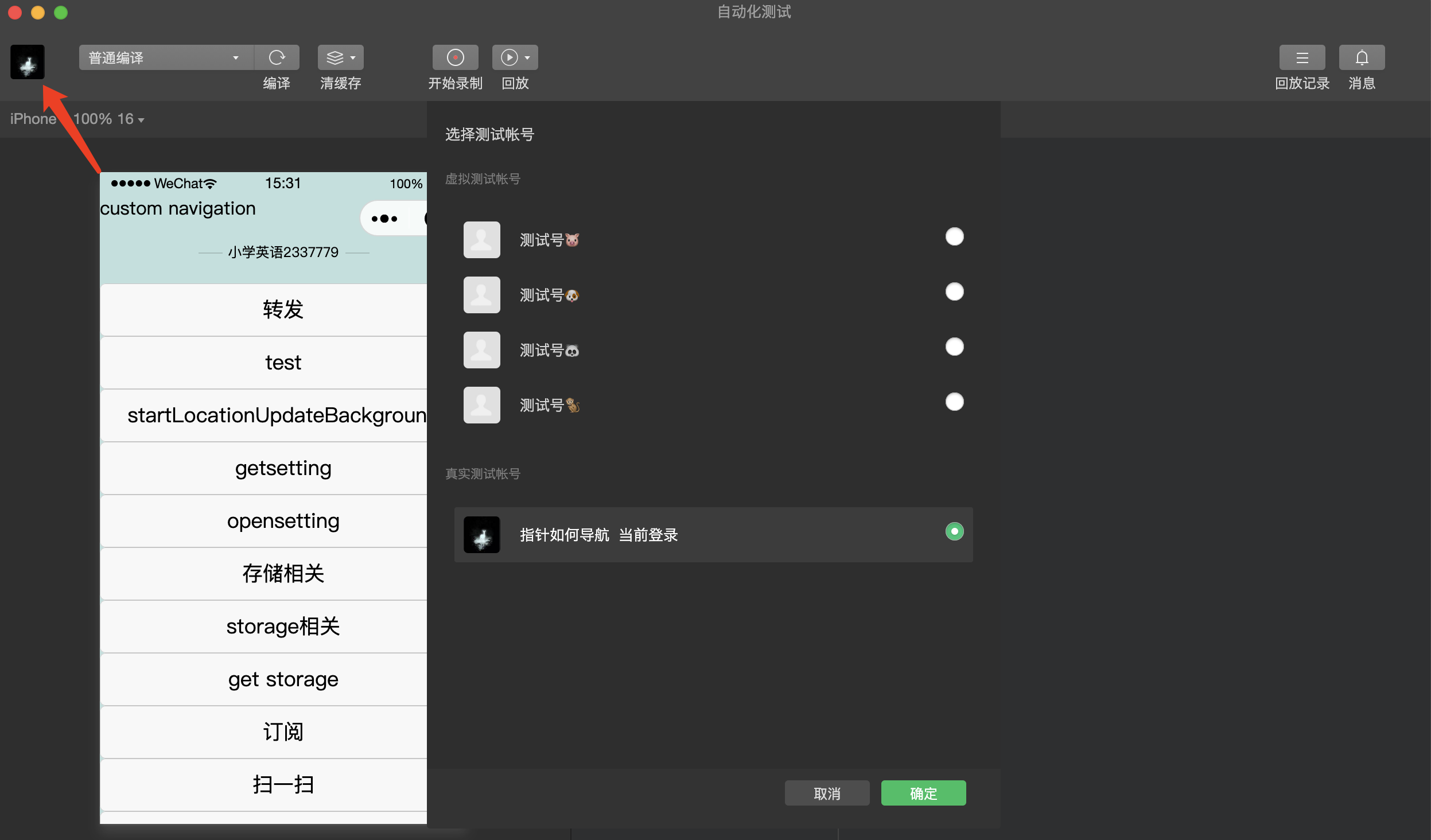
Click the avatar to switch the test account
Configuration File Description
The test save directory defaults to minitest/, and can be modified in project.config.json
"testRoot": "minitest/",