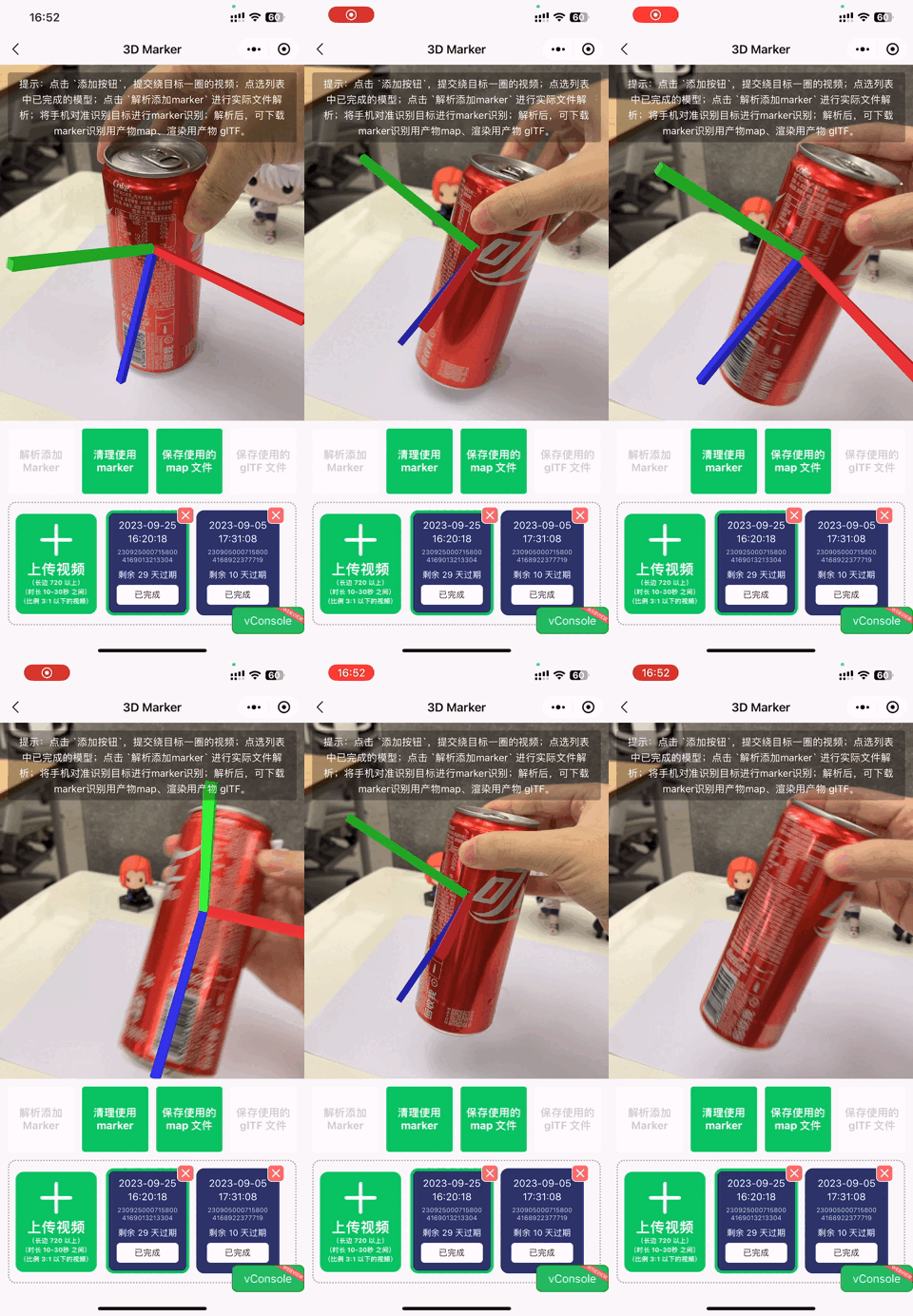
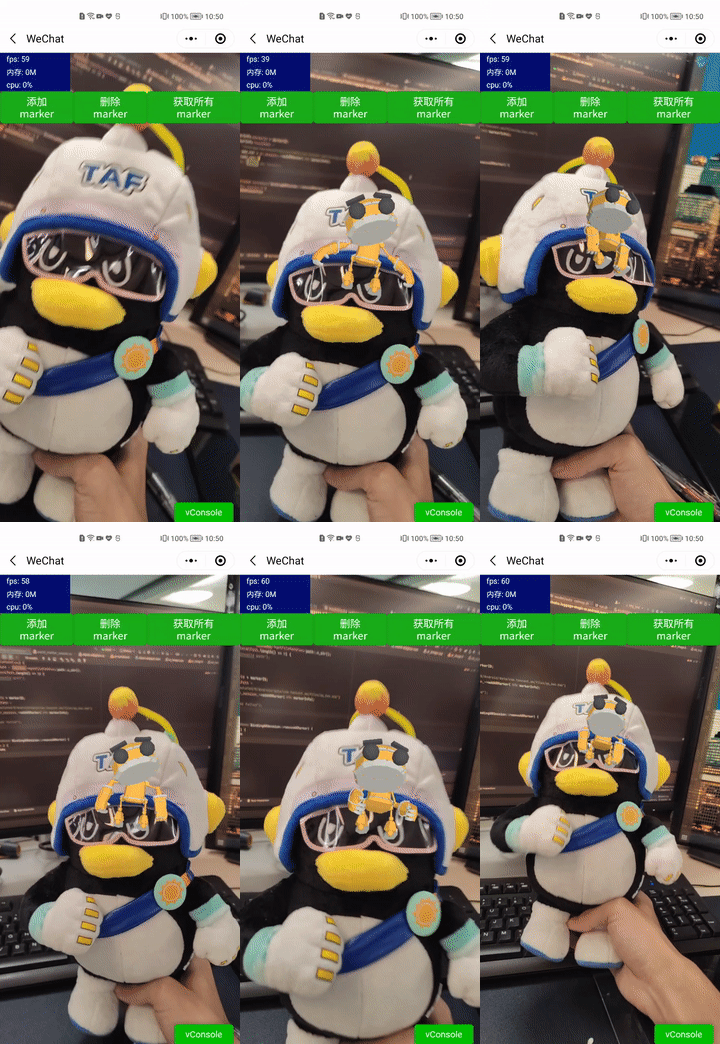
Method Definition
The 2D/3D Marker AR capability recognizes pre-defined target objects (defined as Markers, including 2D planar objects and 3D objects) and performs visual tracking and positioning. By rendering virtual objects around the target object, it achieves AR functionality.
Differences Between Methods
2D Marker: Applicable only to planar objects. Users upload a top-down image of a planar object as the target. During runtime, the algorithm recognizes this planar item and renders the associated virtual objects. A 2D Marker can be understood as a special type of 3D Marker.3D Marker: Compared to the 2D Marker, the 3D Marker can recognize 3D objects, extending beyond planar objects to a wider range of applications. Before running the algorithm, you must manually create the recognition target file (.map file) for the 3D Marker. The algorithm then loads this file at runtime for recognition.
Usage Notes
- Before using the
addMarkerAPI, you must enable marker tracking when callingcreateVKSession. Specifically, usewx.createVKSession({ track: { marker: true } }). - You can add
multiple Marker images, but you cannot add the same marker image repeatedly. - In v2 mode, combining Plane Detection with Marker Detection allows for
simultaneous detection of multiple Markersand can output multiple 2D/3D marker detection results (requires Base Library version 3.0.0). The pose information returned before the target disappears from the field of view remains valid and usable. For specific details, refer to AR Capability Extensions for Planes and related internal examples.
Object Recognition Specifications
To enhance Marker quality and ensure effective algorithmic recognition, please carefully review the Marker specification document Marker Specifications.
Generating Map Files for 3D Marker Recognition Targets
Currently, generation is only allowed via the API - VisionKit Vision Capabilities - 3DMarkerAR page in the Mini Program sample.
Parse Task Status
- Preparing - Uploaded, but the generation server has not returned a result yet. It is recommended to wait for 20 minutes before uploading the next video (if the result is not updated, you can manually delete this task, although it is best to wait for approximately one day).
- Generation Failed - The error reason will be specified in the error message.
- Completed - Generation is complete. Default artifacts are retained for only 30 days; please download them manually.
Service Duration
- The current version takes approximately 20 minutes to process a 30-second video. Please wait patiently for the algorithm to return the model.
- This service processes only one task at a time. Running multiple tasks simultaneously may cause subsequent tasks to fail. It is recommended to schedule generation tasks during off-peak hours.
Requirements for the Input Video
-
The video aspect ratio must be 16:9 or 4:3, with the short side exceeding 480px.
-
The target object should be easily distinguishable from background objects. Maintain a certain distance between the target and background objects. The base should be easily distinguishable from the object; placing a white sheet of paper under the base is recommended.
-
The target object should preferably be rigid, without significant deformation. Objects prone to deformation are not suitable for use as recognition targets.
-
The video should move at a constant speed to avoid motion blur. Film by encircling the target’s recognition face, ensuring sufficient parallel movement of the camera.
-
Requirements for marker objects are similar to those for 2D images: they should have rich details, avoid repetitive or monotonous textures, and be non-reflective with no highlights.
-
The video should feature rich texture details. If the marker itself has weak features, appropriate textured objects can be added to the background.
-
Transparent objects are not recommended, as they result in poor generation effects.
Suggestions for the Input Video
-
Video format: A frame rate of 30 fps and a resolution of 1080p are recommended.
-
Video duration: A duration of 20s–30s is recommended. Videos exceeding 30s will be truncated, while those that are too short may result in suboptimal marker effects.
3D Marker Source Video Reference
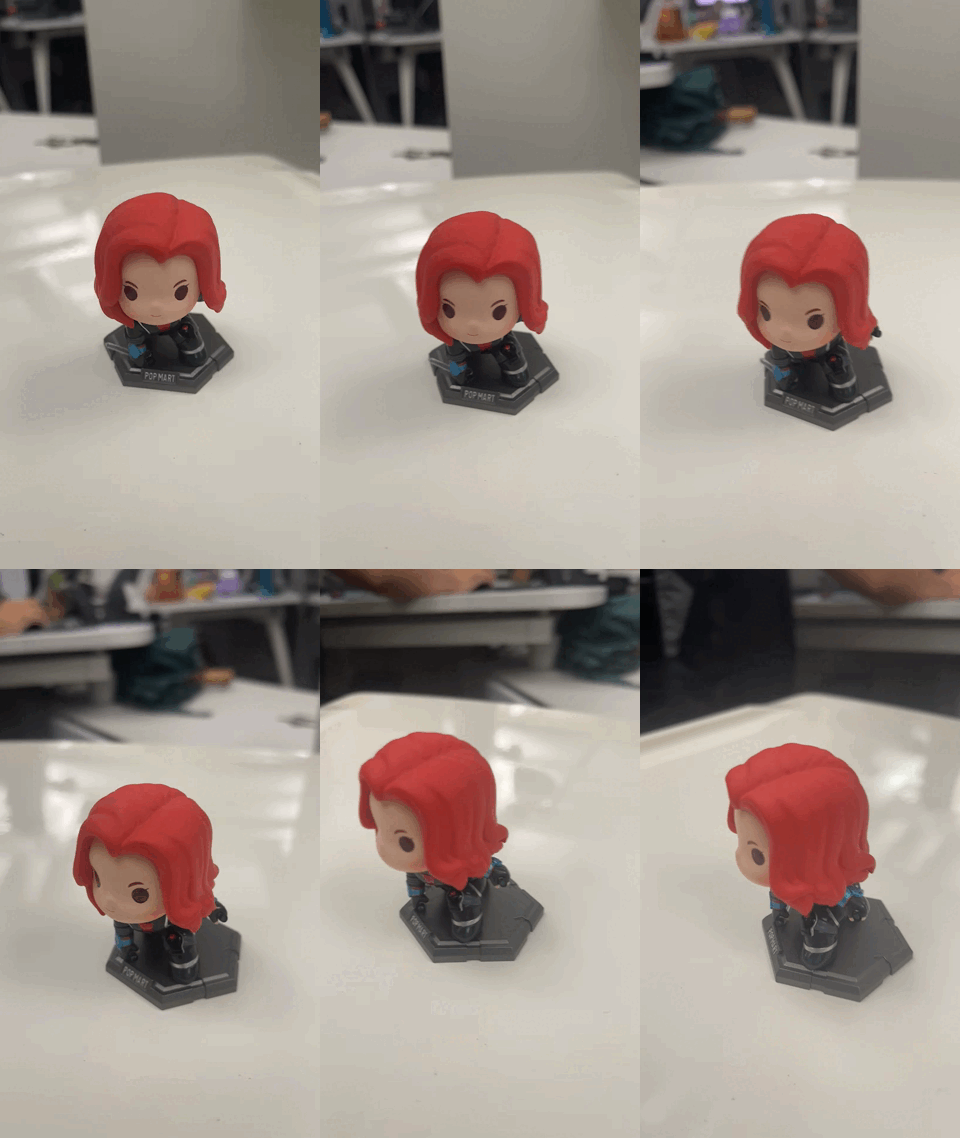
Sample Code
The following APIs can be explored in the APIs - VisionKit Vision Capabilities section of the Mini Program API Capability Demo.
2D Marker Capabilities
- Basic 2D Marker Capability Example Basic example of 2D Marker recognition.
- Horizontal Plane + 2D Marker Capability Example Example combining Horizontal Plane AR with 2D Marker recognition.
- Horizontal Plane + Additional Capabilities Example Example combining Horizontal Plane AR with multiple additional capabilities.
3D Marker Capabilities
- 3D Marker Usage Examples Examples for generating, invoking, and testing 3D Markers.
3D Marker Case: Default Recognition & Approximate Effect
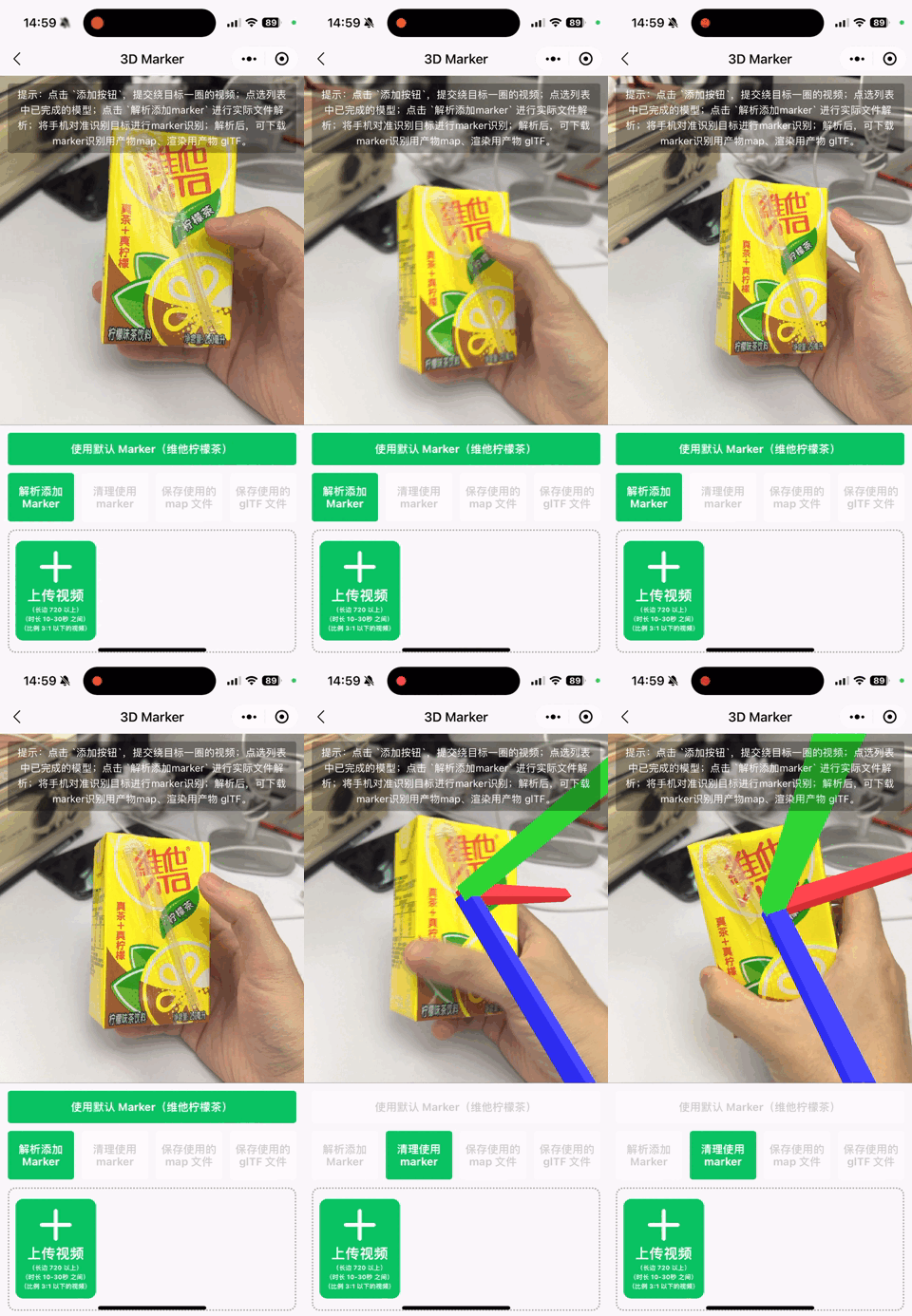
3D Marker Case: Default Recognition Source Video Reference

3D Marker Example Default Recognition Image

Application Scenario Examples
2D Examples:
- Employee ID Card AR
- Ticket AR
- Artwork AR

3D Object Examples:
- Container-based AR, such as beverages and cosmetic bottles
- Figurine AR