- WeChat DevTools version requirement: ≥ 1.06.2312122 (it is recommended to use the latest nightly version of WeChat DevTools).
- Currently, multi-language adaptation is supported for App name, privacy information access permission descriptions, privacy dialog content, and the splash page.
1. Usage Steps
1.1 Download tools and create folders
-
Download the latest nightly developer tools.
-
For existing multi-platform projects, create a new folder in the project directory to store configuration files for different languages (it is recommended to place this folder in the project root directory so it can be pushed to the Git repository along with other code).
-
For newly upgraded multi-platform projects, the developer tools have already created an
i18nfolder by default and generated base.json, as well as populated the Name and adaptation file folders by default.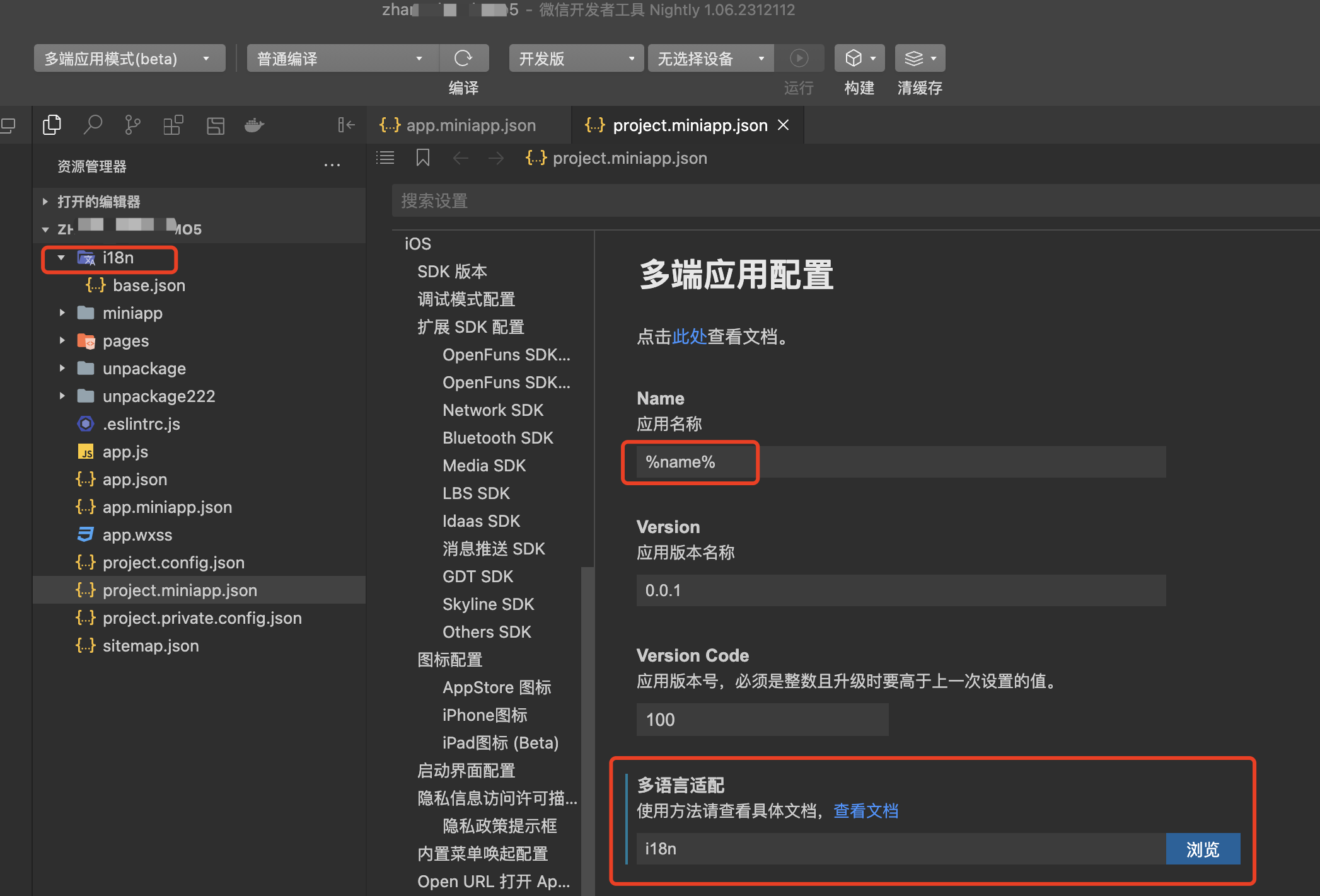
1.2 Creating the base configuration file
- For existing multi-platform projects, manually create
base.jsonin the folder specified in Step 1 (this is the base file, used for languages, countries, or regions where internationalization is not configured).
1.3 Creating Configuration Files for Other Languages
-
The naming convention for json files is BCP 47 (note that due to iOS system limitations,
zhcannot be used;zh-Hansorzh-Hantmust be used instead). -
Create json files for other languages. The common json file names for supported languages are:
Language json File Name Simplified Chinese zh.json (on iOS, use zh-Hans.json or zh-Hant.json) Traditional Chinese (Hong Kong) zh-Hk.json Traditional Chinese (Taiwan) zh-TW.json English en.json French fr.json German de.json Russian ru.json Spanish es.json Japanese ja.json Korean ko.json Arabic ar.json -
And write the internationalized text in the json file according to the following format (using the App name configuration as an example).
{
    "ios": {
        "name": "xx"
    },
    "android": {
        "name": "yy"
    },
    "common": {
        "someDesc": "zz"
    }
}
Note: The priority of the override relationship when reading internationalized text for the same field is: zh-Hk.json > zh-Hans.json > zh.json > base.json
1.4 project.miniapp.json Multi-language Adaptation
-
Configure the folder path for multi-language adaptation.
-
Go to
project.miniapp.json, and fill in the fields requiring multi-language adaptation (e.g., name, privacy information access permission description) in the format%i18n_key%, for example:%name%,%someDesc%.
1.5 Multilingual Adaptation Example for Privacy Prompt Box
-
You can create a
privacyfolder within thei18nfolder to store the content of privacy prompts in different languages.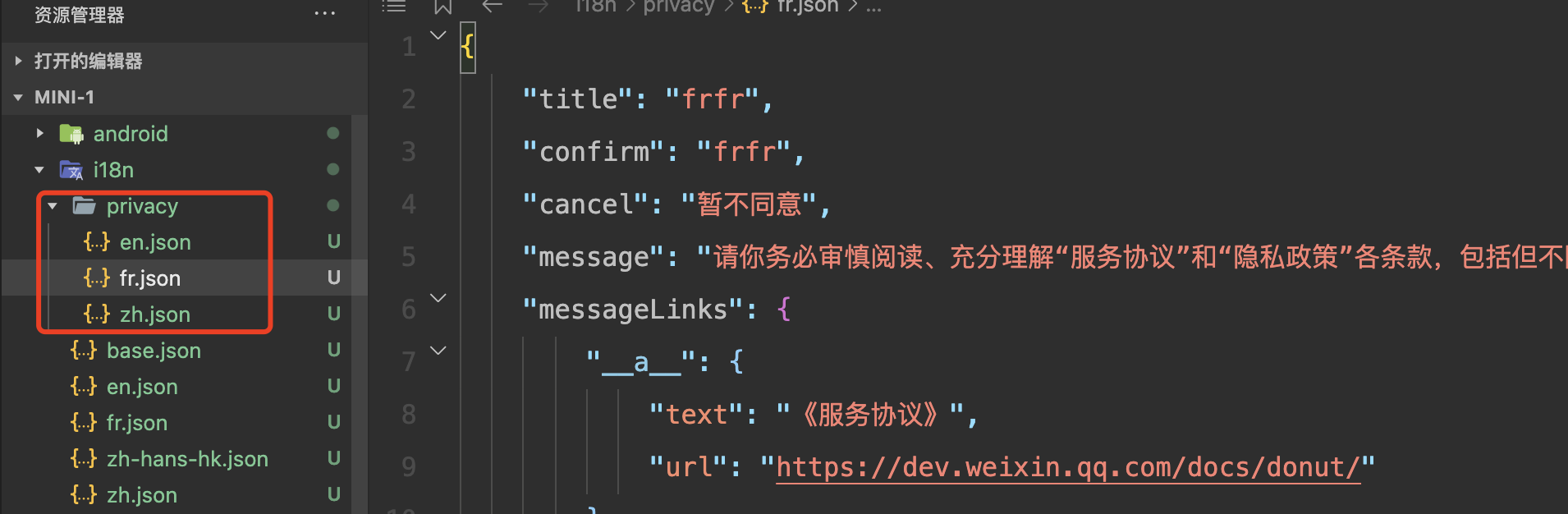
-
Then, configure the privacy content in the JSON files for each language within the
i18nfolder. For example:{ "ios": { "name": "xx" , "privacy":"i18n/privacy/fr.json" }, "android": { "name": "yy" }, "common": { "someDesc": "zz" } }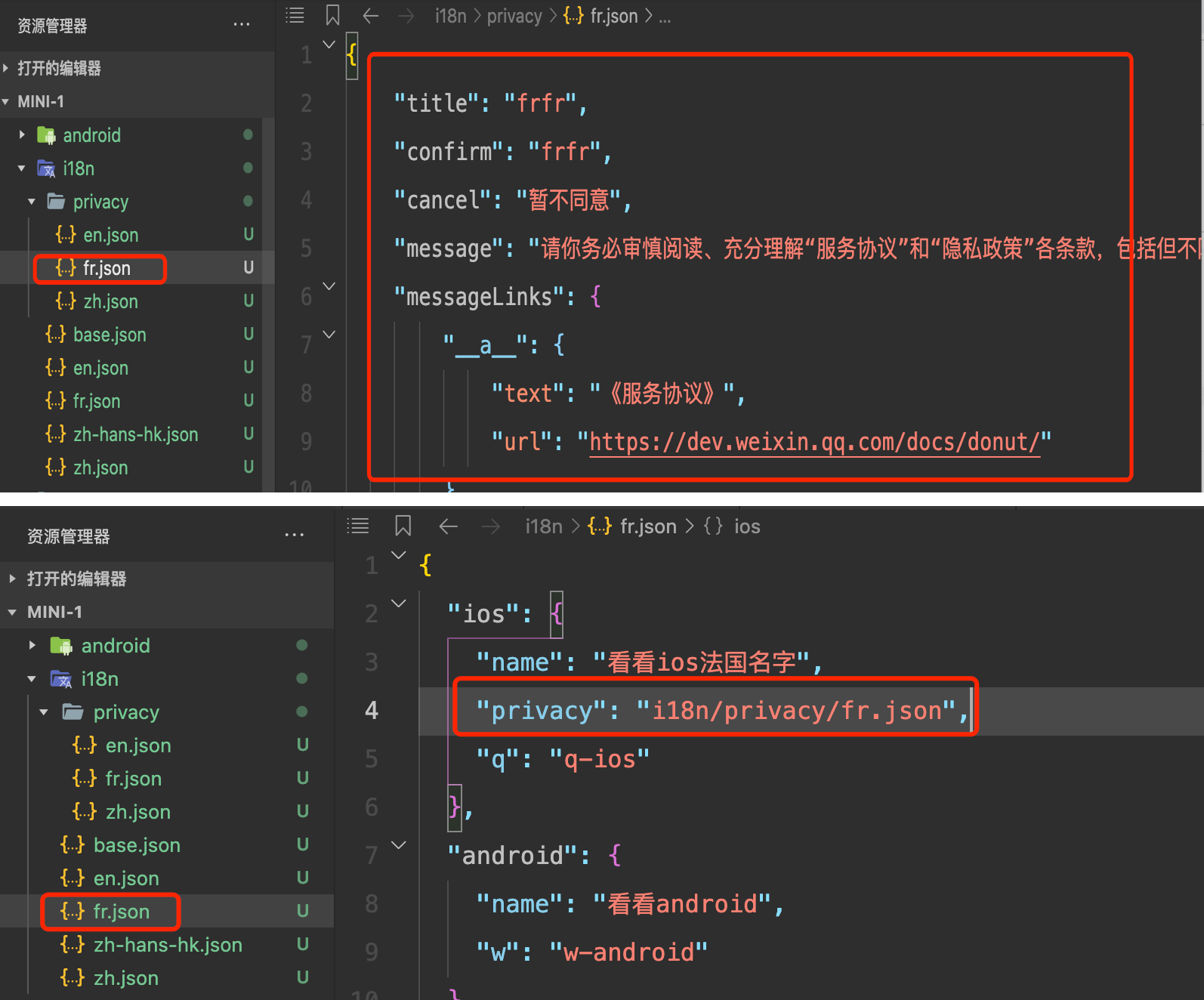
-
Finally, configure the paths for the
privacy templatecorresponding to Android and iOS in project.miniapp.json.
1.6 Multi-language Adaptation Example for Launch Screen
Note: WeChat DevTools version must be ≥ 1.06.2407092
-
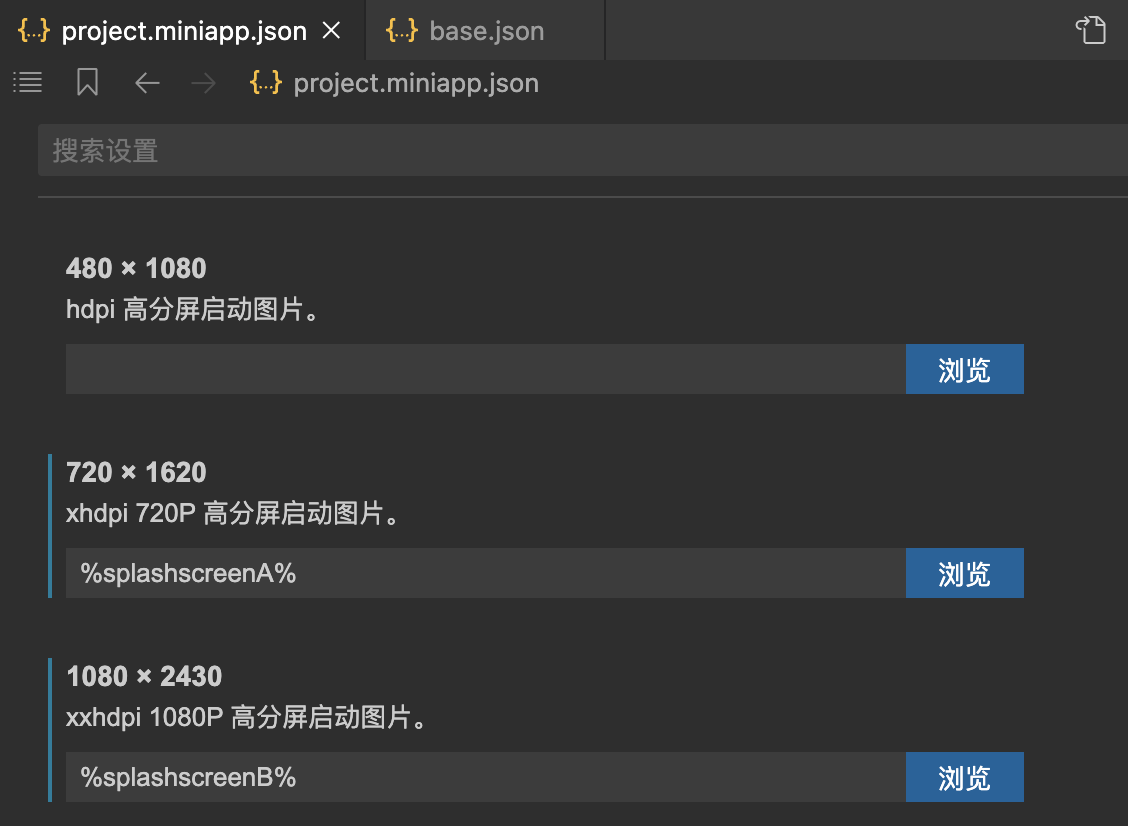
Add the {splashscreen} field to the internationalization file. The value should be the image URL for the launch screen. Refer to the configuration in base.json for an example.
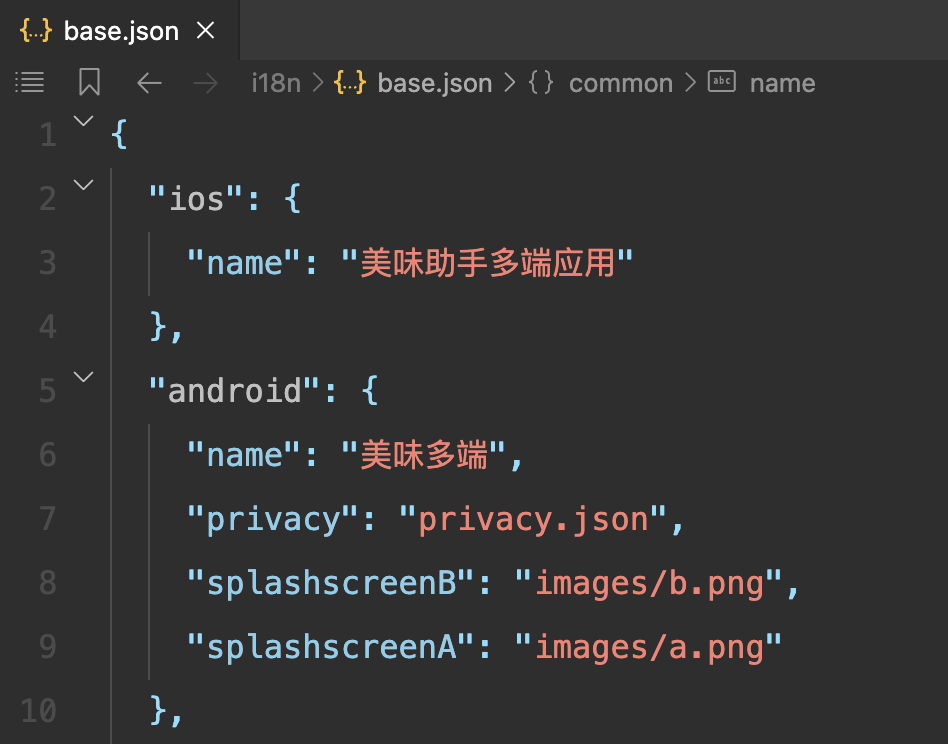
-
In the project.miniapp.json file, use the internationalized launch screen image with the %{splashscreen}% format.
iOS Notes
- The splash screen image has two stages. The image for stage 1 is determined by the user's language setting upon the first APP launch and will not change even if the language is switched later. The image for stage 2 dynamically follows the user's current language setting.
1.7 Multi-language Adaptation for Permission Description Configuration
Both Android permission descriptions and iOS privacy information access permission descriptions support multi-language adaptation. You can configure them using %{xxxx}% (refer to the %name% implementation above).


1.8 Multi-language Adaptation for Network Error Pages
- When the user has no network connection or has not granted network authorization to the App, they will be directed to a description page indicating lack of network permission or that the network is turned off, as shown in the screenshot below:
- To adapt this page for multi-language support, please refer to the instructions below (Note: The developer tools version must be > 1.06.2412242)

- Configure LOCALES. The internationalization file includes the reserved keyword LOCALES, which is used to declare the path of the common internationalization configuration file.
{
  "ios": {
    "name": "xx",
    "LOCALES": "path/to/common/locales/config/file/ios.json"
  },
  "android": {
    "name": "yy",
    "LOCALES": "path/to/common/locales/config/file/android.json"
  },
  "common": {
    "name": "zz",
    "LOCALES": "path/to/common/locales/config/file.json"
  }
}
- The file pointed to by LOCALES currently supports internationalization for the network error landing page and the iOS network rejection prompt page. It must be written in the format specified below.
{
  "networkError": {
    "tips": "Network permission may not be enabled",
    "confirm": "Go to Settings",
    "solution": {
      "describe": "View Solution",
      "confirm": "Got it",
      "title": "Network Settings Reference Guide",
      "words": "1. Tap 'Go to Settings' to check if the app is allowed to use cellular data.\n2. Check the device's 'Settings' - 'Wi-Fi' settings to see if there is an available Wi-Fi signal.\n3. Check if the device has cellular data enabled (enabling it may incur data charges from your carrier).\n4. If you are connected to a Wi-Fi network: Please check if the network you are connected to has internet access, or if the network allows your device to access the internet."
    }
  },
  "weakNetworkError": {
    "tips": "Current network connection is unavailable. Please ensure your phone is properly connected to the internet and try again.",
    "confirm": "Retry Now",
    "retry": "Retrying......",
    "solution": {
      "describe": "View Solution",
      "confirm": "Got it",
      "title": "Your device has not enabled mobile network, Wi-Fi network, or has network connection issues",
      "words": "To connect to the internet, please refer to the following points:\nCheck the Wi-Fi settings on your phone to see if there is an available Wi-Fi signal.\nCheck if your phone is connected to a mobile network and is not suspended.\nIf you are connected to a Wi-Fi network:\nPlease check if the Wi-Fi hotspot you are connected to has internet access, or if the hotspot allows your device to access the internet.\n"
    },
    "detailedLog": {
      "describe": "Error Detailed Log",
      "confirm": "Got it"
    }
  }
}