1. SDK Related
1. What is the minimum supported system version for the SDK
- The minimum supported iOS version for the iOS SDK is iOS 13
- The
minSdkVersionfor Android is 21 (i.e., Android 5)
2. What to Do If SDK Initialization Fails
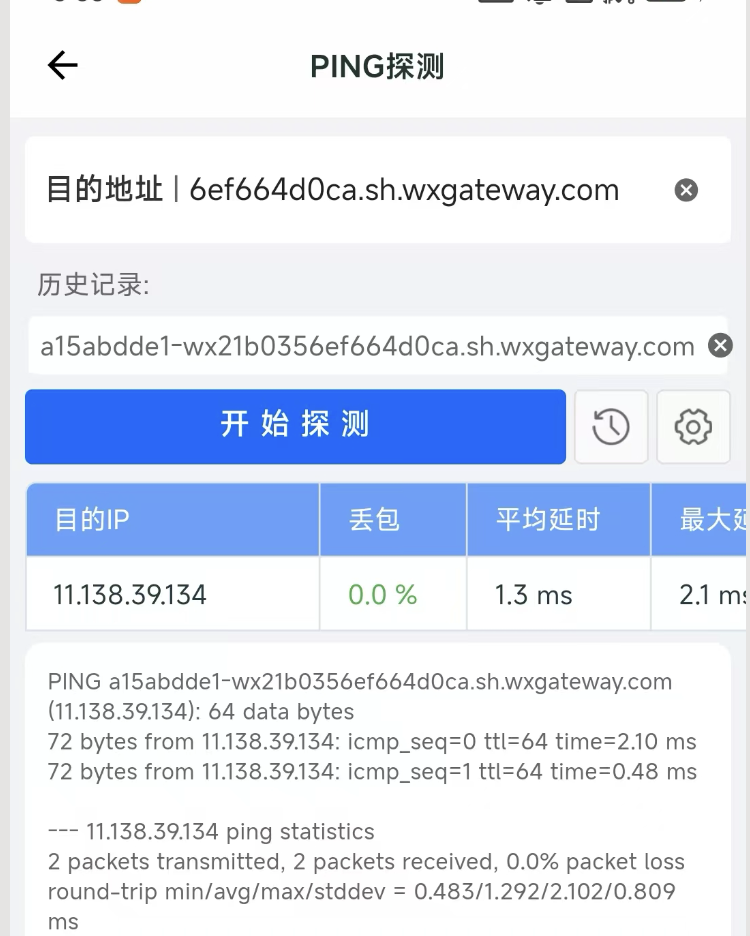
- This is usually caused by network issues. You can access "https://itango.tencent.com/huatuomobile" on your phone, and then use the "ping" function within the tool to check for network problems on your device.
- The ping address is: a15abdde1-wx21b0356ef664d0ca.sh.wxgateway.com. A normal, error-free result is shown below:
3. What is the referer information for multi-platform applications, and is it the same as Mini Program?
- The referer information is:
https://servicewechat.com/{appid}/{version}/page-frame.html - It is consistent with the referer information of Mini Program
4. What should I do if I encounter "module xxx not loaded" when calling JSAPI?
- For example:
{errMsg: "sendOpenReg:fail sendOpenReq:fail, moduleWeAppOpenFuns not loaded"}; another example:{"errMsg": "openBluetoothAdapter:fail:module bluetooth not loaded"} - Cause: The reason for this issue is that the corresponding extended SDK has not been selected. You can view the relationship between JSAPI and extended SDKs in the Introduction to Extended SDKs.
- Solution: Go to the
project.miniapp.jsonfile in the developer tools, select the corresponding extended SDK, and then rebuild the installation package.
2. Developer Tools
1. Prompt to Upgrade to the Latest Developer Tools
- Copy 1: To properly use multi-end app features, you must upgrade the current tool to the latest nightly version and re-upgrade the multi-end project.
- Copy 2: Maintenance for this feature in the current version has been discontinued. Please upgrade to the latest tool and use the new "Upgrade Multi-End Project" feature.
- If the error message mentioned above appears, developers need to upgrade the Developer Tools to the latest nightly version and click "Upgrade Multi-End Project" again to restore normal usage.
2. Compilation Error
a) [summer-compiler] Couldn't found the 'xxxx.json' file relative to 'xxxx'
- Multi-platform compilation enforces stricter JSON path validation than Mini Program compilation. Therefore, developers should re-verify that the component path configuration is accurate.
3. Error: Failed to build project resource package: Download pkg
- Error message: Failed to build project resource package: Download pkg error: {"baseresponse":{"errcode":40001,"errmsg":"invalid credential, access_token is invalid or not latest (undefined) Failed to build project resource package: Download pkg error: {"baseresponse":{"errcode":40001,"errmsg":"invalid credential, access_token is invalid or not latest (undefined)
- Solution: Click Log out in DevTools, then close DevTools. After that, log in to DevTools again and reopen DevTools.
4. Error Encountered: Error System Error, Error Code: -80110. The current tool must be upgraded to the latest nightly version, and you must navigate to the menu bar and click "Upgrade to Multi-Platform Project" again.
- Screenshot below:

- Solution: Download the latest nightly version of the Developer Tools. The download address is: 1003507. After that, navigate to the menu bar in the Developer Tools and click "Upgrade to Multi-Platform Project" again.
3. Android Related
1. Android: "CanvasView is not a constructor" error
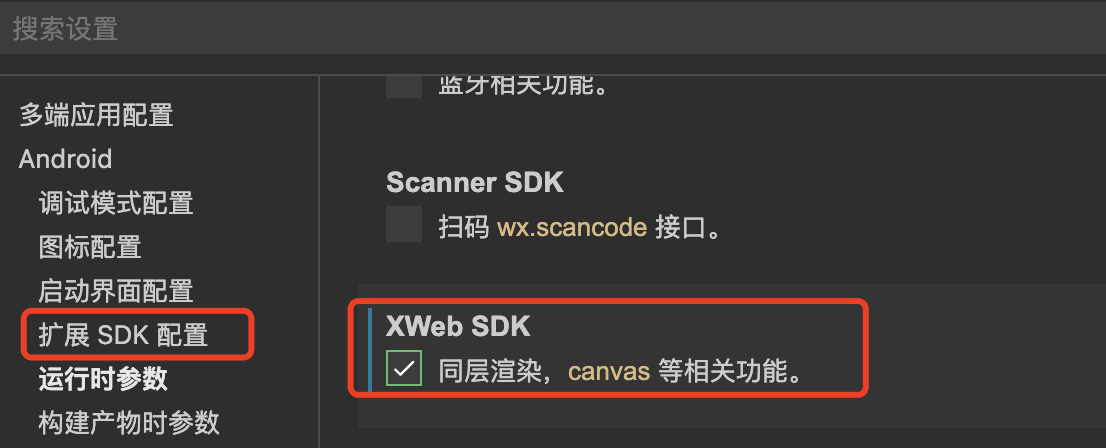
- This issue is caused by the missing Xweb extension module. View documentation
- You can enable the Xweb extension SDK in
project.miniapp.json
2. The targetSdk Version of the APK Package Does Not Meet the Requirements
- If your application is rejected when submitting to an app marketplace due to the targetSdkVersion not meeting the requirements, developers can refer to Set targetSdkVersion in Android to configure the targetSdkVersion. After setting it, rebuild the installation package.

3. The app submission was rejected because certain permissions were detected as being used without declaring their purpose, but the app does not actually use these permissions
- As shown in the image below, the rejection reason states: Hello, the SDK exhibits behavior of collecting and using personal information, but has not clearly disclosed the purpose, method, and scope of the SDK's collection and use of this information in the Privacy Policy. Please make corrections. Thank you (Violation point: (Sensor Data) WeChat third-party SDK retrieving sensor data)
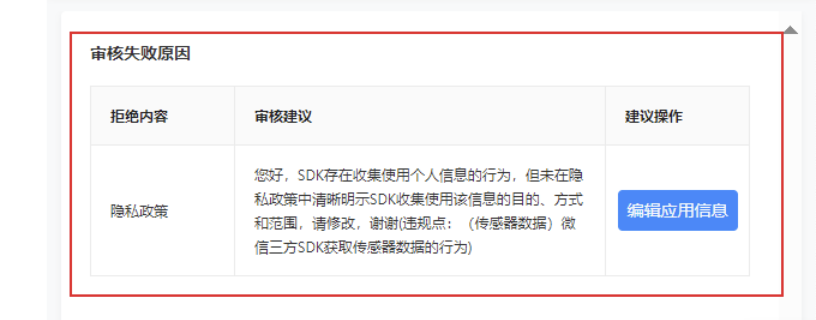
- In this situation, developers can switch
project.miniapp.jsonto JSON format and use theuselessPermissionsparameter to remove the relevant permission items. For details, refer to the Android System Permission Configuration Guide.
4. Same-layer rendering remains invalid after checking the xweb SDK in an Android app
- Please verify whether
"renderingMode": "seperated"is present in app.json, which forces the deactivation of same-layer rendering. - Please do not force the deactivation of same-layer rendering.
5. ERROR_NOCELL&WIFI_LOCATIONSWITCHOFF in Logs
- Please enable WLAN scanning; do not keep it turned off.
6. The Android app freezes on the splash screen and displays the prompt: "Debug mode enabled. Please restart"
- Developers should check for conflicts between
wx.setEnableDebugandenableVconsoleinproject.miniapp.json - For detailed rules regarding vConsole, refer to Enable vConsole
7. "Unsecure application blocked" appears when installing or launching the application
- Developers must set
targetSdkVersionto>= 33. For details, refer to Android targetSdkVersion
8. White Screen on Launch When Android OS Version Is Low
- You need to go to
project.miniapp.json, enable the XWEB Extension SDK, and then rebuild and reinstall the app package.
9. Base APK build fails with error: Cannot read property 'android' of undefined
- The cause of this error is that i18nInfo.json is empty. To resolve this, update the tools to the latest nightly version, then perform a build without clicking Run.
10. Base APK Build Failure, Error Message: error: resource drawable/splashscreen
- This error occurs because the splash screen path configured in
project.miniapp.jsonis incorrect or improperly formatted. Please ensure the correct splash screen is configured and then retry.
11. Build failed with error: error: invalid android projectPath: undefined
- Solution: Click [Upgrade Multi-Platform Project] again to re-upgrade the project interfaces. Alternatively, you can re-import the project.
4. iOS-Related
1. How to handle unresponsive simulator button clicks on iOS M1 Macs
Xcode Version ≥ 14.0
- Developers can resolve this issue by executing the command below in the terminal. (You can verify whether the Xcode simulator is running on the Intel architecture via "Activity Monitor")
arch -x86_64 /Applications/Xcode.app/Contents/Developer/Applications/Simulator.app/Contents/MacOS/Simulator
- The solution above may still be ineffective in newer versions of Xcode; developers may only be able to debug on physical devices.
Xcode Version < 14.0
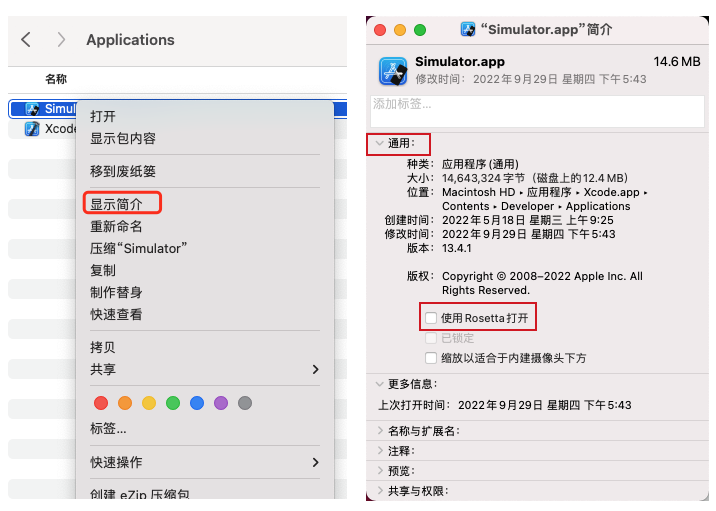
- Developers can resolve this issue by following the steps below to enable "Open Using Rosetta" for the simulator.
Step 1. Navigate to /Applications/Xcode.app/Contents/Developer/Applications/Simulator
Step 2. Right-click to open the simulator's Get Info, expand the "General" section, and check "Open Using Rosetta"
2. Issue with iOS Local Images Failing to Load
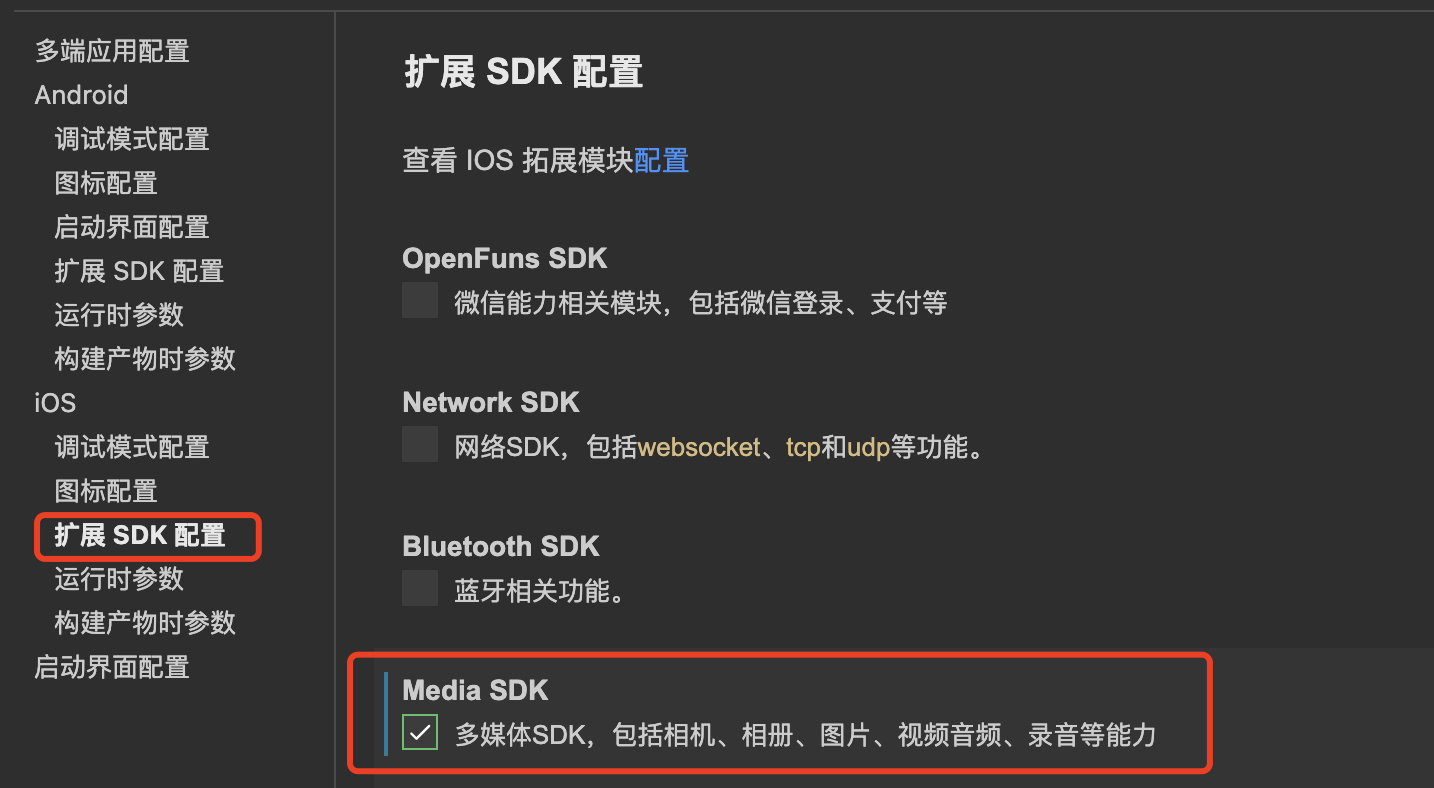
- This is caused by the missing Media extension module. View documentation
- You can enable the Media extension SDK in
project.miniapp.json - Note that the Media SDK has been split in newer versions of the Developer Tools. For details, refer to the Extension SDK Split Log
3. iOS build IPA error: createAssetsCar failed
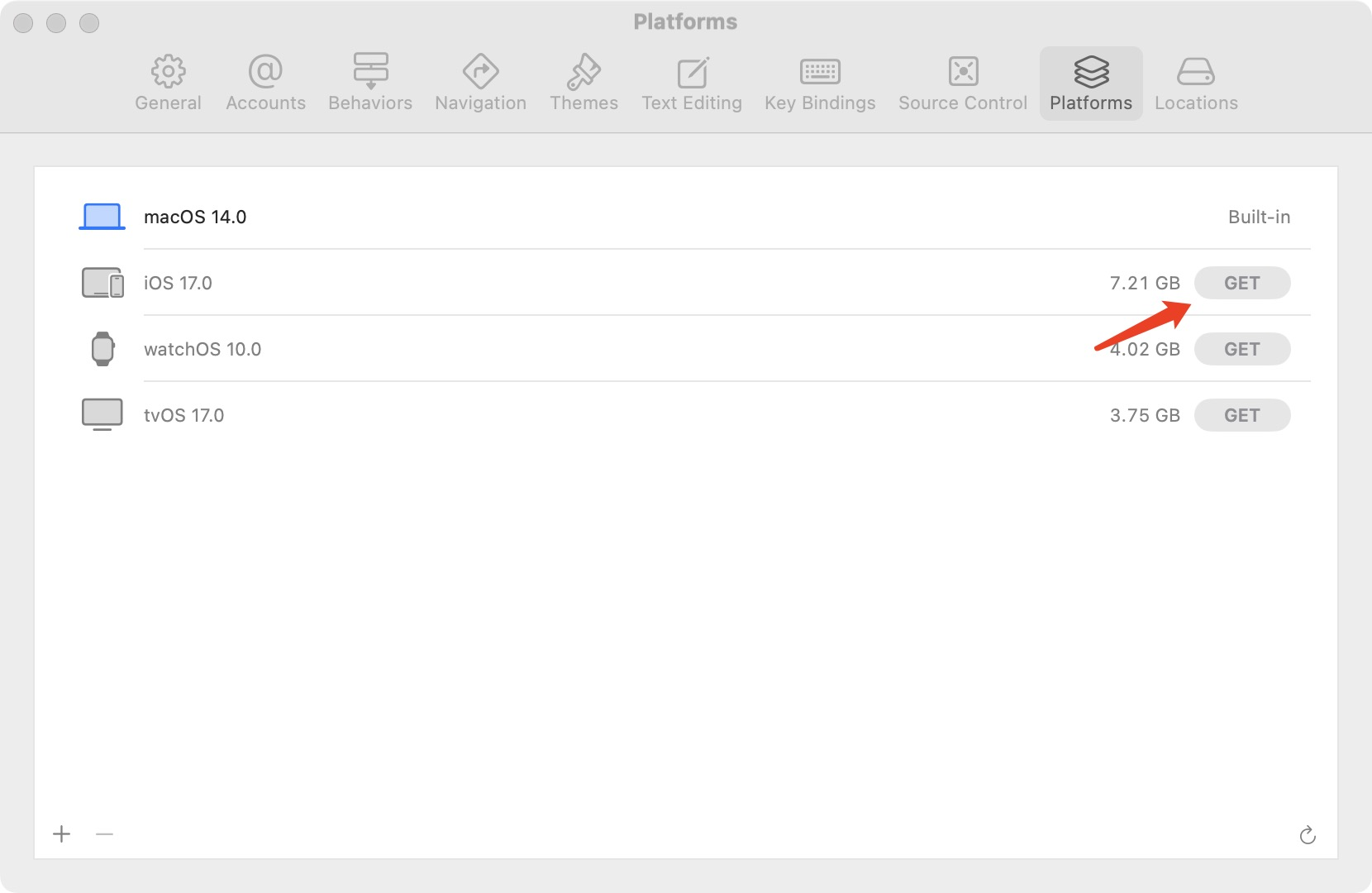
Xcode iOS SDK Not Installed
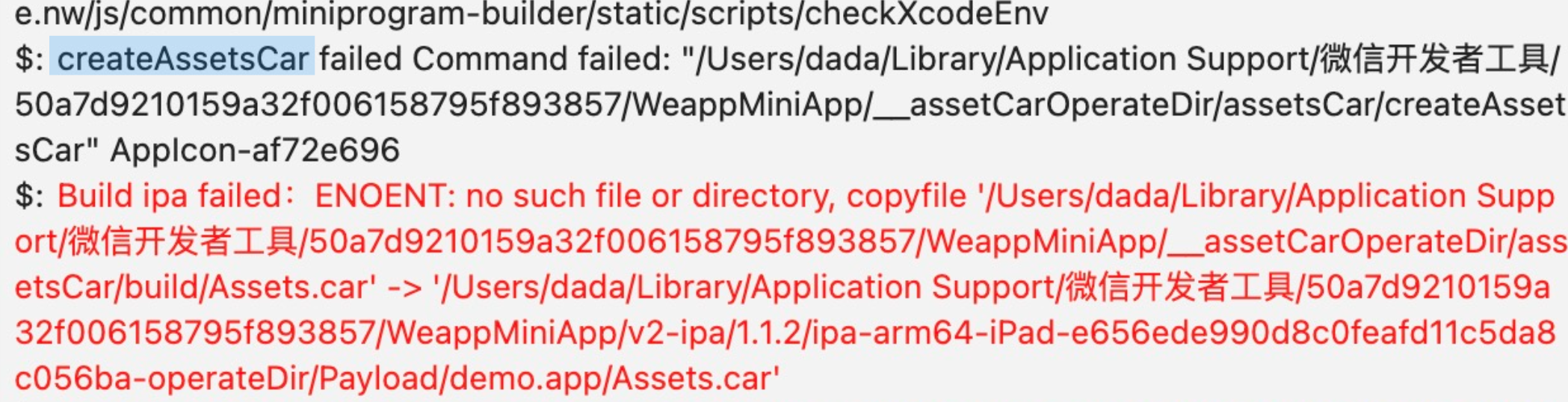
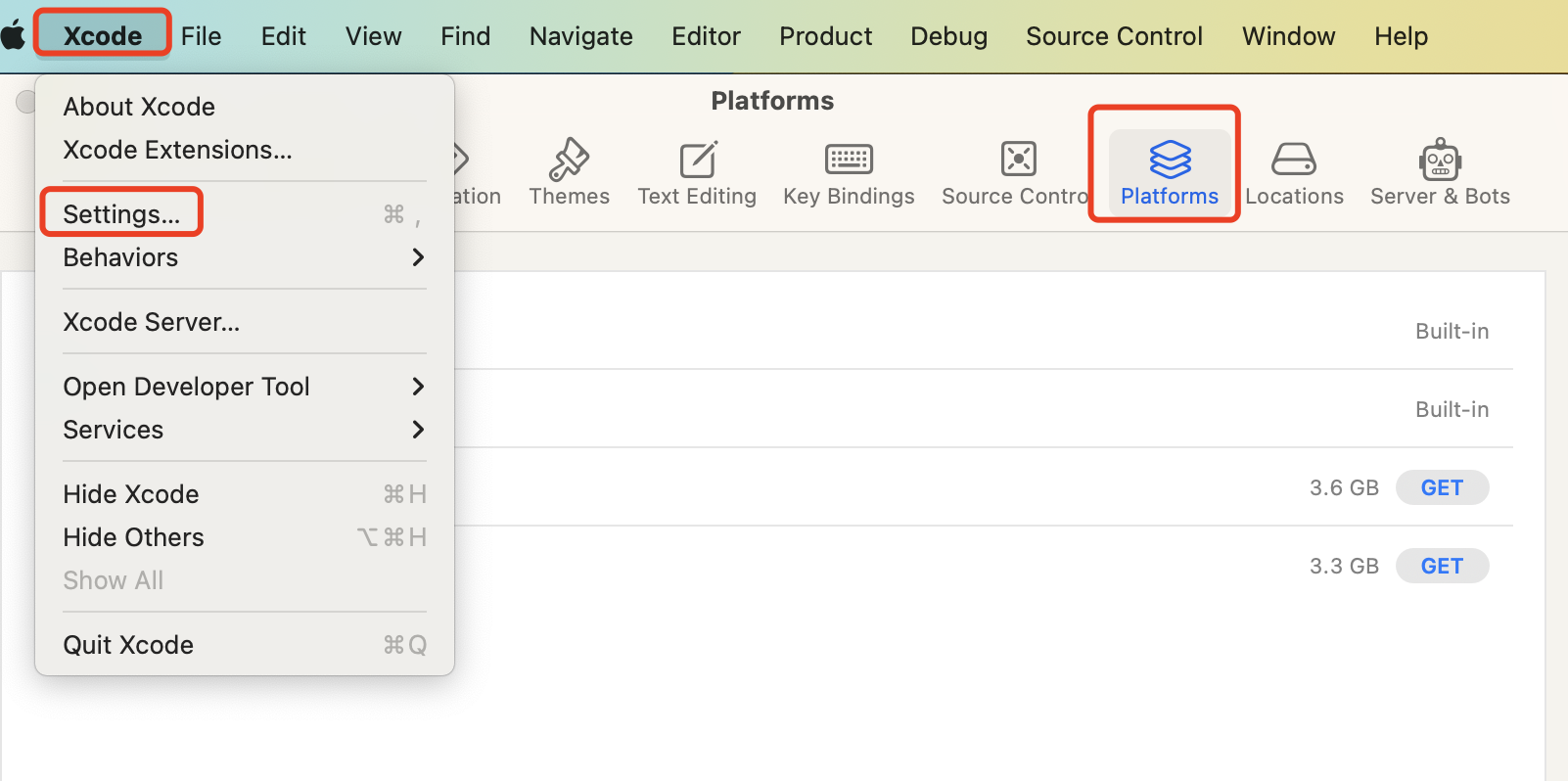
- It is possible that Xcode does not have the iOS SDK installed. You can check the installed SDKs by navigating to the path shown below.
- If it has not been installed yet, you can click "get" to install it.
Command Line Tool
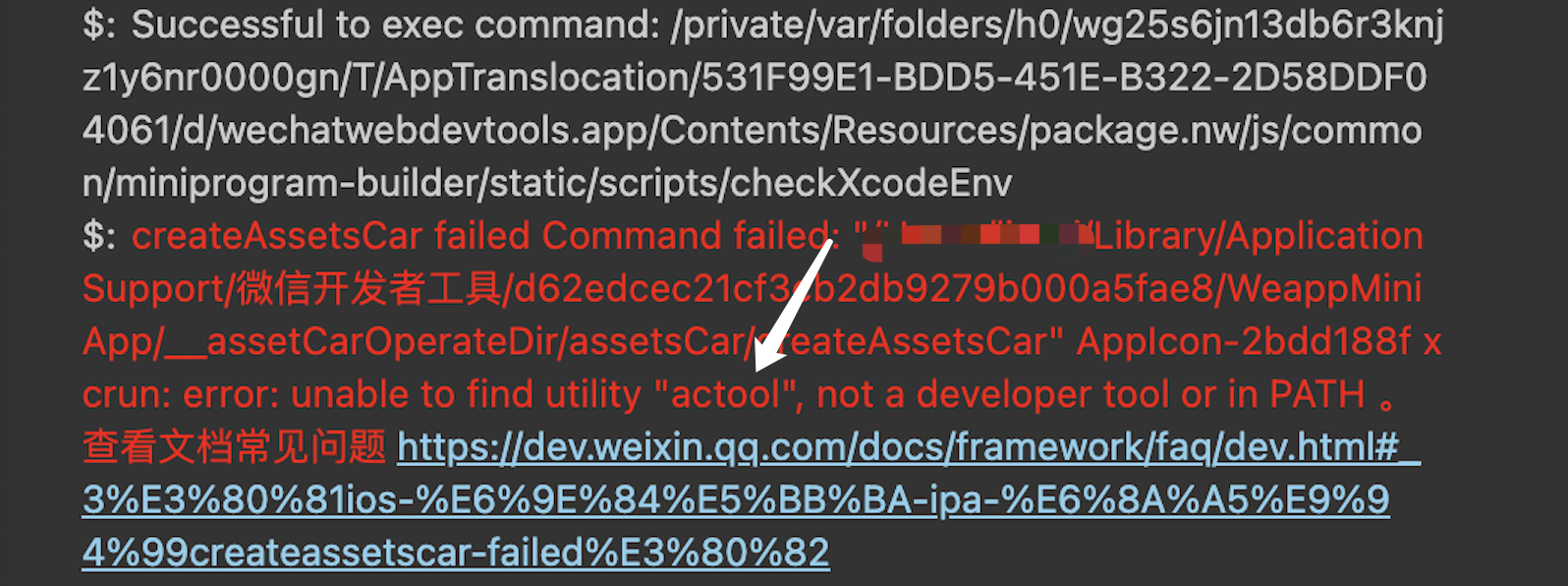
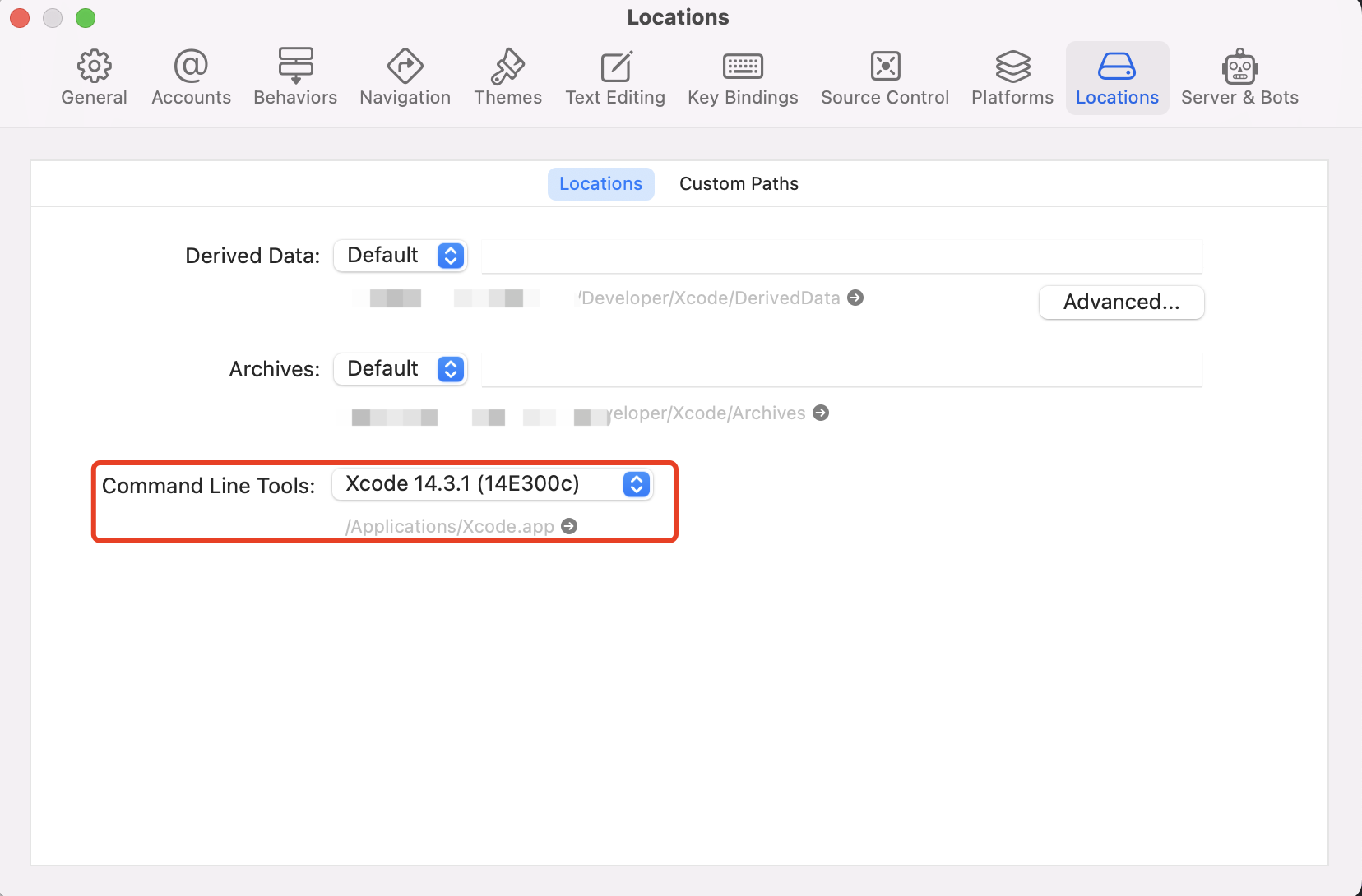
If the error xcrun: error: unable to find utility "actool", not a developer tool or in PATH . appears:
You need to configure the Command Line Tools in Xcode under Settings -> Locations.
4. Garbled Characters When Building IPA on Windows
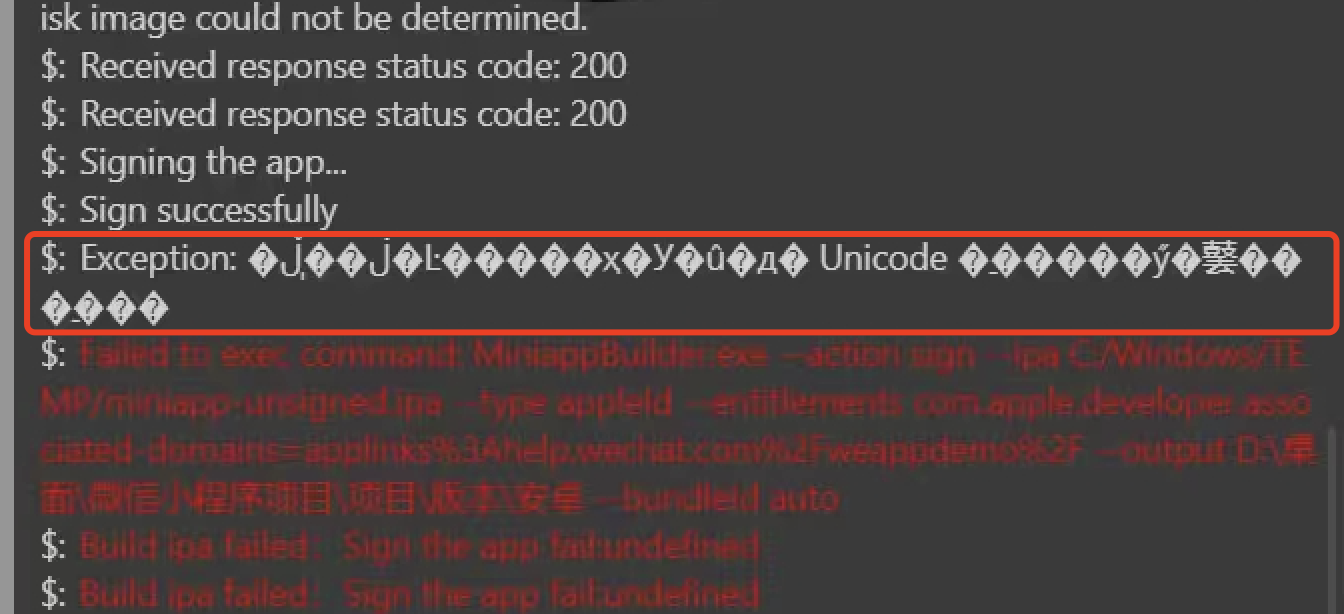
If the garbled character issue described above occurs, developers need to perform the following two operations:
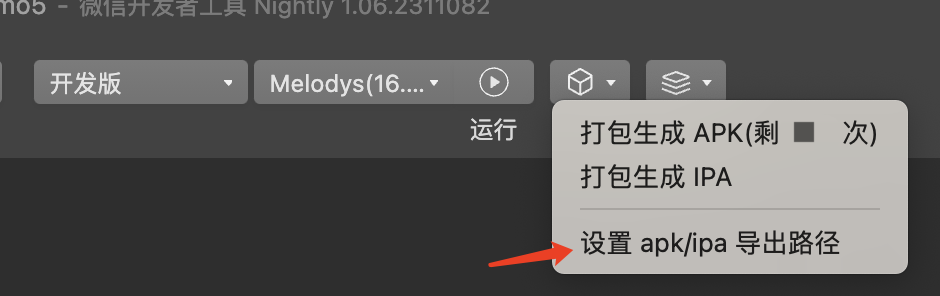
- Ensure the path for saving the IPA/APK does not contain Chinese characters.
- Set the system default encoding to UTF-8 (The default character encoding for Windows is GBK; this must be changed to UTF-8).
- Press the Win key and type "Region and Language Settings" (or "Region").
- Select "Manage language settings" (or "Administrative" tab > "Change system locale...").
- In the dialog box that appears, select "Change system region settings".
- Check "Beta: Use Unicode UTF-8 for worldwide language support" and click OK, then Apply.
- Restart the system. If issues persist, search online for solutions.
5. How to View Logs on iOS
-
With an iPhone connected to a Mac computer and the multi-platform app installed via developer tools, how do you view the app's logs?
-
Open the "Console" app on your Mac, select your iPhone from the list on the right, and click the
Startbutton at the top. -
Interact with your application on the phone to reproduce the issue.
-
Click the
Pausebutton on your Mac, click the search icon next to it, enterdemo, and select the process name as the category. -
You can now view the logs for the multi-platform app.
Notes:
-
If the app crashes, the last log entry generally displays the reason for the crash.
-
For other issues, please share the log content with us (export it to Note and save it as a file).
6. iOS - Asset validation failed (90034)
Problem Description
- Error Details
- Error Analysis: This type of error is usually caused by incorrect usage of certificates. The solution is as follows.
Solution
-
Operation flow:
-
Check whether a Distribution Certificate is used: Click "Signing Certificate Management - iOS Signing Certificate Management" -> Select "Yes" under "Use Distribution Certificate"
-
Check for certificates with the same name: Open "Keychain Access" and check if there are any certificates with the same name. If so, delete the duplicates and keep only one; otherwise, ambiguity may arise when entering the certificate name during packaging. Example error message:
iPhone Distribution: xxx (H9178ADUBS): ambiguous (matches "iPhone Distribution: xxx (H9178ADUBS)" and "iPhone Distribution: xxx (H9178ADUBS)" in /Users/xxxx/Library/Keychains/login.keychain) -
Error Scenario 1: Duplicate Distribution Certificates exist in the logged-in account
- Error Scenario 2: Duplicate Distribution Certificates exist in both the system account and the logged-in account
- Certificate Overview
iOS certificates come in various types for different purposes. Below is the classification of iOS certificates:
- **Developer Certificate**: Used to sign and debug applications during the development phase. Developer Certificates are issued by Apple Developer Center and require Xcode or other development tools for application and management.
- **Distribution Certificate**: Used to distribute applications to other users or upload them to the App Store for review. Distribution Certificates are issued by Apple Developer Center and require Xcode or other development tools for application and management.
- **Push Certificate**: Used to enable remote push functionality, allowing applications to receive push notifications from the server. Push Certificates are issued by Apple Developer Center and require Xcode or other development tools for application and management.
- **Enterprise Certificate**: Used to distribute applications to employees or clients within an enterprise. Enterprise Certificates are issued by Apple Developer Center and require Xcode or other development tools for application and management.
7. iOS - Asset validation failed (90717)
Problem Description
-
Error Details
Invalid App Store Icon. The App Store Icon in the asset catalog in 'demo.app' can't be transparent nor contain an alpha channel. (ID: ee9a621e-b195-4e79-a700-0fbb1aa1xxxx)
-
Error Analysis
When submitting an app to the App Store, the icon must not contain an alpha channel or transparency.
Solution
To disable the alpha channel of an image, refer to the following methods:
8. iOS - Selected certificate is not a valid certificate
- If a certificate is reported as invalid, you must install the Apple Global Developer Relations Intermediate Certificate. Generally, select the certificate related to Worldwide Developer Relations from the Apple Intermediate Certificates.
9. iOS Build Warning: dyld: Symbol not found
You need to upgrade macOS to >= 11.5.

10. Missing potentially required entitlement. Your app, or a library that's included in your app, uses Apple Push Notification service (APNs) registration APIs, but the APS Environment Entitlement isn't included in the app signature's entitlements. If your app uses APNs, make sure the App ID is enabled for push notifications in Certificates, Identifiers & Profiles, sign the app with a distribution provisioning profile that includes the APS Environment Entitlement, and upload a new build to ensure that push notifications function as intended.
- When this error occurs, developers need to go to the Apple backend to check if "Push Notifications" is selected.
- If it is not selected, but this error still appears, check the
project.miniapp.jsonfile in the WeChat Developer Tools to see if the message push feature is enabled. - If it is not enabled, switch
project.miniapp.jsonto JSON mode and check if"useExtendedLib_WeAppTPNS"is set totrue. If so, delete the line containing"useExtendedLib_WeAppTPNS"and rebuild the project.
11. Prompt displayed during iOS review submission: This app was built with the iOS 18.2 SDK. Starting April 28, 2026, all iOS and iPadOS apps must be built with the iOS 26 SDK or later, included in Xcode 26 or later, in order to be uploaded to App Store Connect or submitted for distribution.
As shown in the figure below:

To resolve this prompt, use the latest version of the SDK for the build (i.e., use SDK >= 1.7.0).
12. What to Do If a Multi-Platform App Crashes When Running on a Physical iOS 26 Device?
- If your phone has already been upgraded to iOS 26, an installation package built locally using the tools may not be installed and run directly on the phone, which will result in crashes.
- Therefore, if debugging is required, it is recommended to keep a phone running iOS 18 or an earlier version, or to choose the remote build method to generate the installation package and install it on the phone.
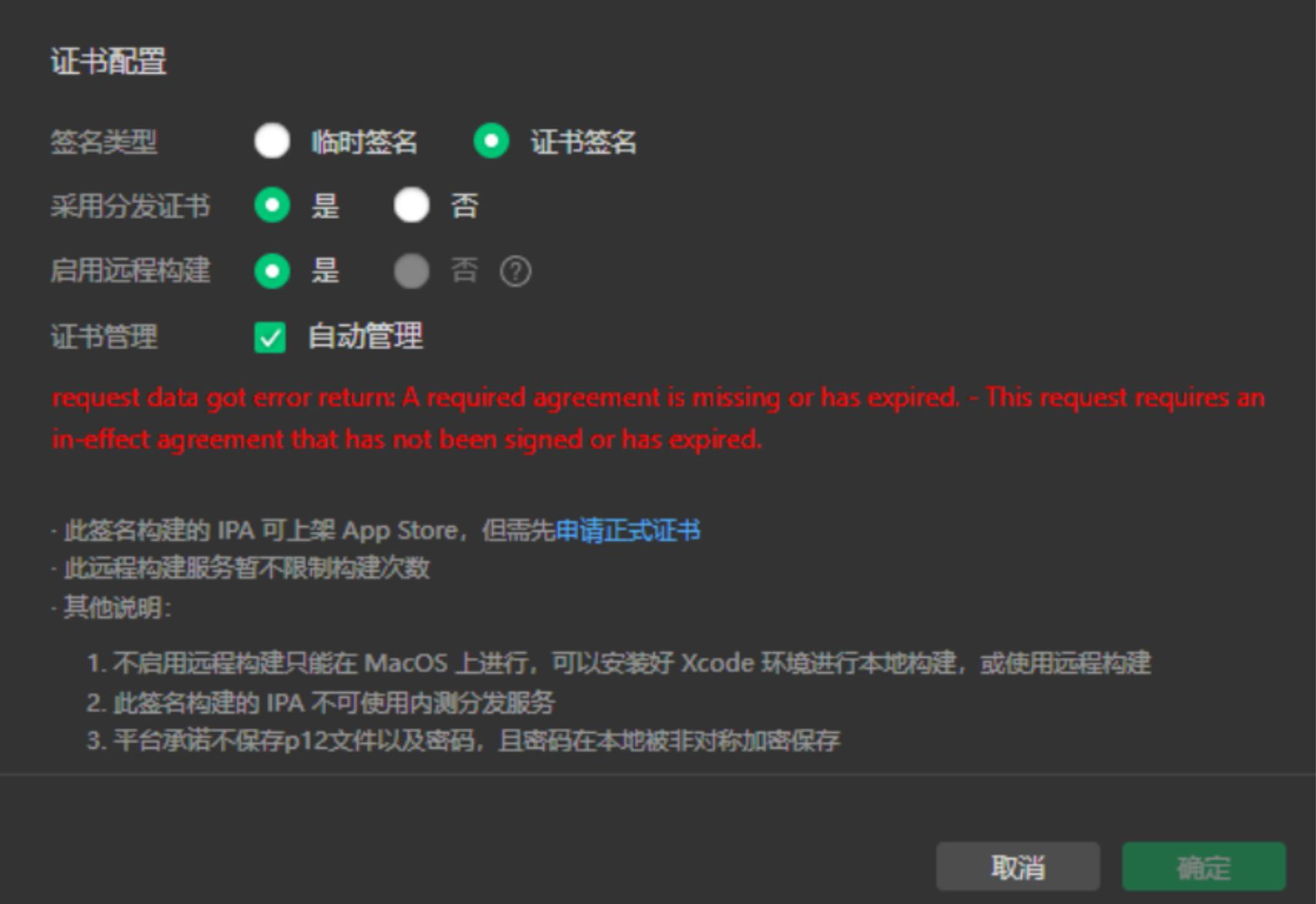
13. What to do when the error "request data got error return: A required agreement is missing or has expired. - This request requires an in-effect agreement that has not been signed or has expired." occurs?
If the error shown in the figure below appears, developers need to go to the Apple Developer Portal and accept the latest service agreement.
V. Multi-platform Application Console
1. "No available Mini Program to bind" error when binding Mini Program
- For a detailed troubleshooting guide, see Explanation of "No available Mini Program to bind"
6. Others
1. How to obtain the original ID of Mini Program
Retrieve It from the Official WeChat Platform
- Log in to Official WeChat Platform -> Enter the Mini Program console -> "Settings" -> "Basic Settings" -> "Account Information"
Retrieve it in Weixin Mini Program
- Search for the target Mini Program in WeChat -> Open the target Mini Program -> View the "More Information" of the target Mini Program
2. When invoking the Mini Program plugin, an error message appears: Mini Program plugin id [wxxxx] is not in the whitelist. Please contact official support.
- If you encounter this issue, contact the Community Assistant for resolution.